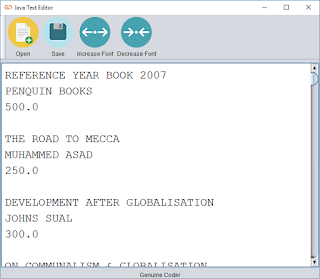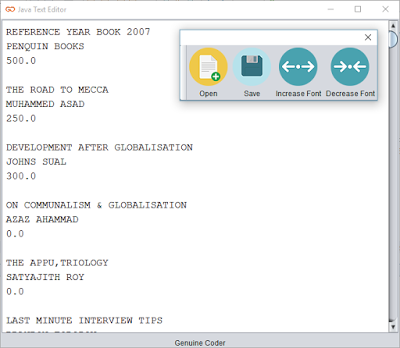
Today, I am going to make a Text Editor program using our Java. Yeah, Like notepad. I want to add some basic functionalities like Opening a file, Saving a file and option to change the font size. It will only take less than 100 lines of code to do this (Excluding User Interface).
I started with the toolbar javax.swing.JToolBar and added 4 buttons. Button with simple label logo and text for open,save and font size changing. The display area is simply a JTextArea with monotype font.
Opening a Text File
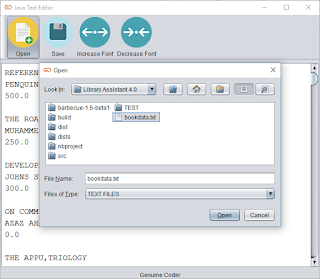
It is pretty straightforward to use JFileChooser to select a file. When I started thinking about opening a file, I wanted a File Chooser that filter and display only text files.Thanks to FileNameExtensionFilter from javax.swing.filechooser.FileNameExtensionFilter. I am able to display only text files on the JFileChooser using the code
FileNameExtensionFilter filter = new FileNameExtensionFilter("TEXT FILES", "txt", "text");
fileOpener.setFileFilter(filter);
When the user selects a file and click open, The Scanner from java.util.Scanner is used to read the file.
Scanner scn = new Scanner(file);
String buffer = "";
while (scn.hasNext()) {
buffer += scn.nextLine() + "\n";
}
display.setText(buffer);
The “file” is nothing but the file taken from the JFileChooser and the while loop will continue until the end of file. “display” is the name of JTextArea, our display.
Saving a Text File
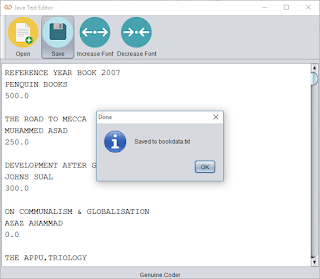
A global file variable called “currentEditingFile” is maintained to know whether we are working on a new, unsaved data or on an opened file. If “currentEditingFile” is null we have a new uncreated file. So the saving method will look to “currentEditingFile” and if it is null a JFileChooser will be opened to select the location for the new file. After selecting the directory, file name is taken from JOptionPane input dialog.
The file is then written onto the file Using PrintWriter from java.io.PrintWriter.
Changing Font Size
A global variable with default font size as 14 is maintained and increased or decreased depending upon the button pressed.
display.setFont(new java.awt.Font("Monospaced", 0, ++fontSize)); //Increase font size
display.setFont(new java.awt.Font("Monospaced", 0, --fontSize)); //Decrease font size
Extra Works
It is not acceptable to exit the program without any notice when the user clicks on the Close button. In order to add a save confirmation, i made an override on the Window Closing operating and added a confirmation message. It is done from the constructor itself
this.addWindowListener(new WindowAdapter() {
@Override
public void windowClosing(WindowEvent e) {
super.windowClosing(e); //To change body of generated methods, choose Tools | Templates.
int ans = JOptionPane.showConfirmDialog(rootPane, "Save Changes ?", "Confirm", JOptionPane.YES_NO_OPTION, JOptionPane.QUESTION_MESSAGE);
if (ans == JOptionPane.YES_OPTION) {
//Write Changes
saveChanges();
}
}
});
So that’s it. Download the program / source code from below buttons. If this was helpful please like me on facebook and keep visiting for more cool programs and sources.
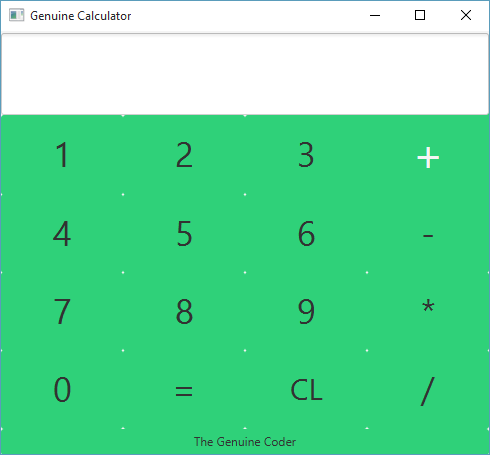
JavaFX is a wonderful improvement to Java programming language. It includes a wide number of new user interface controls and the ability to add cascade style sheets (CSS), Animations etc. Today, Let’s see how we can build a beautiful calculator in JavaFX with CSS styling. This tutorial is done using NetBeans IDE and JavaFX Scene Builder 2.0. Watch The Complete Tutorial Video below.
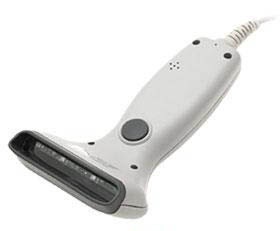
As you might have heard, Bracode readers are special input devices for computers to read barcode. Barcode reader first scan the barcode using a light beam( usually a laser beam ) and analyze the width and distance between the bars. After successful scanning it convert the data into ASCII code which can be decoded by our computer. Simply we can say, a ps/2 barcode reader is same as that of a keyboard. Both generates the same ASCII code for representing an alphanumeric character. For more about ascii, read my article.
A ps/2 barcode readrer is the simplest at the same time more efficient for general purposes. In C++ the header file iostream.h defines cin, cout commands for standard input and output operations respectively. As default, keyboard is the standard input device. Since our ps/2 barcode reader can act as an alternative keyboard by reading and sending ASCII codes to the computer, surely we can use our cin command for data input.
I hope it is clear for you now. For further study, Let’s just analyze the below situation. Imagine you have a barcode containing data ‘1001’. When you scan it with barcode reader it generates a signal in ASCII code and send it to computer in the same way when you press ‘1001’ using your keyboard. The computer can’t distinguish from where the data came. So further processes can be programmed as our intentions.
There are a lot of type barcode readers. For general purposes like supermarket, library programs, i recommend ps/2 barcode reader which can be used along with our keyboard. let’s just take a sample c++ program to read from barcode reader.
#include<iostream>
#include<conio.h>
using namespace std;
void main() {
int a = 0;
//Scan a barcode (simple barcode containing a number ). Don't use keyboard
cin >> a;
if (a) {
cout << "n Data Received !n" << "Barcode is :" << a;
}
return;
}
In this tutorial, I would like to post a visual c++ console application source for a program that displays ASCII values as a table. It will be helpful in basic programming to detect the input character. You can compile this program using visual c++ or other compilers. ASCII is a set of special type of codes that will distinguish characters in computer memory. But because of its less capability for maintaining more characters and symbols, now it is replaced by UNICODE.
C program to print ASCII code and corresponding character
#include<iostream>
using namespace std;
void main() {
char ch = '60';
int counter = 60;
while (counter < 137) {
cout << "ASCII Code for " << ch << " is " << 'ch' << "n";
ch++;
++counter;
}
system("pause");
return;
}
ASCII Table and Description
ASCII stands for American Standard Code for Information Interchange. Computers can only understand numbers, so an ASCII code is the numerical representation of a character such as ‘a’ or ‘@’ or an action of some sort. ASCII was developed a long time ago and now the non-printing characters are rarely used for their original purpose. Below is the ASCII character table, and this includes descriptions of the first 32 non-printing characters. ASCII was actually designed for use with teletypes and so the descriptions are somewhat obscure. If someone says they want your CV however in ASCII format, all this means is they want ‘plain’ text with no formatting such as tabs, bold or underscoring – the raw format that any computer can understand. This is usually so they can easily import the file into their own applications without issues. Notepad.exe creates ASCII text, or in MS Word you can save a file as ‘text only’