Tag: JavaFX 3D

  • JavaFX 3D Tutorial #12 – Depth Buffer

    JavaFX 3D Tutorial #12 – Depth Buffer

    So far, we have learned about the basics of 3D. We created 3D objects, prepared detailed textures, worked with animation etc. In this chapter, we will talk about the requirement of depth buffer.

    What is Depth Buffer?

    Depth buffering or Z-Buffering is a computer graphics technique used to determine surface depths at each pixel to decide which objects are visible. For example, when there are couple of objects in the scene graph, some edges of will be on top and some will be behind others. In order to identify and render these properly, it is important to fix the depth of each of the objects at each pixels.

    By default, in JavaFX Scenes, depth buffer is disabled. But, it can be easily enabled by using the following overridden constructor.

    Scene(Parent root, double width, double height, boolean depthBuffer)

    Just pass the final parameter as true and depth buffer will automatically enabled.

    SmartGroup group = new SmartGroup();
    group.getChildren().add(createBox());
    
    //Create new scene with depth buffer enabled
    Scene scene = new Scene(group, WIDTH, HEIGHT, true);


    Effects of not enabling depth buffer

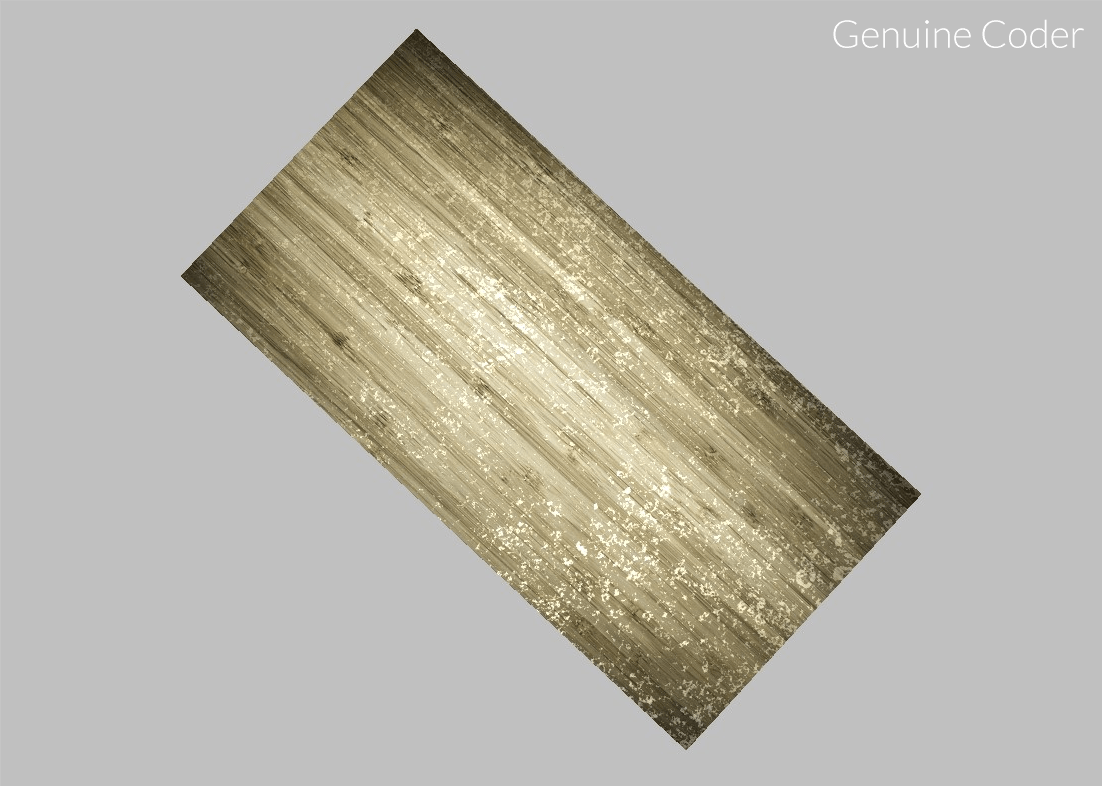
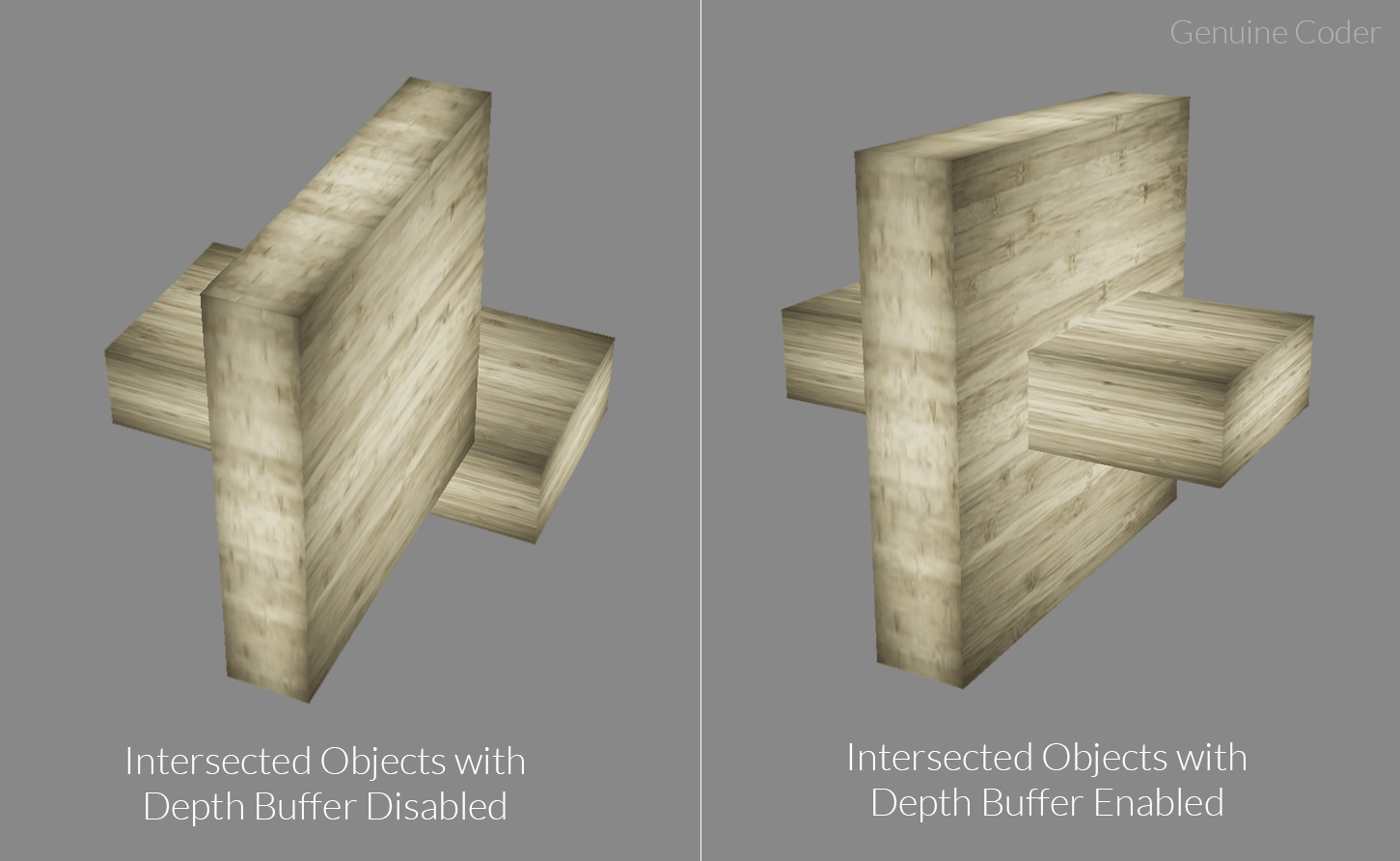
    Following image shows the effect of using depth buffer. In the first image (image on the left), the wooden boxes were supposed to merged. But, since depth buffer is not used, the rendering is not proper and they appear to be two different boxes. When depth buffer is enabled, it is rendered correctly as it can be seen in the second image.

    JavaFX Depth Buffer Enabled / Disabled

    Visit JavaFX 3D Course Index Page

  • JavaFX 3D Tutorial #11 – Bump Maps for Wringles

    JavaFX 3D Tutorial #11 – Bump Maps for Wringles

    In the last chapter, we saw how to create glowing objects with self illumination. In this chapter, we will see about bump mapping in JavaFX.

    Bump Maps

    According to Wikipedia, Bump mapping is a computer graphics technique for simulating bumps and wrinkles on the surface of an object. Surfaces are not always super smooth. They mostly have some form of deformations. Bump mapping allows to add this extra detail to the surface.

    JavaFX PhongMaterial provides option to set bump maps using the method.

    public final void setBumpMap(Image value)

    Let’s have a look at example code snippet.

    PhongMaterial material = new PhongMaterial();
    material.setDiffuseMap(new Image(getClass().getResourceAsStream("wood.jpg")));
    
    //Set bump map
    material.setBumpMap(new Image(getClass().getResourceAsStream("bumpMap.jpg")));
    
    Box box = new Box(100, 20, 50);
    box.setMaterial(material);
    return box;


    Visit JavaFX 3D Course Index Page

  • JavaFX 3D Tutorial #10 – Self Illumination

    JavaFX 3D Tutorial #10 – Self Illumination

    In JavaFX 3D, you can make use of self illumination maps to provide glowing effects for objects. Self illumination allows to add extra details for the objects.

    Self Illumination Map

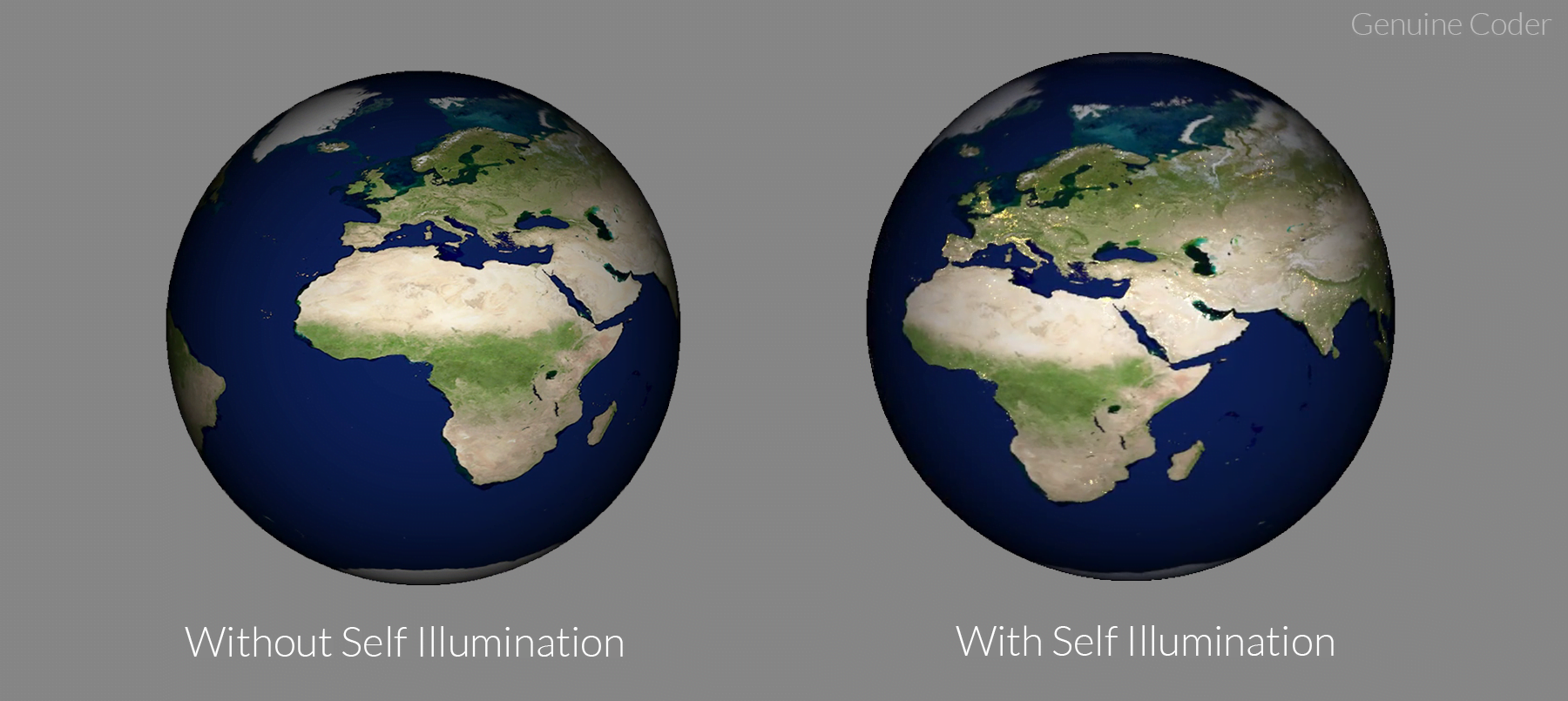
    Self illumination map allows to add an additional glow to the image. You can see the effect in the following image.

    JavaFX Self Illumination Example

    JavaFX PhongMaterial provides an option to set illumination map using the method

    public final void setSelfIlluminationMap(Image value)

    It takes an image as parameter. The glow color will be the color used in image. A dark pixel doesn’t contribute to the glow. For example, in the above earth illumination case, I have used following illumination map.

    Earth’s illumination map


    PhongMaterial material = new PhongMaterial();
    material.setDiffuseMap(new Image(getClass().getResourceAsStream("wood.jpg")));
    
    //Set self illumination map
    material.setSelfIlluminationMap(new Image(getClass().getResourceAsStream("illuminationMap.jpg")));
    
    Box box = new Box(100, 20, 50);
    box.setMaterial(material);
    return box;


    Visit JavaFX 3D Course Index Page

  • JavaFX 3D Tutorial #9 – Moving Light Animation

    JavaFX 3D Tutorial #9 – Moving Light Animation

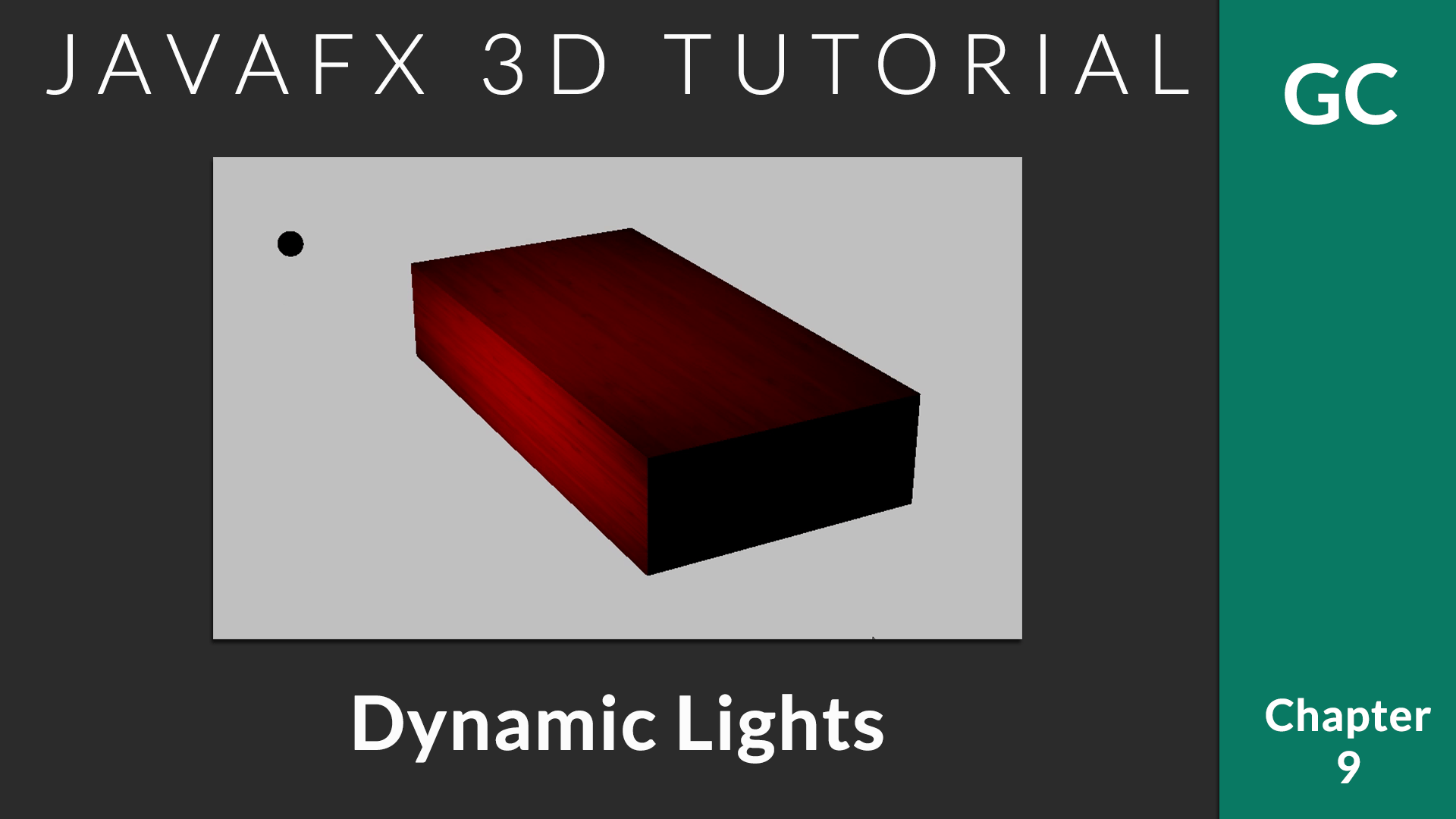
    In the last chapter, we saw how to add lights to the 3D scene. In this chapter, we will see how a moving light works.

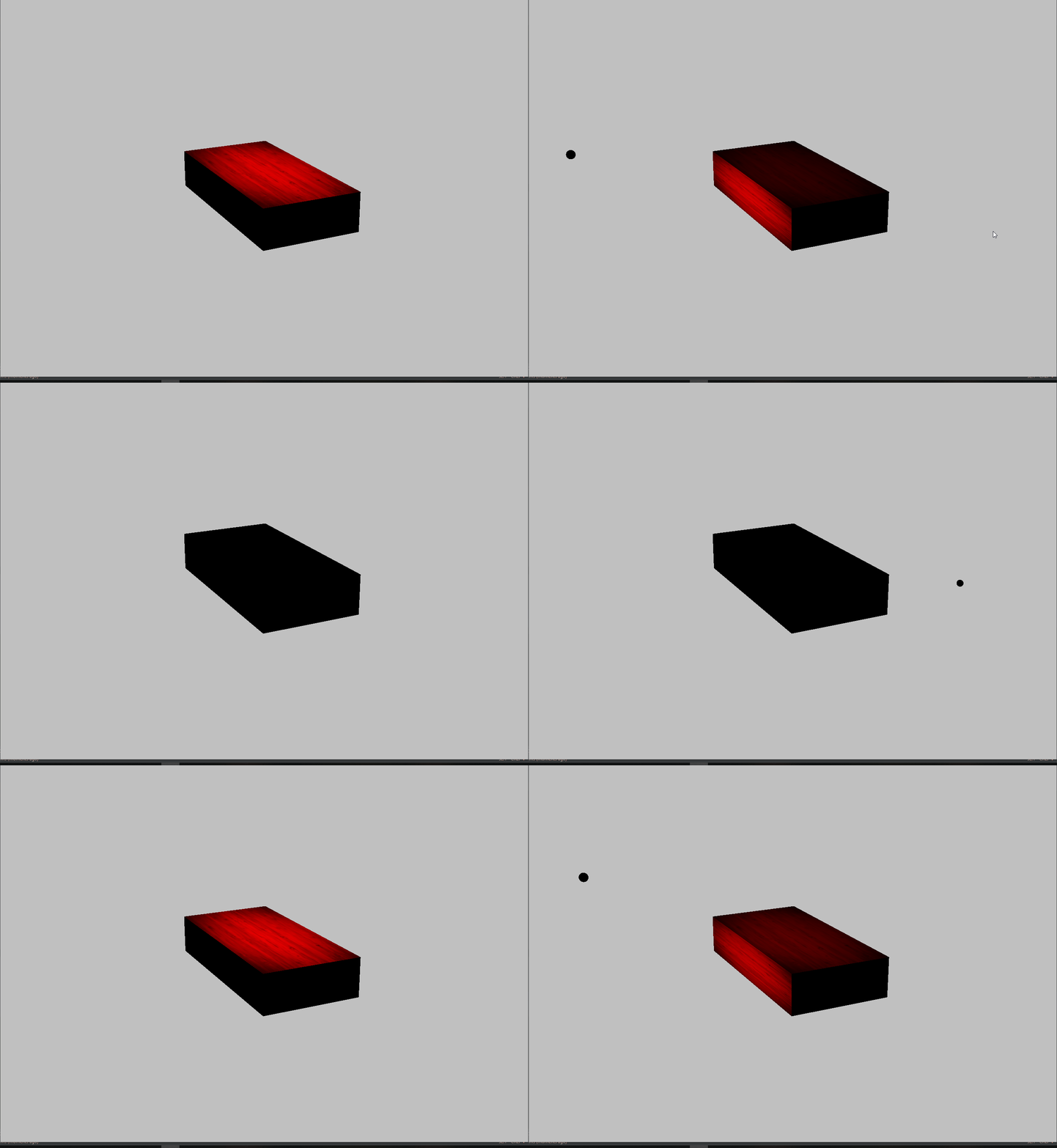
    You can add as many lights as you need. To animate the light sources, you can use predefined animations from javafx.animation package like TranslateTransition, RotateTransition etc or custom animations can be applied. In this example, I will write a custom rotation animation to get the following effect.

    JavaFX Light Animation

    Moving Light Animation

    We can create the rotation effect for the light source using rotateProperty. The important thing here is to specify the axis of rotation. We have the freedom to rotate the object in 360 degrees. In this example, I am rotating light source about X Axis.

    AnimationTimer will be called during each frame rendered. We can update the transform properties of objects to create smooth animation. In this example, I have increased rotation angle of light source by 1 degree during each frame.

    You can speedup the animation by increasing the value ‘1’ to a higher one. Animation speed can be reduced by reducing the value.

    private Node[] prepareLightSource() {
        //Create point light
    	pointLight.setColor(Color.RED);
    	pointLight.getTransforms().add(new Translate(0, -50, 100));
    	//Set axis of rotation
    	pointLight.setRotationAxis(Rotate.X_AXIS);
    
    	//Create a small sphere to locate the light source (Light source is invisible)
    	Sphere sphere = new Sphere(2);
    	//Attach sphere transforms to point light. So they move/rotate together
    	sphere.getTransforms().setAll(pointLight.getTransforms());
    	sphere.rotateProperty().bind(pointLight.rotateProperty());
    	sphere.rotationAxisProperty().bind(pointLight.rotationAxisProperty());
    
    	//Return lights
    	return new Node[]{pointLight, sphere};
    }
    
    @Override
    public void start(Stage primaryStage) {
    	Box box = prepareBox();
    
    	SmartGroup group = new SmartGroup();
    	group.getChildren().add(box);
    	//Add light and sphere
    	group.getChildren().addAll(prepareLightSource());
    
    	Camera camera = new PerspectiveCamera(true);
    	camera.setNearClip(1);
    	camera.setFarClip(1000);
    	camera.translateZProperty().set(-200);
    
    	Scene scene = new Scene(group, WIDTH, HEIGHT);
    	scene.setFill(Color.SILVER);
    	scene.setCamera(camera);
    
    	group.translateXProperty().set(0);
    	group.translateYProperty().set(0);
    	group.translateZProperty().set(0);
    
    	initMouseControl(group, scene, primaryStage);
    
    	primaryStage.setTitle("Genuine Coder");
    	primaryStage.setScene(scene);
    	primaryStage.show();
    
    	//Create animation timer
    	AnimationTimer timer = new AnimationTimer() {
    	  @Override
    	  public void handle(long now) {
    		//Increase rotation angle by 1 degree during each frame.
    		pointLight.setRotate(pointLight.getRotate() + 1);
    	  }
    	};
    	//Start animation automatically during startup
    	timer.start();
    }


    Visit JavaFX 3D Course Index Page

  • JavaFX 3D Tutorial #8 – Lighting with PointLight and AmbientLight

    JavaFX 3D Tutorial #8 – Lighting with PointLight and AmbientLight

    In this chapter, we will see how to add lighting to the JavaFX 3D. Lighting is one of the most important parts in 3D application development since it decides what should be visible at a point of time.

    JavaFX provides two options for lighting. One is AmbientLight and another one is PointLight.

    Ambient Light

    An ambient light radiates lights equally in all directions. When it is used, all the surfaces of the 3D object get equal amount of light. It can be considered as a natural default light.

    Let’s see how we can add Ambient Light. You can give the color of the light by using setColor() method.

    private LightBase prepareLightSource() {
            //Create light object
    	AmbientLight light = new AmbientLight();
    	//Set light color
    	light.setColor(Color.DEEPSKYBLUE);
    	return light;
    }
    

    Screenshot:-

    Point Light

    A point light can be considered as a light bulb that emits light in all directions. You can think of a point light as a sphere of light filling an area. Objects closer to the light will be brighter, and objects further away will be darker. JavaFX allows to add point light using javafx.scene.PointLight class.

    private LightBase prepareLightSource() {
    	//Create point light
    	PointLight pointLight = new PointLight();
    	//Set light color
    	pointLight.setColor(Color.RED);
    	//Set location of light source
    	pointLight.getTransforms().add(new Translate(0,-50,100));
    }
    

    Screenshot:-

    Visit JavaFX 3D Course Index Page

  • JavaFX 3D Tutorial #7 – Reflection with Specular Map

    JavaFX 3D Tutorial #7 – Reflection with Specular Map

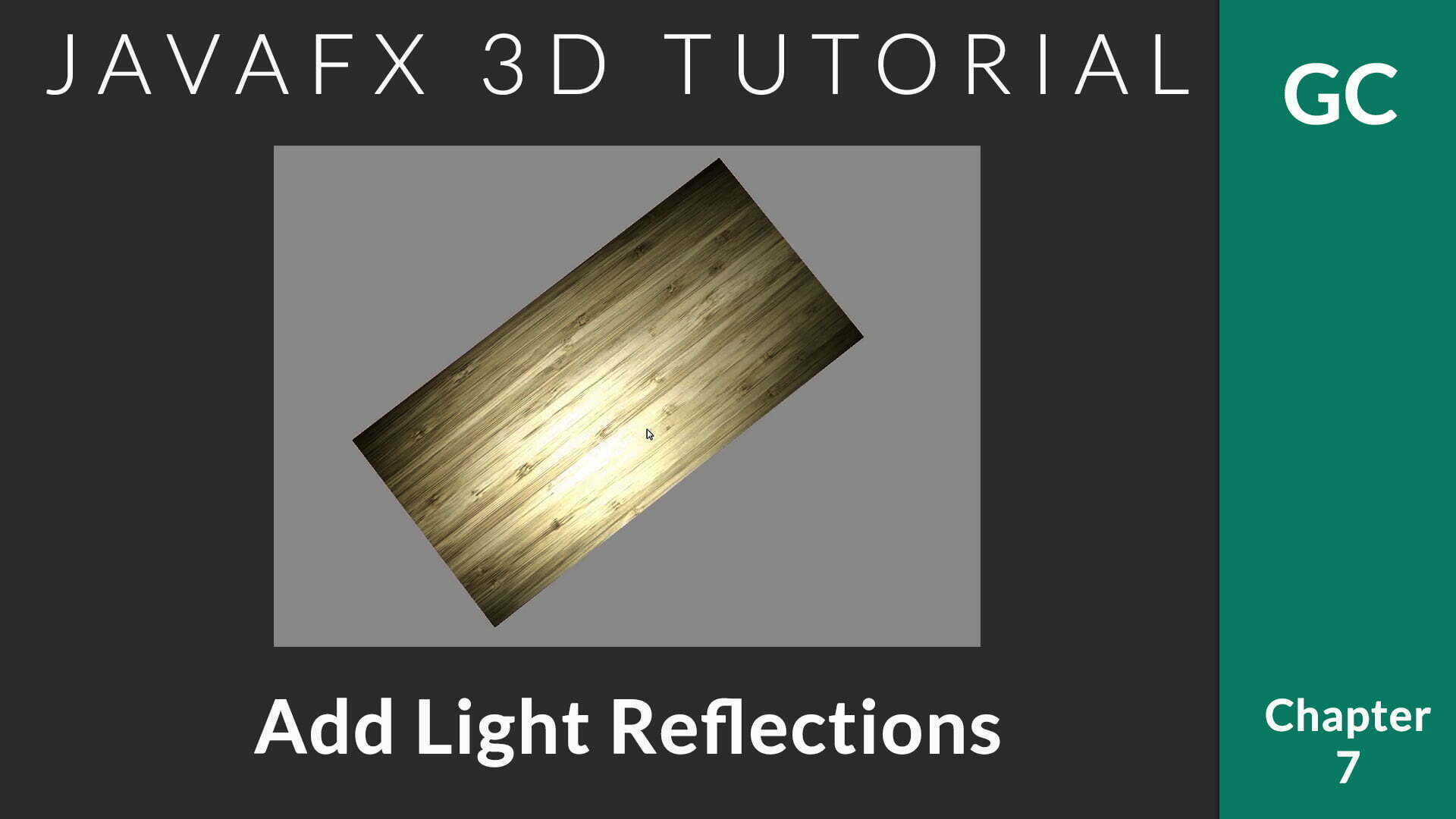
    In the 6th chapter, we talked about giving wooden texture to the object. Today, let us see how to give reflection to surfaces in JavaFX 3D. JavaFX provides option to specify specular maps as either image or a color.

    Specular Map

    Specular maps allows to define a surface’s shininess and highlight colour. The higher the value of a pixel (from black to white), the shinier the surface will appear. Black provides zero reflection and white provides total reflection.

    If you want the surface to be having uniform reflection, then use a specular color with Material#setSpecularColor(Color color). Or use Material#setSpecularImage(Image image).

    Let’s have a look at the example code.

    private Box prepareBox() {
       PhongMaterial material = new PhongMaterial();
       //Set diffuse map
       material.setDiffuseMap(new Image(getClass().getResourceAsStream("/resources/wood.jpg")));
       //Set specular map
       material.setSpecularMap(new Image(getClass().getResourceAsStream("/resources/illuminati.jpg")));
    
       Box box = new Box(100, 20, 50);
       box.setMaterial(material);
       return box;
    }
    

    and the result will be

    JavaFX 3D Box with Reflection


    Specular Map used


    Visit JavaFX 3D Course Index Page

    Meta titles: JavaFX Reflection, JavaFX 3D Specular Map

  • JavaFX 3D Tutorial #6 – Textures with Diffuse Map

    JavaFX 3D Tutorial #6 – Textures with Diffuse Map

    In this chapter, we will talk about applying textures with diffuse map. In 3D programming, texture is one of the most important parts because it provides that actual look and feel of an object by adding details on its surface.

    JavaFX and PhongMaterial

    In the javafx.scene.paint package, you can see a class that extends Material abstract class, the PhongMaterial. PhongMaterial allows to create virtual materials that can be applied over your 3D object to create real-world like objects.

    Before diving directly in to the code, let’s have a look at what exactly is the Diffuse Map.

    What is a Diffuse Map ?

    According to the definition, Diffuse mapping (also know as texture mapping) refers to a computer graphics method that simply wrapped and mapped pixels from a texture to a 3D surface. It defines the color property of the surface. For example, if you want to color your object to red, you simply apply red diffuse map over it, it will become red.

    If you would like to read more about it, have a look at cryengine doc.

    Apply Color Over The Surface

    JavaFX PhongMaterial provides two option to apply a diffuse map. Either using a color or using an image. If you use a color, then the whole object will be painted with that color.

    Let’s see how setting a color works.

    //Create Material
    PhongMaterial material = new PhongMaterial();
    //Applying JavaFX Diffuse Map with Color Royal Blue[/caption] Royal blue color
    material.setDiffuseColor(Color.ROYALBLUE));
    Box box = new Box(100, 20, 50);
    //Apply material for the box
    box.setMaterial(material);


    JavaFX: Royal blue color applied as Diffuse Map

    So, using the PhongMaterial’s setDiffuseColor(Color.ROYALBLUE), we set the color of the surface. You can set any color you want.

    Apply Texture Over The Surface

    Colors are suitable in some cases. But, in most cases, we need something more complex than some simple colors. JavaFX provides option to set diffuse map using an Image. You can simply apply any image as texture for your object.

    Let’s see how a wooden texture works on our box.

    //Create Material
    PhongMaterial material = new PhongMaterial();
    //Applying wooden texture
    material.setDiffuseMap(new Image(getClass().getResourceAsStream("wood.jpg")));
    Box box = new Box(100, 20, 50);
    //Apply material for the box
    box.setMaterial(material);
    

    And it looks as follows. Pretty awesome, right?

    JavaFX Diffuse Map with Woode Image

    and that’s it. It is just 3 lines of code to apply a complex texture on your object. If you look at the set* methods of PhongMaterial, you will find a lot more methods. The thing is, diffuse map is just a start. You can make your objects with great amount of detail with these options. We will discover those methods in the upcoming chapters.

    Visit JavaFX 3D Course Index Page

  • JavaFX 3D Tutorial #5 – More fine mouse control – Zoom in and Zoom out

    JavaFX 3D Tutorial #5 – More fine mouse control – Zoom in and Zoom out

    In this chapter, we will implement the mouse zoom control. Currently we have complete rotation freedom on the mouse. With Zoom in/out effect, we can control the Z-axis.

    This zoom control will be based on mouse scrolling. JavaFX provides option to listen for mouse scroll event. We will make use of that.

    //Attach a scroll listener
    stage.addEventHandler(ScrollEvent.SCROLL, event -> {
            //Get how much scroll was done in Y axis.
    	double delta = event.getDeltaY();
            //Add it to the Z-axis location.
    	group.translateZProperty().set(group.getTranslateZ() + delta);
    });
    

    ScrollEvent.SCROLL allows to track the scrolling. JavaFX provides support for tracking horizontal scrolling (which can be obtained using event.getDeltaX()) as well as vertical scrolling (which can be obtained using event.getDeltaY()). Currently we are interested in vertical scrolling only.

    When we scroll upward, the value will be positive. Then the Z axis value will increase and object will go away. When the scroll is downward, Z value will be decreased and the object will come closer.

    Visit JavaFX 3D Course Index Page

  • JavaFX 3D Tutorial #4 – 3D Object Transform (Rotation) with Mouse

    JavaFX 3D Tutorial #4 – 3D Object Transform (Rotation) with Mouse

    In the previous chapter, we saw how to do the transforms with keyboard input. In this chapter, we take it a step further. Today, we will talk about JavaFX 3D Mouse Control implementation. Giving control using mouse is more reliable than keyboard. With mouse control, user can directly interact with the 3D application.


    The basic idea is to track the mouse drag. Based on how much drag is made in x and y-axis, we apply rotation transformation.

    The following method will do the trick.

     //Tracks drag starting point for x and y
     private double anchorX, anchorY;
     //Keep track of current angle for x and y
     private double anchorAngleX = 0;
     private double anchorAngleY = 0;
     //We will update these after drag. Using JavaFX property to bind with object
     private final DoubleProperty angleX = new SimpleDoubleProperty(0);
     private final DoubleProperty angleY = new SimpleDoubleProperty(0);
    
     private void initMouseControl(SmartGroup group, Scene scene) {
        Rotate xRotate;
        Rotate yRotate;
        group.getTransforms().addAll(
            xRotate = new Rotate(0, Rotate.X_AXIS),
            yRotate = new Rotate(0, Rotate.Y_AXIS)
        );
        xRotate.angleProperty().bind(angleX);
        yRotate.angleProperty().bind(angleY);
    
        scene.setOnMousePressed(event -> {
          anchorX = event.getSceneX();
          anchorY = event.getSceneY();
          anchorAngleX = angleX.get();
          anchorAngleY = angleY.get();
        });
    
        scene.setOnMouseDragged(event -> {
          angleX.set(anchorAngleX - (anchorY - event.getSceneY()));
          angleY.set(anchorAngleY + anchorX - event.getSceneX());
        });
      }
    

    Let’s discuss the code parts.

    Step 1: Prepare and apply initial rotation transformation
    //Prepare X and Y axis rotation transformation obejcts
    Rotate xRotate;
    Rotate yRotate;
    //Add both transformation to the container
    group.getTransforms().addAll(
    	xRotate = new Rotate(0, Rotate.X_AXIS),
    	yRotate = new Rotate(0, Rotate.Y_AXIS)
    );
    /*Bind Double property angleX/angleY with corresponding transformation.
      When we update angleX / angleY, the transform will also be auto updated.*/
    xRotate.angleProperty().bind(angleX);
    yRotate.angleProperty().bind(angleY);
    
    Step 2: Track starting of mouse drag.

    It is necessary to track the drag start. Because, we will have to track how much the drag was happened in both axes.
    A drag always start with a mouse press.

    //Listen for mouse press -- Drag start with a click :-)
    scene.setOnMousePressed(event -> {
      //Save start points
      anchorX = event.getSceneX();
      anchorY = event.getSceneY();
      //Save current rotation angle
      anchorAngleX = angleX.get();
      anchorAngleY = angleY.get();
    });
    
    Step 3: Calculate angle of rotation based on current drag point

    When the user start dragging, after each pixel (or minor dragging), we will get a callback. We will check current (x,y) value and compare it with previous to calculate the rotation delta.

    //Listen for drag
    scene.setOnMouseDragged(event -> {
        /*event.getSceneY() gives current Y value. Find how much far away
          it is from saved anchorY point.
         */
        angleX.set(anchorAngleX - (anchorY - event.getSceneY()));
        angleY.set(anchorAngleY + anchorX - event.getSceneX());
    });
    

    It is important to note that, when the user drags in Y axis, we have to rotate based on X axis and vice versa (Try the opposite and see how much weird it is). The negative symbol in angleX is to set the direction of rotation. You can change the direction by changing the subtraction to addition.

    Visit JavaFX 3D Course Index Page

    Find Code in GitHub

  • JavaFX 3D Tutorial #3 – 3D Object Transform (Rotation) with Keyboard Input

    JavaFX 3D Tutorial #3 – 3D Object Transform (Rotation) with Keyboard Input

    In this chapter, we will talk about applying transformation on the 3D objects. JavaFX provides following transforms

    1. Affine
    2. Rotate
    3. Scale
    4. Shear
    5. Translate

    For now, we make use of Rotate transformation. All the transformations can be applied in a similar manner.

    Applying Transforms

    All JavaFX nodes have the method getTransforms() that will return an observable list of all the transforms applied on that. You can simple add a new transform by

     Transform whatever = new Transform();
     yourObject.getTransforms().add(whatever);
    

    When applying transform, it is important that you take care of existing transformation. Let’s say, your object is currently rotated 30 degrees, when you rotate it again by 10, you have to add with 30.

    This can be achieved using createConcatenation() method that combines two transformations.

    Transformable Container

    When we work on 3D programming, we will have to do the transformation regularly. The following class helps to do this in the easy way.

    class SmartGroup extends Group {
        Rotate r;
        Transform t = new Rotate();
    
        void rotateByX(int ang) {
          r = new Rotate(ang, Rotate.X_AXIS);
          t = t.createConcatenation(r);
          this.getTransforms().clear();
          this.getTransforms().addAll(t);
        }
    
        void rotateByY(int ang) {
          r = new Rotate(ang, Rotate.Y_AXIS);
          t = t.createConcatenation(r);
          this.getTransforms().clear();
          this.getTransforms().addAll(t);
        }
      }
    

    With this SmartGroup, you can separate the rotation logic. It also remembers previous rotation values.

    With this, you can rotate an object or a set of objects (the whole container) as follows.

        SmartGroup group = new SmartGroup();
        //Add all the components
        group.getChildren().addAll(box, sphere);
    
        //Rotate by X - 10 degrees
        group.rotateByX(10);
        //Make it 20
       group.rotateByX(10); 
    

    Listen for Keyboard Inputs

    You can register for keyboard press events using KeyEvent.KEY_PRESSED. We have to attach a keyboard listener to the stage itself so that all the key events can be tracked.

    primaryStage.addEventHandler(KeyEvent.KEY_PRESSED, event -> {
       //Process according to the key pressed.
       switch (event.getCode()) {
       }
    });
    

    Working Example

    import javafx.application.Application;
    import javafx.scene.Camera;
    import javafx.scene.Group;
    import javafx.scene.PerspectiveCamera;
    import javafx.scene.Scene;
    import javafx.scene.input.KeyEvent;
    import javafx.scene.paint.Color;
    import javafx.scene.shape.Box;
    import javafx.scene.transform.Rotate;
    import javafx.scene.transform.Transform;
    import javafx.stage.Stage;
    
    
    /**
     * @author afsal villan
     * @version 1.0
     *
     * https://genuinecoder.com
     */
    public class Rotation3D extends Application {
    
      private static final int WIDTH = 1400;
      private static final int HEIGHT = 800;
    
      @Override
      public void start(Stage primaryStage) {
        //Create box
        Box box = new Box(100, 20, 50);
    
        //Prepare transformable Group container
        SmartGroup group = new SmartGroup();
        group.getChildren().add(box);
    
        Camera camera = new PerspectiveCamera();
        Scene scene = new Scene(group, WIDTH, HEIGHT);
        scene.setFill(Color.SILVER);
        scene.setCamera(camera);
    
        //Move to center of the screen
        group.translateXProperty().set(WIDTH / 2);
        group.translateYProperty().set(HEIGHT / 2);
        group.translateZProperty().set(-1200);
    
        //Add keyboard control.
        primaryStage.addEventHandler(KeyEvent.KEY_PRESSED, event -> {
          switch (event.getCode()) {
            case W:
              group.translateZProperty().set(group.getTranslateZ() + 100);
              break;
            case S:
              group.translateZProperty().set(group.getTranslateZ() - 100);
              break;
            case Q:
              group.rotateByX(10);
              break;
            case E:
              group.rotateByX(-10);
              break;
            case NUMPAD6:
              group.rotateByY(10);
              break;
            case NUMPAD4:
              group.rotateByY(-10);
              break;
          }
        });
    
        primaryStage.setTitle("Genuine Coder");
        primaryStage.setScene(scene);
        primaryStage.show();
      }
    
    
      public static void main(String[] args) {
        launch(args);
      }
    
      class SmartGroup extends Group {
    
        Rotate r;
        Transform t = new Rotate();
    
        void rotateByX(int ang) {
          r = new Rotate(ang, Rotate.X_AXIS);
          t = t.createConcatenation(r);
          this.getTransforms().clear();
          this.getTransforms().addAll(t);
        }
    
        void rotateByY(int ang) {
          r = new Rotate(ang, Rotate.Y_AXIS);
          t = t.createConcatenation(r);
          this.getTransforms().clear();
          this.getTransforms().addAll(t);
        }
      }
    }


    Visit JavaFX 3D Course Index Page

  • JavaFX 3D Tutorial #2 – Camera Systems

    JavaFX 3D Tutorial #2 – Camera Systems

    By default, JavaFX provides a camera that allows to view the world from the negative z position. When we have to look at the world from our own angle, we need a custom camera.

    JavaFX camera component extends javafx.scene.Node. It can be added to the scene graph just like any other JavaFX components. We have 2 different cameras available.

    1: Parallel Camera

    Parallel Camera always render the objects in same size. This camera defines a viewing volume for a parallel (orthographic) projection; a rectangular box. This camera is always located at center of the window and looks along the positive z-axis. It is not really useful when you want to look at the objects from a certain point.

    ParallelCamera camera = new ParallelCamera();
    //..Attach to scene
    scene.setCamera(camera);
    

    2: Perspective Camera

    This camera allows to look at the object from a point. As per the documentation,
    “This camera defines a viewing volume for a perspective projection; a truncated right pyramid. The fieldOfView value can be used to change viewing volume. This camera is always located at center of the scene and looks along the positive z-axis. The coordinate system defined by this camera has its origin in the upper left corner of the panel with the Y-axis pointing down and the Z axis pointing away from the viewer (into the screen).”

    It has two constructors

    • PerspectiveCamera()
    • PerspectiveCamera(boolean fixedEyeAtCameraZero)

    If fixedEyeAtCameraZero is true, the eye position is fixed at (0, 0, 0) in the local coordinates of the camera. A fixedEyeAtCameraZero as true guarantees that after the eye of the PerspectiveCamera moves along with it, and remains at the camera’s zero position.

    PerspectiveCamera camera = new PerspectiveCamera(true);
    //..Attach to scene
    scene.setCamera(camera);
    

    Field of View

    Field of view defines how much we can see in the 3D scene. A larger field of view angles provides a wider view –> you can see more things. This can be set as

     
    camera.setFieldOfView(double value);
    

    Clipping Planes

    Clipping planes allows to defines that part of the 3D world that we are interested to see. Anything closer to the eye than the near clipping distance isn’t displayed (it’s too close), and anything further away from the eye than the far clipping distance isn’t displayed either (it’s too far away).

     
     camera.setNearClip(double value);
     camera.setFarClip(double value);
    

    Example Code

    
    import javafx.application.Application;
    import javafx.scene.*;
    import javafx.scene.input.KeyEvent;
    import javafx.scene.paint.Color;
    import javafx.scene.shape.Sphere;
    import javafx.stage.Stage;
    
    /**
     * @author afsal villan
     * @version 1.0
     *
     * https://genuinecoder.com
     */
    public class Camera3D extends Application {
        private static final int WIDTH = 1400;
        private static final int HEIGHT = 800;
    
        @Override
        public void start(Stage primaryStage) throws Exception {
            Sphere sphere = new Sphere(50);
    
            Group group = new Group();
            group.getChildren().add(sphere);
    
            //Create new Camera
            Camera camera = new PerspectiveCamera(true);
            Scene scene = new Scene(group, WIDTH, HEIGHT);
            scene.setFill(Color.SILVER);
            //Attach to scene
            scene.setCamera(camera);
    
            //Move back a little to get a good view of the sphere
            camera.translateZProperty().set(-500);
    
            //Set the clipping planes
            camera.setNearClip(1);
            camera.setFarClip(1000);
    
            primaryStage.addEventHandler(KeyEvent.KEY_PRESSED, event -> {
                switch (event.getCode()) {
                    case W:
                        camera.translateZProperty().set(camera.getTranslateZ() + 100);
                        break;
                    case S:
                        camera.translateZProperty().set(camera.getTranslateZ() - 100);
                        break;
                }
            });
    
            primaryStage.setTitle("Genuine Coder");
            primaryStage.setScene(scene);
            primaryStage.show();
        }
    
    
        public static void main(String[] args) {
            launch(args);
        }
    }


    Visit JavaFX 3D Course Index Page

  • JavaFX 3D Tutorial #1 – Introduction to 3D development

    JavaFX 3D Tutorial #1 – Introduction to 3D development

    This is the the first chapter of JavaFX 3D Tutorial.

    JavaFX provides an easy to use 3D API. It provides GPU based acceleration and hence can make use of latest powerful hardware. In this tutorial series, we will learn about using JavaFX 3D in our everyday applications.

    Course Introduction

    JavaFX 3D Coordinates

    When we dive in to 3D application development, the most important part is the coordinate system. You have to understand how the x, y and z-axis changes in the screen. The following image describes the coordinate system in JavaFX 3D.

    • X increases when you go from left to right
    • Y increases when you go from top to bottom
    • Z increases when the objects goes away from you.

    JavaFX 3D Camera System

    Camera defines how we see an object. When you want to transform an object, you can either work on the object or the camera.

    JavaFX rotation concept. Taken from tutorial video

    So, let’s say you want to rotate an object. You can do this either by rotating the object or rotating the camera around the object itself.

    JavaFX provides two cameras. Perspective camera and Parallel Camera. We’ll talk more about camera in Chapter 2.

    Create a sphere in JavaFX 3D

    JavaFX provides set of predefined 3D objects. You can create your own custom 3D shapes if you want. But to start with, these predefined shapes are the best.

    import javafx.application.Application;
    import javafx.scene.Camera;
    import javafx.scene.Group;
    import javafx.scene.PerspectiveCamera;
    import javafx.scene.Scene;
    import javafx.scene.input.KeyEvent;
    import javafx.scene.paint.Color;
    import javafx.scene.shape.Sphere;
    import javafx.stage.Stage;
    
    /**
     * @author afsal villan
     * @version 1.0
     *
     * https://genuinecoder.com
     */
    public class Sphere3D extends Application {
    
      private static final int WIDTH = 1400;
      private static final int HEIGHT = 800;
    
      @Override
      public void start(Stage primaryStage) {
        Sphere sphere = new Sphere(50);
    
        Group group = new Group();
        group.getChildren().add(sphere);
    
        Camera camera = new PerspectiveCamera();
        Scene scene = new Scene(group, WIDTH, HEIGHT);
        scene.setFill(Color.SILVER);
        scene.setCamera(camera);
    
        sphere.translateXProperty().set(WIDTH / 2);
        sphere.translateYProperty().set(HEIGHT / 2);
    
        primaryStage.addEventHandler(KeyEvent.KEY_PRESSED, event ->{
          switch (event.getCode()) {
            case W:
              sphere.translateZProperty().set(sphere.getTranslateZ() + 100);
              break;
            case S:
              sphere.translateZProperty().set(sphere.getTranslateZ() - 100);
              break;
          }
        });
    
        primaryStage.setTitle("Genuine Coder");
        primaryStage.setScene(scene);
        primaryStage.show();
      }
    
      public static void main(String[] args) {
        launch(args);
      }
    }
    

    Let’s break down the code.

    1. Create a new sphere.
      The predefined Sphere shape is available in javafx.scene.shape.Shape3D package. You can simply create an instance. The parameter specifies the radius.

      Sphere sphere = new Sphere(50);
      
    2. Create a group as container
      Group group = new Group(); 
      group.getChildren().add(sphere);
      
    3. Prepare camera
      JavaFX provides two camera systems. Parallel camera and perspective camera. Perspective camera allows to view objects from a specified point. You can simply create an instance and attach it to the scene.

      //Create a new perspective camera
      Camera camera = new PerspectiveCamera(); 
      //Attach camera to scene
      scene.setCamera(camera);
      
    4. Move sphere to center of the screen
      We can move the 3D object around using translateProperty. Here the object is moved to center of the screen.

      sphere.translateXProperty().set(WIDTH / 2); 
      sphere.translateYProperty().set(HEIGHT / 2);
      
    5. Add keyboard listener to control Z-axis / Zoom.
      The z-axis can be controlled using translateZProperty. Currently, using KeyEvent.KEY_PRESSED event handler, we can listener for keyboard input. When ‘W’ is pressed, the object goes away from the user as the z gets increased and when ‘S’ is pressed, vice versa.

          primaryStage.addEventHandler(KeyEvent.KEY_PRESSED, event -> {
            switch (event.getCode()) {
              case W:
                sphere.translateZProperty().set(sphere.getTranslateZ() + 100);
                break;
              case S:
                sphere.translateZProperty().set(sphere.getTranslateZ() - 100);
                break;
            }
          });
      
    6. Attach scene to stage and display.

    Chapter 1 Tutorial Video

    Visit JavaFX 3D Course Index Page