
Tag: Linux

  • How to add WebP thumbnail support on Ubuntu and Linux Mint

    How to add WebP thumbnail support on Ubuntu and Linux Mint

    As of writing this article, on 2022 June, there is no default support for WebP images in the Ubuntu/Linux Mint file explorers. As a result, the image file thumbnails are not rendered and we have to open the image file to see what’s in it. In this tutorial, we will see how to add support for the WebP files so that the image thumbnails are generated just like any other supported image format.

    What is WebP Image Format?

    WebP is an image format developed specifically for the web by Google. The primary goal of the WebP format is to replace other conventional formats like JPEG, PNG, etc. and provide better compression and quality/file-size ratio. When compared to JPEG, WebP file size is 25%-34% for the comparable quality JPEG image.

    Adding WebP thumbnail support

    To add support for WebP images, we need to install the package named “webp-pixbuf-loader”. You can install them by executing the following commands.

    #Add the PPA
    sudo add-apt-repository ppa:krifa75/eog-ordissimo
    
    #Refresh apt
    sudo apt update
    
    #Install the package
    sudo apt install webp-pixbuf-loader
    

    After the installation is done, just refresh the file-manager and you will see the thumbnails generated for the WebP images.

    Webp Thumbnails shown on Nemo file manager

    Image Viewer with WebP Support

    Web browsers like Google Chrome can act as WebP image-viewer. However, if you are looking for image-viewer program itself with support for WebP, you can try gThumb.

    How to install gThumb on Ubuntu/Mint

    sudo apt install gthumb
    

    This will install the gThum image viewer and you can use it to open WebP images.

    Conclusion

    In this tutorial, we have seen how to add native support for WebP images so that the file manager can show thumbnails for them. Also, gThumb image viewer has good support for the new WebP image standard. You might also be interested in reading the following articles.
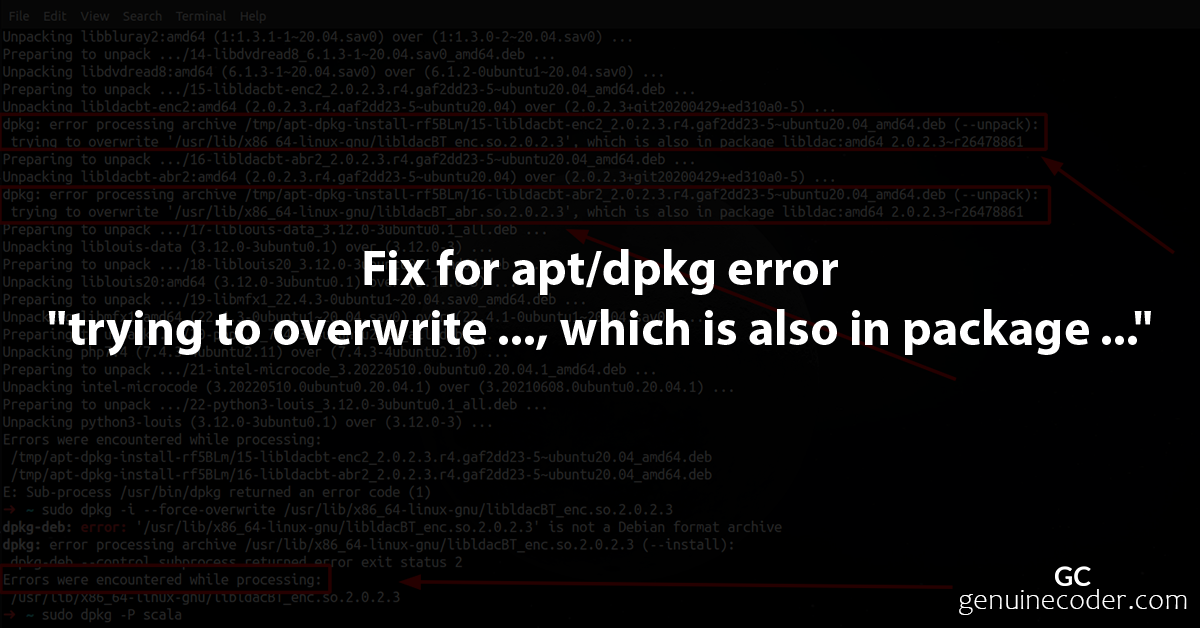
  • How to fix “trying to overwrite …, which is also in package …” issue in linux

    How to fix “trying to overwrite …, which is also in package …” issue in linux

    Let’s see how to solve the problem of apt or dpkg failing to install packages due to errors like the following. This is happening because the new package you are trying to install is overwriting a file that is part of another installed package.

    dpkg_error trying to overwrite '/usr/lib/x86_64-linux-gnu/libldacBT_enc.so.2.0.2.3', which is also in package libldac:amd64 2.0.2.3~r26478861

    Sample Error Message

    dpkg: error processing archive /tmp/apt-dpkg-install-rf5BLm/15-libldacbt-enc2_2.0.2.3.r4.gaf2dd23-5~ubuntu20.04_amd64.deb (--unpack):
     trying to overwrite '/usr/lib/x86_64-linux-gnu/libldacBT_enc.so.2.0.2.3', which is also in package libldac:amd64 2.0.2.3~r26478861
    Preparing to unpack .../16-libldacbt-abr2_2.0.2.3.r4.gaf2dd23-5~ubuntu20.04_amd64.deb ...
    Unpacking libldacbt-abr2:amd64 (2.0.2.3.r4.gaf2dd23-5~ubuntu20.04) over (2.0.2.3+git20200429+ed310a0-5) ...
    dpkg: error processing archive /tmp/apt-dpkg-install-rf5BLm/16-libldacbt-abr2_2.0.2.3.r4.gaf2dd23-5~ubuntu20.04_amd64.deb (--unpack):
     trying to overwrite '/usr/lib/x86_64-linux-gnu/libldacBT_abr.so.2.0.2.3', which is also in package libldac:amd64 2.0.2.3~r26478861
    

    How to resolve the “trying to overwrite” Issue?

    There are multiple solutions below based on when the error occurred. If you got the issue while running an apt command, then check the apt section. If it happened while running a dpkg command, then check the dpkg section.

    With DPKG

    If the error occurred while you were executing the apt command, then use the command as follows.

    sudo dpkg -i --force-overwrite theDebYouWantToInstall.deb
    sudo apt-get --fix-broken install
    

    This command will install the deb file with file overwriting when needed.

    With APT

    If the error occurred while you were executing the dpkg command, then use the command as follows.

    sudo apt-get -o Dpkg::Options::="--force-overwrite" [YourAptActionCommand]
    
    #An Example
    sudo apt-get -o Dpkg::Options::="--force-overwrite" dist-upgrade
    
    #Another Example
    sudo apt-get -o Dpkg::Options::="--force-overwrite" apt-get install nmap
    

    This command will install the deb file with file overwriting when needed.