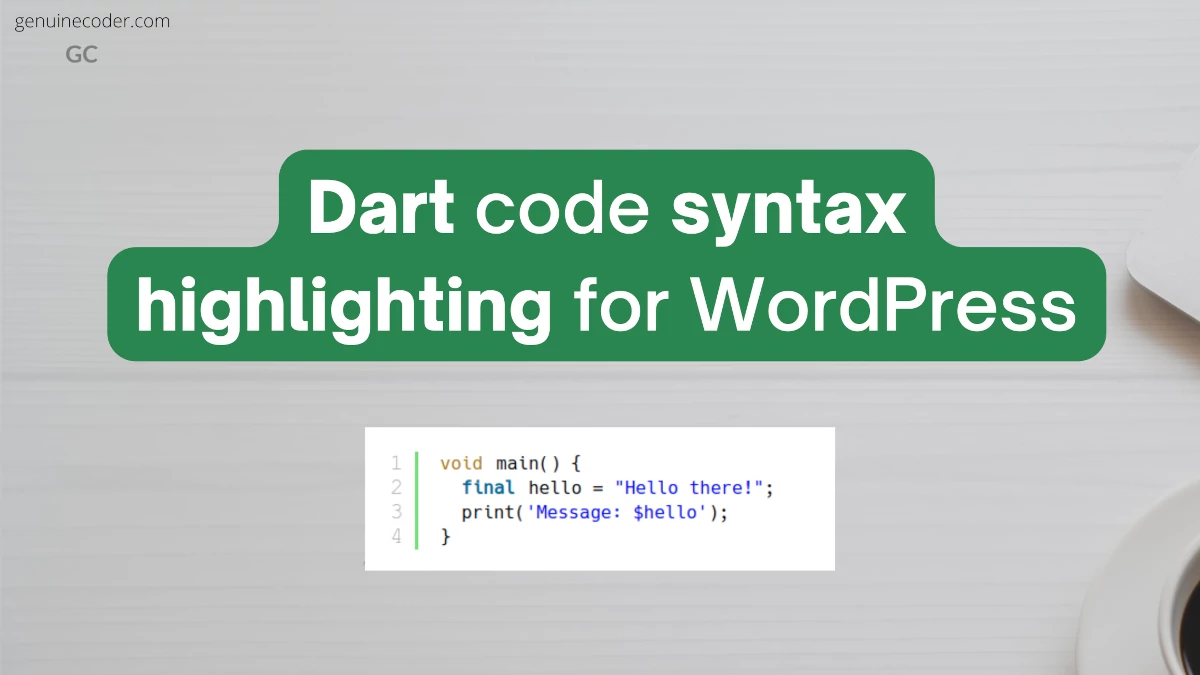
The WordPress’s SyntaxHighligter Evolved is a great plugin for syntax highlighting. It supports a ton of syntaxes and has a lot of customization. However, when I started making flutter tutorials, the plugin did not have support for dart language. For a while, I have tried using swift and javascript syntaxes for the same. But it didn’t work well. So, I decided to work on adding support for the dart language to the plugin. In this tutorial, we will see how we can add support for dart/flutter code syntax highlighting to the SyntaxHighligter Evolved plugin.
You can follow the procedure described in this tutorial to add support for other languages as well. You can easily extend what is done here for any language you need to support.
Prerequisites
- This process require adding some files to the WordPress installation directory. You need to have access to your WordPress installation via FTP.
- Take a full backup of your site. Even though this procedure is safe and relatively easy, keep a backup ready in case something goes wrong.
Step 1: Create a new directory inside WordPress plugin folder
We need to create a new plugin folder inside “wp-content/plugins”. Any name can be given for the directory. I am going to name it as “dartBrushSyntaxHighlighter“.

Inside the directory, we will have to add 2 files. One JavaScript file that defines the dart language-specific things (like keywords, comment syntax, data-types etc.) and one PHP file that register the dart syntax brush.
Let’s add those files in the next steps.
Step 2: Add dart highlighter brush code
Let’s name the file as “shBrushDart.js“. Inside this file, we need to specify the language-specific things. For dart, you can just use the following file. For other languages, you have to do your research and use appropriate keywords and data-types etc.
; (function () {

    SyntaxHighlighter = SyntaxHighlighter || (typeof require !== 'undefined' ? require('shCore').SyntaxHighlighter : null);

    SyntaxHighlighter.brushes.Dart = function () {
        var funcs = 'function';
        var keywords = 'abstract as assert async await break case catch class const continue covariant default deferred do dynamic else enum export extends external factory false final finally for Function get hide if implements import in interface is library mixin new null on operator part rethrow return set show static super switch sync this throw true try typedef var void while with yield';
        var datatypes = 'int double num String bool List Map void';

        var r = SyntaxHighlighter.regexLib;
        this.regexList = [
            { regex: r.multiLineDoubleQuotedString, css: 'string' },            		// double quoted strings
            { regex: r.multiLineSingleQuotedString, css: 'string' },	            	// single quoted strings
            { regex: r.singleLineCComments, css: 'comments' },		                   	// one line comments
            { regex: r.multiLineCComments, css: 'comments' },			                // multiline comments
            { regex: new RegExp(this.getKeywords(funcs), 'gmi'), css: 'color2' },       // functions
            { regex: new RegExp(this.getKeywords(datatypes), 'gmi'), css: 'variable' }, // datatypes
            { regex: new RegExp(this.getKeywords(keywords), 'gm'), css: 'keyword' },    // keywords
        ];
    };

    SyntaxHighlighter.brushes.Dart.prototype = new SyntaxHighlighter.Highlighter();
    SyntaxHighlighter.brushes.Dart.aliases = ['dart', 'Dart', 'flutter'];

    typeof (exports) != 'undefined' ? exports.Brush = Brush : null;

})();
Step 3: Register dart brush plugin
Now we need to register the above JS file to be used with SyntaxHighligher plugin. For this, we have to add the following PHP file into the plugin directory we created in step 1. Let’s name this file as “dartBrush.php“.
<?php
/*
Plugin Name: Dart Brush For SyntaxHighlighter Evolved
Description: Adds support for the dart language to the SyntaxHighlighter Evolved plugin.
Author: Genuine Coder
Version: 1.0.0
Author URI: https://genuinecoder.com/
*/

// SyntaxHighlighter Evolved doesn't do anything until early in the "init" hook, so best to wait until after that.
add_action( 'init', 'syntaxhighlighter_dart_register' );

// Tell SyntaxHighlighter Evolved about this new language/brush and name it.
add_filter( 'syntaxhighlighter_brushes', 'syntaxhighlighter_dart_addlang' );
add_filter( 'syntaxhighlighter_brush_names', 'syntaxhighlighter_dart_add_brush_name' );

/**
 *  Register the brush file with WordPress
 */
function syntaxhighlighter_dart_register() {
	wp_register_script( 'syntaxhighlighter-brush-dart', plugins_url( 'shBrushDart.js', __FILE__ ), array( 'syntaxhighlighter-core' ), '1.2.0', true );
}

function syntaxhighlighter_dart_addlang( $brushes ) {
	$brushes['dart'] = 'dart';
	$brushes['Dart'] = 'dart';
	$brushes['Flutter'] = 'dart';
	$brushes['flutter'] = 'dart';

	return $brushes;
}

function syntaxhighlighter_dart_add_brush_name( $names ) {
	$names['dart'] = 'Dart / Flutter';
	return $names;
}
?>

Step 4: Enable the custom plugin and use it!
Now, go to the plugin panel of your WordPress and you will see the newly added plugin there. The plugin name and description is set on the php file. Currently, the plugin name is “Dart Brush For SyntaxHighlighter Evolved”. If you want to change it, please change it on the PHP file.
Once the plugin is enabled, you can start adding dart or flutter code snippet using [ dart ] or [ flutter ] tag. An example dart code highlight is given below.
void main() {
  final hello = "Hello there!";
  print('Message: $hello');
}
Conclusion
In this tutorial, we have learned how to setup code snippet syntax highlighting for dart. For this purpose, we have created a custom plugin that works with SyntaxHighlighter evolved plugin. If you have liked this article, you might also like other WordPress tutorials I have written.
> Dart syntax highlight, flutter syntax highlight, dart code highlight, dart syntax highlight <