Category: JavaFX

  • JavaFX 3D Tutorial #2 – Camera Systems

    JavaFX 3D Tutorial #2 – Camera Systems

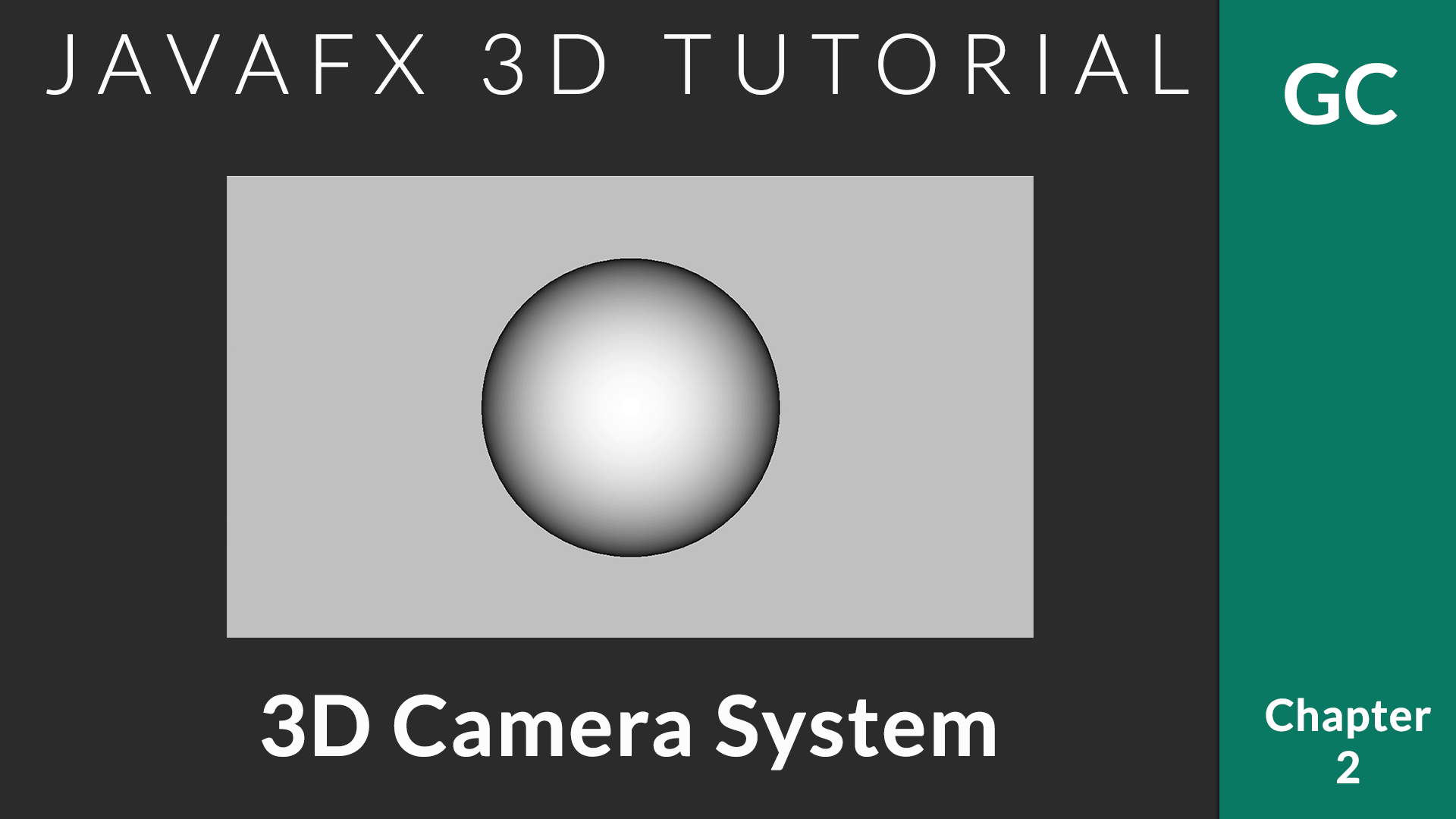
    By default, JavaFX provides a camera that allows to view the world from the negative z position. When we have to look at the world from our own angle, we need a custom camera.

    JavaFX camera component extends javafx.scene.Node. It can be added to the scene graph just like any other JavaFX components. We have 2 different cameras available.

    1: Parallel Camera

    Parallel Camera always render the objects in same size. This camera defines a viewing volume for a parallel (orthographic) projection; a rectangular box. This camera is always located at center of the window and looks along the positive z-axis. It is not really useful when you want to look at the objects from a certain point.

    ParallelCamera camera = new ParallelCamera();
    //..Attach to scene
    scene.setCamera(camera);
    

    2: Perspective Camera

    This camera allows to look at the object from a point. As per the documentation,
    “This camera defines a viewing volume for a perspective projection; a truncated right pyramid. The fieldOfView value can be used to change viewing volume. This camera is always located at center of the scene and looks along the positive z-axis. The coordinate system defined by this camera has its origin in the upper left corner of the panel with the Y-axis pointing down and the Z axis pointing away from the viewer (into the screen).”

    It has two constructors

    • PerspectiveCamera()
    • PerspectiveCamera(boolean fixedEyeAtCameraZero)

    If fixedEyeAtCameraZero is true, the eye position is fixed at (0, 0, 0) in the local coordinates of the camera. A fixedEyeAtCameraZero as true guarantees that after the eye of the PerspectiveCamera moves along with it, and remains at the camera’s zero position.

    PerspectiveCamera camera = new PerspectiveCamera(true);
    //..Attach to scene
    scene.setCamera(camera);
    

    Field of View

    Field of view defines how much we can see in the 3D scene. A larger field of view angles provides a wider view –> you can see more things. This can be set as

     
    camera.setFieldOfView(double value);
    

    Clipping Planes

    Clipping planes allows to defines that part of the 3D world that we are interested to see. Anything closer to the eye than the near clipping distance isn’t displayed (it’s too close), and anything further away from the eye than the far clipping distance isn’t displayed either (it’s too far away).

     
     camera.setNearClip(double value);
     camera.setFarClip(double value);
    

    Example Code

    
    import javafx.application.Application;
    import javafx.scene.*;
    import javafx.scene.input.KeyEvent;
    import javafx.scene.paint.Color;
    import javafx.scene.shape.Sphere;
    import javafx.stage.Stage;
    
    /**
     * @author afsal villan
     * @version 1.0
     *
     * https://genuinecoder.com
     */
    public class Camera3D extends Application {
        private static final int WIDTH = 1400;
        private static final int HEIGHT = 800;
    
        @Override
        public void start(Stage primaryStage) throws Exception {
            Sphere sphere = new Sphere(50);
    
            Group group = new Group();
            group.getChildren().add(sphere);
    
            //Create new Camera
            Camera camera = new PerspectiveCamera(true);
            Scene scene = new Scene(group, WIDTH, HEIGHT);
            scene.setFill(Color.SILVER);
            //Attach to scene
            scene.setCamera(camera);
    
            //Move back a little to get a good view of the sphere
            camera.translateZProperty().set(-500);
    
            //Set the clipping planes
            camera.setNearClip(1);
            camera.setFarClip(1000);
    
            primaryStage.addEventHandler(KeyEvent.KEY_PRESSED, event -> {
                switch (event.getCode()) {
                    case W:
                        camera.translateZProperty().set(camera.getTranslateZ() + 100);
                        break;
                    case S:
                        camera.translateZProperty().set(camera.getTranslateZ() - 100);
                        break;
                }
            });
    
            primaryStage.setTitle("Genuine Coder");
            primaryStage.setScene(scene);
            primaryStage.show();
        }
    
    
        public static void main(String[] args) {
            launch(args);
        }
    }


    Visit JavaFX 3D Course Index Page

  • JavaFX 3D Tutorial #1 – Introduction to 3D development

    JavaFX 3D Tutorial #1 – Introduction to 3D development

    This is the the first chapter of JavaFX 3D Tutorial.

    JavaFX provides an easy to use 3D API. It provides GPU based acceleration and hence can make use of latest powerful hardware. In this tutorial series, we will learn about using JavaFX 3D in our everyday applications.

    Course Introduction

    JavaFX 3D Coordinates

    When we dive in to 3D application development, the most important part is the coordinate system. You have to understand how the x, y and z-axis changes in the screen. The following image describes the coordinate system in JavaFX 3D.

    • X increases when you go from left to right
    • Y increases when you go from top to bottom
    • Z increases when the objects goes away from you.

    JavaFX 3D Camera System

    Camera defines how we see an object. When you want to transform an object, you can either work on the object or the camera.

    JavaFX rotation concept. Taken from tutorial video

    So, let’s say you want to rotate an object. You can do this either by rotating the object or rotating the camera around the object itself.

    JavaFX provides two cameras. Perspective camera and Parallel Camera. We’ll talk more about camera in Chapter 2.

    Create a sphere in JavaFX 3D

    JavaFX provides set of predefined 3D objects. You can create your own custom 3D shapes if you want. But to start with, these predefined shapes are the best.

    import javafx.application.Application;
    import javafx.scene.Camera;
    import javafx.scene.Group;
    import javafx.scene.PerspectiveCamera;
    import javafx.scene.Scene;
    import javafx.scene.input.KeyEvent;
    import javafx.scene.paint.Color;
    import javafx.scene.shape.Sphere;
    import javafx.stage.Stage;
    
    /**
     * @author afsal villan
     * @version 1.0
     *
     * https://genuinecoder.com
     */
    public class Sphere3D extends Application {
    
      private static final int WIDTH = 1400;
      private static final int HEIGHT = 800;
    
      @Override
      public void start(Stage primaryStage) {
        Sphere sphere = new Sphere(50);
    
        Group group = new Group();
        group.getChildren().add(sphere);
    
        Camera camera = new PerspectiveCamera();
        Scene scene = new Scene(group, WIDTH, HEIGHT);
        scene.setFill(Color.SILVER);
        scene.setCamera(camera);
    
        sphere.translateXProperty().set(WIDTH / 2);
        sphere.translateYProperty().set(HEIGHT / 2);
    
        primaryStage.addEventHandler(KeyEvent.KEY_PRESSED, event ->{
          switch (event.getCode()) {
            case W:
              sphere.translateZProperty().set(sphere.getTranslateZ() + 100);
              break;
            case S:
              sphere.translateZProperty().set(sphere.getTranslateZ() - 100);
              break;
          }
        });
    
        primaryStage.setTitle("Genuine Coder");
        primaryStage.setScene(scene);
        primaryStage.show();
      }
    
      public static void main(String[] args) {
        launch(args);
      }
    }
    

    Let’s break down the code.

    1. Create a new sphere.
      The predefined Sphere shape is available in javafx.scene.shape.Shape3D package. You can simply create an instance. The parameter specifies the radius.

      Sphere sphere = new Sphere(50);
      
    2. Create a group as container
      Group group = new Group(); 
      group.getChildren().add(sphere);
      
    3. Prepare camera
      JavaFX provides two camera systems. Parallel camera and perspective camera. Perspective camera allows to view objects from a specified point. You can simply create an instance and attach it to the scene.

      //Create a new perspective camera
      Camera camera = new PerspectiveCamera(); 
      //Attach camera to scene
      scene.setCamera(camera);
      
    4. Move sphere to center of the screen
      We can move the 3D object around using translateProperty. Here the object is moved to center of the screen.

      sphere.translateXProperty().set(WIDTH / 2); 
      sphere.translateYProperty().set(HEIGHT / 2);
      
    5. Add keyboard listener to control Z-axis / Zoom.
      The z-axis can be controlled using translateZProperty. Currently, using KeyEvent.KEY_PRESSED event handler, we can listener for keyboard input. When ‘W’ is pressed, the object goes away from the user as the z gets increased and when ‘S’ is pressed, vice versa.

          primaryStage.addEventHandler(KeyEvent.KEY_PRESSED, event -> {
            switch (event.getCode()) {
              case W:
                sphere.translateZProperty().set(sphere.getTranslateZ() + 100);
                break;
              case S:
                sphere.translateZProperty().set(sphere.getTranslateZ() - 100);
                break;
            }
          });
      
    6. Attach scene to stage and display.

    Chapter 1 Tutorial Video

    Visit JavaFX 3D Course Index Page

  • Custom Shapes for JavaFX UI Components

    Custom Shapes for JavaFX UI Components

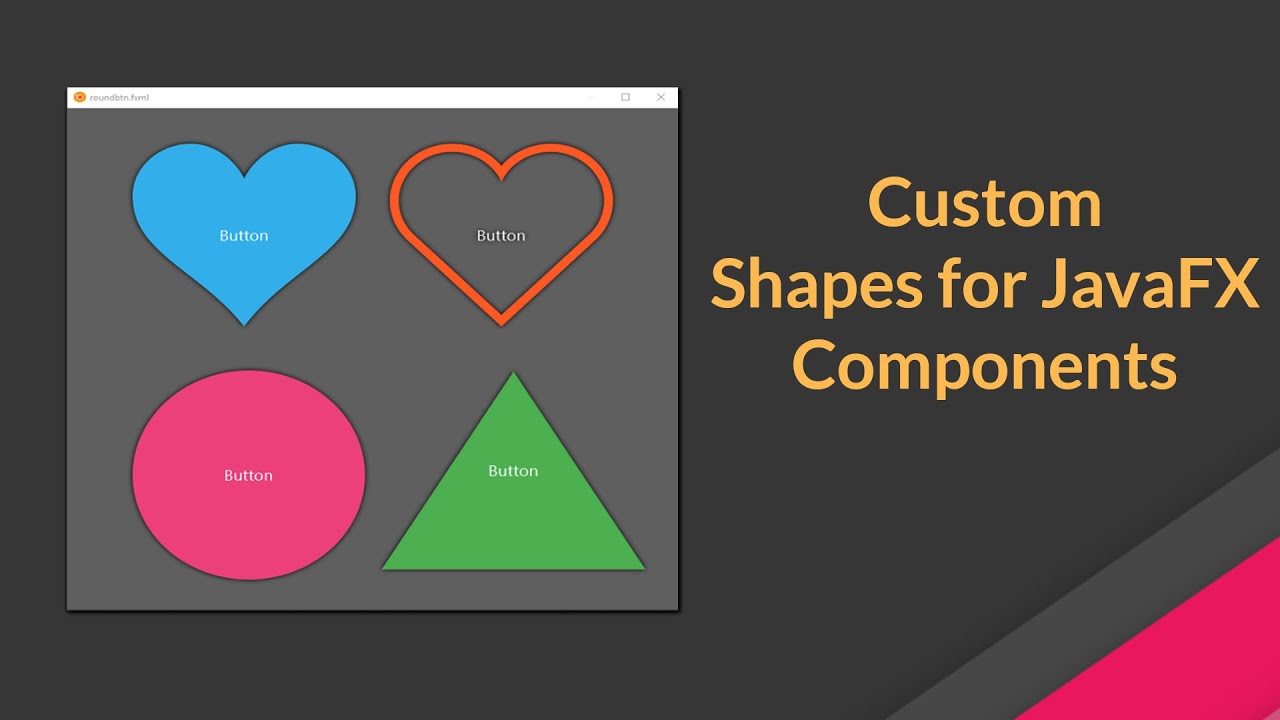
    JavaFX allows great customization options. You can easily customise and reuse component designs using CSS. In this article, we will see how to apply custom shapes for any GUI component*.

    Which components support custom shapes ?

    All the components extending javafx.scene.layout.Region supports custom shapes with -fx-shape CSS. So, this can be applied to almost all the components including but not limited to Containers, Charts, Buttons, ListViews etc.

    SVG Path

    -fx-shape takes SVGPath. SVGPath is simply a string that can be interpreted as a complex shape. For example, following SVGPath creates a heart shape.

    M23.6,0c-3.4,0-6.3,2.7-7.6,5.6C14.7,2.7,11.8,0,8.4,0C3.8,0,0,3.8,0,8.4c0,9.4,9.5,11.9,16,21.2
            c6.1-9.3,16-12.1,16-21.2C32,3.8,28.2,0,23.6,0z

    Using in JavaFX

    You can apply these shapes to JavaFX Components using -fx-shape css property. For creating a button with heart shape, add the following CSS.

    .button{
      -fx-shape: M23.6,0c-3.4,0-6.3,2.7-7.6,5.6C14.7,2.7,11.8,0,8.4,0C3.8,0,0,3.8,0,8.4c0,9.4,9.5,11.9,16,21.2
    c6.1-9.3,16-12.1,16-21.2C32,3.8,28.2,0,23.6,0z;
    }
    

    Create your own SVG Shapes

    You can create your own custom shapes using https://codepen.io/anthonydugois/pen/mewdyZ

  • JavaFX Scene Builder Tutorial for Beginners

    JavaFX Scene Builder Tutorial for Beginners

    JavaFX Scene Builder is a visual layout aka WYSIWYG tool that allows users to quickly design JavaFX application user interfaces without coding. You can easily create great looking user interfaces with just drag and drop of components.

    JavaFX Scene builder save the design as FXML format. These files can be directly loaded to the JavaFX programs. It is written in Java and is available in all major platforms. It provides nice options like ability to add embedded CSS, generate controller skeleton etc.

    Watch the tutorial video: JavaFX scene builder tutorial for beginners.

    Making Responsive GUI

    Making GUI responsive is very important. Nowadays the device sizes varies from handheld to wall TVs. Using the right containers and component configurations, it is possible to quickly develop JavaFX GUI using scene builder.

    Watch the tutorial on Making GUI responsive with Scene Builder.

    Download Scene Builder

    Current Gluon is maintaining JavaFX scene builder. You can download it for your platform from https://gluonhq.com/products/scene-builder/

  • JavaFX Observables and Bindings

    JavaFX Observables and Bindings

    JavaFX Observable is an entity that wraps content and allows to observe the content for invalidations. In simple terms, Observable allows to observe data in your application. In our everyday programming, we come up with cases where we have to constantly check whether the variable value has changed. With JavaFX observable, we can bind or attach listeners to data so that all the changes will be tracked.

    Basic Addition

    Let’s consider a case of adding two variables as follows.

    private void sumNonObservable() {
       int a = 10;
       int b = 10;
       int sum = a + b;
       System.out.println(sum); //20
       //Change value of a now
       a = 20;
       //Sum is still 20
       System.out.println(sum); //20
    }
    

    This code shows a simple addition. Two variables a=10 and b=10 are added and assigned to sum. Then later, a is changed to 20. The sum won’t change.

    Observable Addition

    What if you wanted the sum to track its components. Let’s say when a was changed to 20, you needed the sum to automatically become 30 without doing another addition?. Well, JavaFX has the right solution.

    Let’s write the above addition in JavaFX observable way.

    private void sumObservable() {
       //Create two simple observable integers.
       SimpleIntegerProperty a = new SimpleIntegerProperty(10);
       SimpleIntegerProperty b = new SimpleIntegerProperty(10);
       
       //Add them with built-in add() function
       NumberBinding sum = a.add(b);
    
       //Answer = 20
       System.out.println(sum.getValue());
       a.set(20);
    
       //Answer = 30
       System.out.println(sum.getValue());
    }
    

    SimpleIntegerProperty is a built-in observable class that stores integer value with Observable support. Then a.add(b) will return a NumberBinding which keeps the sum of a and b. The advantage is, the sum is now listening on a and b and whatever change is made to a or b or both, it will be immediately reflected to the sum.

    Similar to SimpleIntegerProperty, there are lots of default implementation for different types of variables. Some of them are

    Adding Listener

    We have seen how observables are useful in arithmetics. Well, that is just the tip of the iceberg.  Let’s see how we can make use of observable listeners.

    Following code example prints a message whenever a variable’s value is changed.

     private static void observable() {
         SimpleIntegerProperty smartVar = new SimpleIntegerProperty(10);
         smartVar.addListener(new ChangeListener<Number>() {
                @Override
                public void changed(ObservableValue<? extends Number> observable, Number oldValue, Number newValue) {
                    System.out.println("Changed to " + newValue);
                }
        });
        smartVar.set(5);
        smartVar.set(25);
    }
    

    and the Output is:-

    Changed to 5
    Changed to 25

    So, whenever the value is changed, the ChangeListener will be called.

    You can add two types of listeners to an observable.

    1. ChangeListener
      A ChangeListener is notified whenever the value of an ObservableValue changes.
    2. InvalidationListener
      An InvalidationListener is notified whenever an Observable becomes invalid.
    What is the difference between ChangeListener and InvalidationListener ?

    An ObservableValue generates two types of events; change events and invalidation events. A change event indicates that the value has changed. An invalidation event is generated, if the current value is not valid anymore.This distinction becomes important, if the ObservableValue supports lazy evaluation. Because for a lazily evaluated value one does not know if an invalid value really has changed until it is recomputed. For this reason, generating change events requires eager evaluation while invalidation events can be generated for eager and lazy implementations.

    ChangeListeners in contrast to InvalidationListeners require the new value to be passed to them. So, adding any ChangeListener results in get() being called and every invalidation call triggers a call of computeValue.

    Now, If you still need more info on this topics, please have a look at the following tutorial video.


    View Sample Project on GitHub

  • JavaFX Get Screen Size

    JavaFX Get Screen Size

    JavaFX provides an easy option to get screen dimensions (screen size) of all the monitors connected. This can be done using the javafx.stage.Screen class.

    Get Screen Size of Primary Monitor

    import javafx.application.Application;
    import javafx.geometry.Rectangle2D;
    import javafx.stage.Screen;
    import javafx.stage.Stage;
    
    public class Main extends Application {
    
      @Override
      public void start(Stage primaryStage) {
        //Get primary screen bounds
        Rectangle2D screenBounds = Screen.getPrimary().getBounds();
        System.out.println(screenBounds);
        System.exit(0);
      }
    }
    

    Example Output

    Rectangle2D [minX = 0.0, minY=0.0, maxX=1920.0, maxY=1080.0, width=1920.0, height=1080.0]
    

    Get Number Of Monitors / Visual Devices

    Let’s see how we can find number of monitors currently attached to the system using the JavaFX Screen API.

    import javafx.application.Application;
    import javafx.stage.Screen;
    import javafx.stage.Stage;
    
    public class Main extends Application {
    
      @Override
      public void start(Stage primaryStage) {
        System.out.println(Screen.getScreens().size());
        System.exit(0);
      }
    }
    

    Example Output

    2
    

    Get Screen Size Of All Monitors

    import javafx.application.Application;
    import javafx.collections.ObservableList;
    import javafx.stage.Screen;
    import javafx.stage.Stage;
    
    public class Main extends Application {
    
      @Override
      public void start(Stage primaryStage) {
        ObservableList<Screen> screenSizes = Screen.getScreens();
        screenSizes.forEach(screen -> {
          System.out.println(screen.getBounds());
        });
        System.exit(0);
      }
    }
    

    Example Output

    Rectangle2D [minX = 0.0, minY=0.0, maxX=1920.0, maxY=1080.0, width=1920.0, height=1080.0]
    Rectangle2D [minX = -1920.0, minY=0.0, maxX=-384.0, maxY=864.0, width=1536.0, height=864.0]
    
  • JavaFX Scene Switch Animation

    JavaFX Scene Switch Animation

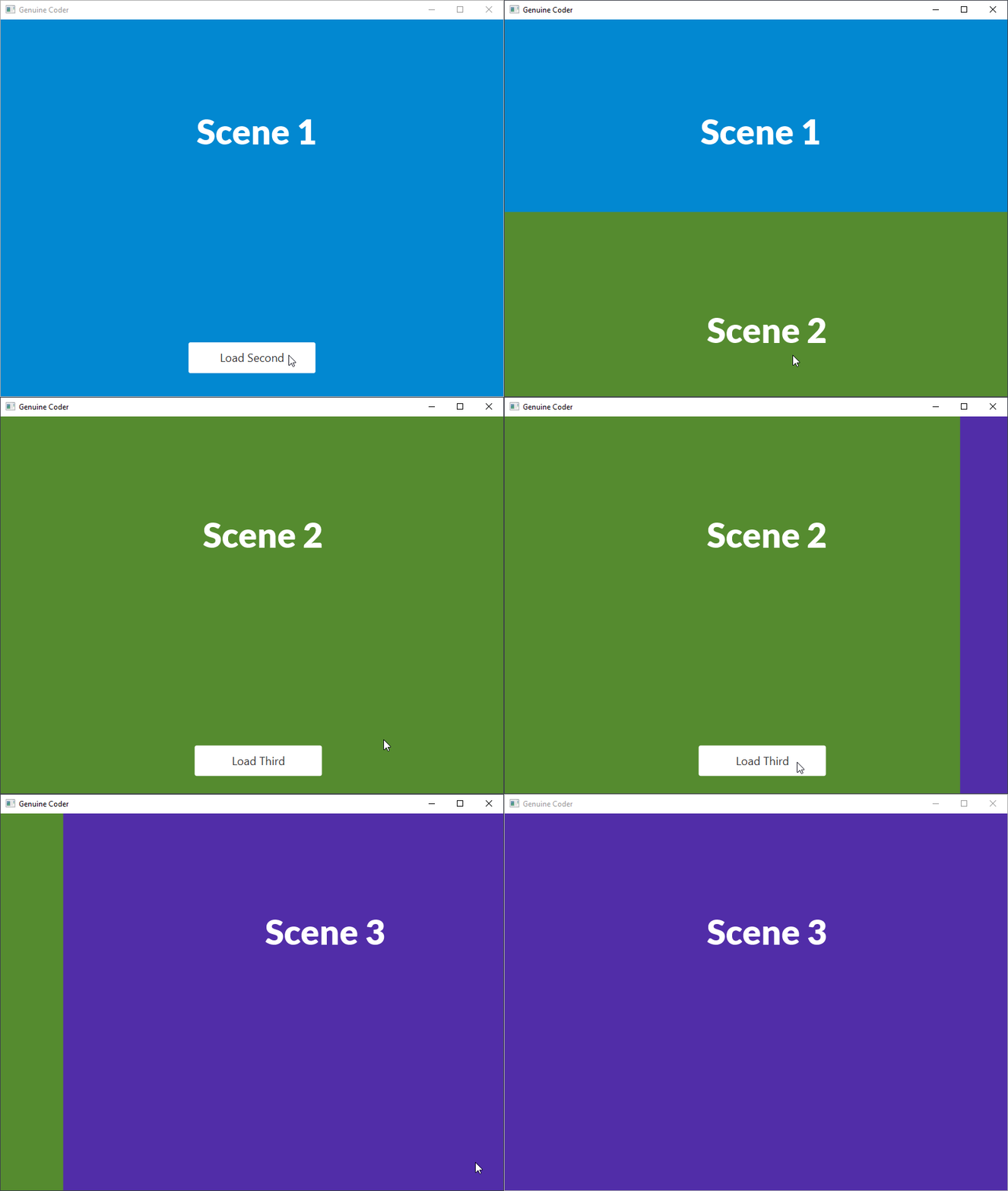
    We all love JavaFX for its modern look and easy to use user interface APIs. In this article we will discuss about JavaFX Scene Switch (Change) animation. I have implemented two types of scene change animation. Fading Scenes and Sliding Scenes.

    By default, JavaFX animation api does not provide a direct option animate a scene change. But we can use the following way.

    1. Load primary stage with a scene. Enclose this scene in a root container. This container can be of your preference. StackPane, Group etc can be used.
    2. When changing scenes, remove everything from this root container.
    3. Load the scene to be loaded to a variable. Add it new scene to the root container with animation.

    Sliding Scene Transition

    In this animation, we will get a nice sliding effect for the scenes. You can see the preview in the following GIF.

    JavaFX Scene Sliding Animation
    JavaFX Scene Sliding Animation

    The idea here is to load the new scene beyond the visibility of the screen. For example, if the window height is 500px, then load the new scene at 500px. Then using KeyFrame animation, take the scene translateY to 0. This creates a slide in effect from bottom. Using translateX, we can implement slide in effect from sides.

    Let’s see this in code. Following file is the first scene’s controller. When loadSecondScene() is called, second scene will be added.

    /**
     * Removed Imports for code simplicity
     * FILE - Scene 1 Controller. On button Click, Scene 2 will be loaded  
     * @author Genuine Coder
     */
    public class FirstSceneController implements Initializable {
        @FXML
        private AnchorPane anchorRoot;
        @FXML
        private StackPane parentContainer;
    
        @FXML
        private void loadSecondScene(ActionEvent event) throws IOException {
            Parent root = FXMLLoader.load(getClass().getResource("myscene2.fxml"));
            Scene scene = anchorRoot.getScene();
            //Set Y of second scene to Height of window
            root.translateYProperty().set(scene.getHeight());
            //Add second scene. Now both first and second scene is present
            parentContainer.getChildren().add(root);
    
            //Create new TimeLine animation
            Timeline timeline = new Timeline();
            //Animate Y property
            KeyValue kv = new KeyValue(root.translateYProperty(), 0, Interpolator.EASE_IN);
            KeyFrame kf = new KeyFrame(Duration.seconds(1), kv);
            timeline.getKeyFrames().add(kf);
            //After completing animation, remove first scene
            timeline.setOnFinished(t -> {
                parentContainer.getChildren().remove(anchorRoot);
            });
            timeline.play();
        }
    }
    

    Watch the Slide Transition in action from Genuine Coder Channel

    Fading Scene Transition

    Fading screen transition can also be implemented with a similar concept as of Sliding Screen transition.  The idea is, we apply a fade out transition for the first scene. After completion of fade out transition of first scene, we add second scene. The second scene will be added with zero opacity. Then using fade in transition we make the second scene visible.

    You can see the program in action in the following Genuine Coder Tutorial video.

  • Save files with JavaFX FileChooser

    Save files with JavaFX FileChooser

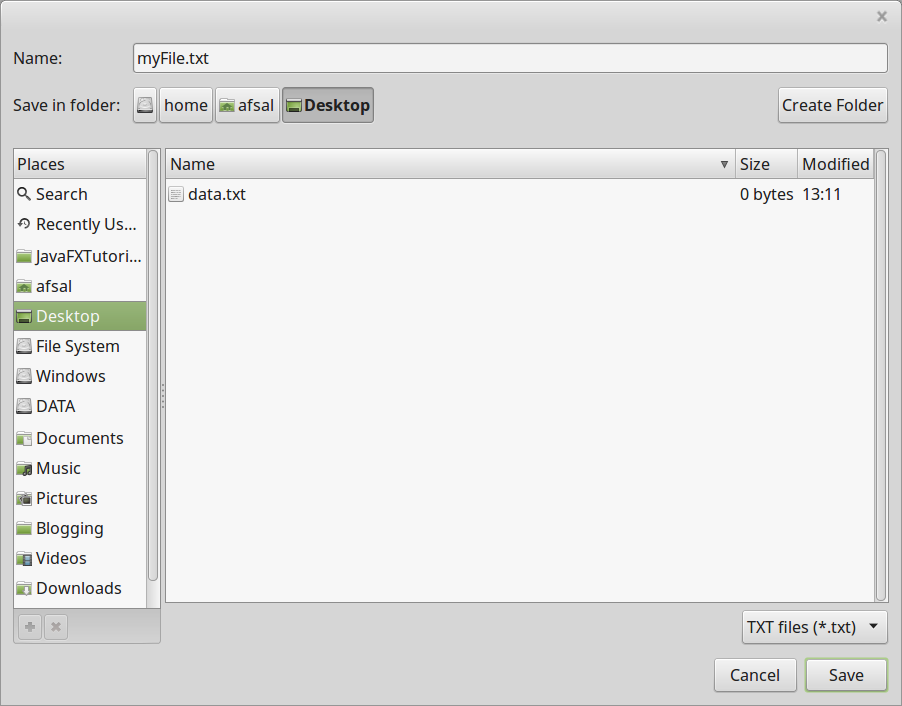
    JavaFX provides javafx.stage.FileChooser class for creating file chooser dialog to select files for opening or saving. The major advantage of javafx filechooser over old JFileChooser is that, it allows to use the default system chooser. So, if you use the FileChooser in linux, then linux’s default file chooser window will be loaded and in windows, windows’s default file chooser window will be loaded. This helps to improve the user experience by a huge margin. The old JFileChooser had a fixed dialog that was very hard to navigate and this problem is fixed in JavaFX.

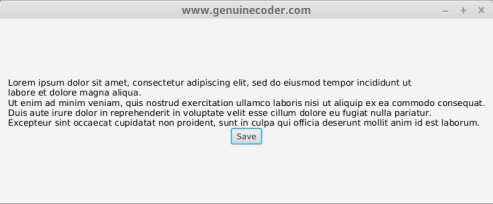
    Let’s see a sample program that shows file chooser to create a text file and save a string to that file.

    package javafxtutorials;
    
    import java.io.File;
    import java.io.IOException;
    import java.io.PrintWriter;
    import java.util.logging.Level;
    import java.util.logging.Logger;
    import javafx.application.Application;
    import static javafx.application.Application.launch;
    import javafx.geometry.Pos;
    import javafx.scene.Scene;
    import javafx.scene.control.Button;
    import javafx.scene.layout.VBox;
    import javafx.scene.text.Font;
    import javafx.scene.text.Text;
    import javafx.stage.FileChooser;
    import javafx.stage.Stage;
    
    
    public class SaveFileWithFileChooser extends Application {
    
        @Override
        public void start(final Stage primaryStage) {
            final String sampleText = "Lorem ipsum dolor sit amet, consectetur adipiscing elit, sed do eiusmod tempor incididunt ut \n"
                    + "labore et dolore magna aliqua.\n"
                    + "Ut enim ad minim veniam, quis nostrud exercitation ullamco laboris nisi ut aliquip ex ea commodo consequat.\n"
                    + "Duis aute irure dolor in reprehenderit in voluptate velit esse cillum dolore eu fugiat nulla pariatur.\n"
                    + "Excepteur sint occaecat cupidatat non proident, sunt in culpa qui officia deserunt mollit anim id est laborum.";
    
            Text sample = new Text(sampleText);
            sample.setFont(new Font(14));
    
            Button btnSave = new Button("Save");
    
            btnSave.setOnAction(event -&amp;amp;gt; {
                FileChooser fileChooser = new FileChooser();
    
                //Set extension filter for text files
                FileChooser.ExtensionFilter extFilter = new FileChooser.ExtensionFilter("TXT files (*.txt)", "*.txt");
                fileChooser.getExtensionFilters().add(extFilter);
    
                //Show save file dialog
                File file = fileChooser.showSaveDialog(primaryStage);
    
                if (file != null) {
                    saveTextToFile(sampleText, file);
                }
            });
    
            VBox vBox = new VBox(sample, btnSave);
            vBox.setAlignment(Pos.CENTER);
    
            primaryStage.setScene(new Scene(vBox, 800, 300));
            primaryStage.setTitle("www.genuinecoder.com");
            primaryStage.show();
    
        }
    
        private void saveTextToFile(String content, File file) {
            try {
                PrintWriter writer;
                writer = new PrintWriter(file);
                writer.println(content);
                writer.close();
            } catch (IOException ex) {
                Logger.getLogger(SaveFileWithFileChooser.class.getName()).log(Level.SEVERE, null, ex);
            }
        }
    
        public static void main(String[] args) {
            launch(args);
        }
    
    }


    JavaFX FileChooser program
    JavaFX FileChooser program

    The FileChooser.ExtensionFilter defines an extension filter which can be used for filtering which files can be chosen in a FileDialog based on the file name extensions. The constructor takes two arguments. First argument is the description of file to be selected and second argument is the actual extension. The second argument can also be a list.

    By calling the FileChooser#showSaveDialog, a save dialog will be opened. In this case, the dialog will only show directories and text files. Once a file name is specified and save button is pressed, method saveTextToFile will be called which will save the text content to file with the help of PrintWriter class.

    JavaFX FileChooser save dialog
    JavaFX FileChooser save dialog in Linux Mint 18.2
     if (file != null) {
        saveTextToFile(sampleText, file);
     }
    

    If the user clicks on the cancel button from the file chooser instead of save button, the returned file will be null. So, it is always necessary to check for null case for the returned file which otherwise will leads to NullPointerException.

  • JavaFX Complete Project Tutorial : Building Material Designed Library Management Software

    JavaFX Complete Project Tutorial : Building Material Designed Library Management Software

    Programming can only be learned properly with continuous practice. When you work on a complete software project, you’ll have to understand how to put things together and how to implement data communication between various modules etc. So, I decided to share a complete javafx project development series.

    I am publishing a series of tutorial videos on YouTube about developing a complete Library Management Software using JavaFX. This tutorial series start with basic designing and continue towards more complex programming like database integration, multi level user interface design, material design etc. I have tried my best to keep things as simple as possible.

    Apache Derby database is used for storing member, book and other informations. Derby is a lightweight, purely java based relational database. It has common sql syntax. So you can get things done without any issues. I have used Scene Builder for designing user interfaces. Additionally CSS is used to get some nice effects for buttons, text fields etc.

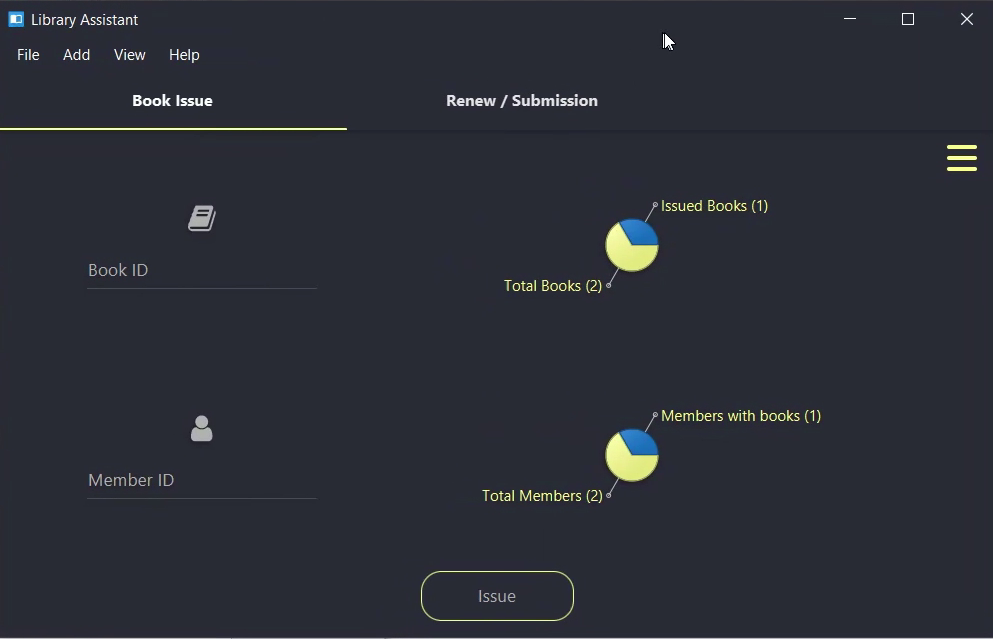
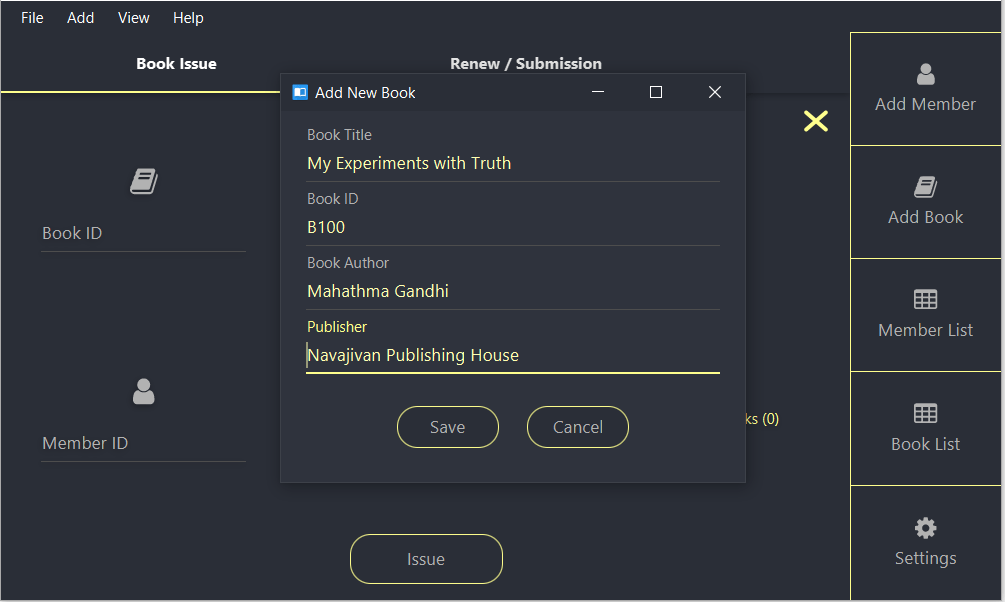
    JavaFX Material Design Library Management Software
    Dashboard

    For development, I am using NetBeans IDE with Scene Builder. Make sure that you have the latest java installed. Some of the libraries used in the project requires JDK 8u40 or better. So it is better to have the latest java version installed.

    I hope you find this tutorial series useful. Learning component by component is a little tedious task. This set of videos will help you to understand how to coordinate various components together.  You can find the source code of this application at GitHub. I have committed at the end of  almost all tutorial videos so that you can find the exact code that i have used for explanation.

    Moving to Material Design

    Material design is an awesome concept. It defines a new method for designing and developing user interfaces across multiple platforms. For making this software materialistic, I have used JavaFX material design library named JFoenix. It provides built-in material design based components that can be easily styled with CSS.

    Material-design-login-screen
    Library Software login screen

    The above image shows login screen from new design. There are only 3 colors and every components has it own padding and spacing.  If you just give enough spacing for your components on the screen, it will tremendously improve the overall look.

    Libraries Used

    I have recorded the complete development as tutorial. You can find them in the following PlayList. Subscribe to Genuine Coder YouTube channel for more tutorials in the future.

    Get project from GitHub
  • JavaFX Material Design Hamburgers and Transitions

    JavaFX Material Design Hamburgers and Transitions

    Hamburgers are a great replacement for menu icons. In material design, hamburgers can be used to trigger various navigation components. In this post, i will show how to add hamburgers to your JavaFX application. I have made a thorough tutorial for JFXHamburger transition.

    JFoenix library provides (Read about setting up material design library for JavaFX) JFXHamburger class for implementing Hamburger. It can be dragged and dropped  using Scene Builder, as demonstrated by the above video.

    JFXHamburger without transition support is merely 3 parallel lines. But when you associate it with some cool transition, it will become wonderful. So let’s have a look in to the transitions.

    HamburgerBackArrowBasicTransition1. HamburgerBackArrowBasicTransition

    This transition creates a back arrow from the 3 parrallel lines (Hamburger). This can be created by passing the created Hamburger object as parameter to the HamburgerBackArrowBasicTransition class.

    HamburgerBackArrowBasicTransition transition = new HamburgerBackArrowBasicTransition(hamburger);
    
    The animation can be started using play() method. The state of the transition ( either arrow or hamburger) is set through setRate() method. The animation is controlled by changing the rate between -1 and 1.
    transition.setRate(-1);
    hamburger.addEventHandler(MouseEvent.MOUSE_PRESSED,(e)->{
            transition.setRate(transition.getRate()*-1);
            transition.play();
    });
    
    As you can see, at first, the transition rate should be set to -1 which is the hamburger. After the user clicks on the hamburger, it can be updated by multiplying with -1, i.e. to 1. Now the Hamburger will turn into a arrow. For further clicks on the hamburger, it will iterate  between -1 and 1.

    HamburgerBasicCloseTransition2. HamburgerBasicCloseTransition

    This transition converts the hamburger to a cross form. Usage of this one is very similar to the above except the class used.

    HamburgerBasicCloseTransition transition = new HamburgerBasicCloseTransition(hamburger);


    3. HamburgerSlideCloseTransitionHamburgerBasicCloseTransition

    This transition converts the hamburger to a close form like before, with a cool transition.

    HamburgerSlideCloseTransition transition = new HamburgerSlideCloseTransition(hamburger);


    HamburgerBasicCloseTransition

    4.HamburgerNextArrowBasicTransition

    This transition converts the hamburger to a forward arrow.

    HamburgerNextArrowBasicTransition transition = new HamburgerNextArrowBasicTransition(hamburger);


    Watch this tutorial in action from Genuine coder YouTube channel

  • How to make Navigation Drawer (Side Panel) in JavaFX – JavaFX Drawer

    How to make Navigation Drawer (Side Panel) in JavaFX – JavaFX Drawer

    Navigation drawer provides an intuitive way to keep main navigation controls of the UI clean. The drawer will only be made visible to the user on certain actions like button click so that we can make use of that space for much more important things yet keeping controls reachable with single click.

    Android introduced the material design Navigation bar or side pane or whatever you call, with its Material design goodness. JFoenix library provides JFXDrawer component.

    Today, I will be showing how to implement the Navigation drawer on your JavaFX application using JFoenix material design library. If you want some help on setting up the JFoenix material design library, see my post JavaFX Material Design : Setting Up and Making Login Application.

    I have made a video to make things more clear. You can watch it right here.


    If you are the kind of person who do not like to watch tutorial videos, read from here. I will explain it step by step.

    Step 1 : Design Content For Navigation Drawer 

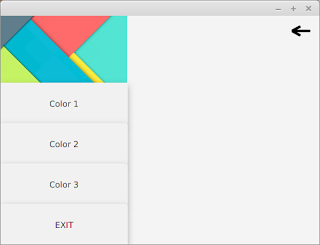
    At first, you have to create an FXML layout for the Navigation bar itself. This layout can then be inflated to the navigation bar holder later. The above image shows a pretty simple VBox layout that consists of 4 Buttons and one image view. This content can the be loaded to a VBox variable in our code (from the main controller) using the following code

    VBox box = FXMLLoader.load(getClass().getResource("SidePanelContent.fxml");
    
    Step 2 : Design The Container (Main) Window
    Main window with Hamburger
    Main window with Hamburger

    Now we  have the navigation bar content. In this step, you have to design the main application window. The JFXDrawer can be added using scene builder by drag and drop. Once you position the drawer on the space you want, you can set the drawer direction to LEFT, RIGHT, TOP or BOTTOM from the Properties section of Scene Builder.

    I have added a JFXHamburger for material design look and feel. I have thouroughly explained how to use JFXHamburger in this video https://www.youtube.com/watch?v=rCnPY9Kj4J0 . If you don’t like to have a Hamburger, you can use a simple button. Add an action listener to your button and add this code.
    @FXML
    //Accessing FXML Element
    JFXDrawer drawer;
    //Add this in ActionListener
    if(drawer.isShown())
    drawer.close();
    else
    drawer.open();
    

    The navigation drawer can be made visible by using the open() method. It can be made invisible through the function call close().

    Step 3 : Setting the content of Drawer

    Now we have two separate components. The Drawer and Main window. We can attach the box loaded in step 1 to our drawer in main window using the following code.

    drawer.setSidePane(box);
    
    Step 4 : There is no 4th step. You are done !
    I used to get happier when things get completed sooner that expected. That’s why there is a step 4 🙂
    Run the code now. When you click on your button or Hamburger,you should see the navigation drawer like this. If you have some alignment issues for the drawer, increase the value of “Default Drawer Size” from the Scene Builder.

    Recently, as part of library management software tutorial, I have created more elaborate tutorial about creating Navigation Drawer. It contains more complex buttons with icons and CSS styling. Watch those tutorial videos from the following link.

    1. Designing The Drawer
    2. Attaching drawer to Dashboard
    3. Handling Button Click Events

    Get Project From GitHub


    You might also be interested in:-

    1. JavaFX Library Management System Development: https://genuinecoder.com/javafx-complete-project-tutorial-library-management-system-html/
    2. JavaFX Animation Tutorial: https://genuinecoder.com/javafx-animation-tutorial/
    3. JavaFX 3D Tutorial: https://genuinecoder.com/javafx-3d-tutorial-introduction/
  • JavaFX Material Design : Setting Up and Making Login Application

    JavaFX Material Design : Setting Up and Making Login Application

    One problem I have faced when developing java applications was the old look. Even after the introduction of Nimbus look and feel, the user interface components felt too static and dead. Then JavaFX came in to the scene and provided a much better interface and control elements.

    In this post, I would like to discuss on how to design our JavaFX applications using material design components. The developers at JFoenix had done an impressive job on developing material library for JavaFX. All that we have to do is to download the library and add it into Scene Builder and our application. I have made a video tutorial on setting-up the JFoenix library and making a material login interface.

    Adding JFoenix to Scene Builder

    First, download the library from https://github.com/jfoenixadmin/Jfoenix. Once you get the Jar file, you have to add it into Scene Builder. Once you add this library to Scene Builder, you can use components available in JFoenix library in your project with just drag and drop.

    Within SceneBuilder GUI, there is a setting button, as you can see in the following screenshot. Once you click on it, you will get a context menu. Select JAR/FXML manager which will open the library manager window.

    JavaFX Scene Builder add external jar
    JavaFX Scene Builder JAR/FXML manager

    Then, select Add Library/FXML from file system from the window. This will open a file selection window. Select the JFoenix Jar file. This will open another window listing all the components available in the library. Just select all. Once you successfully add this library, it can be seen under installed libraries/FXML files list.

    Scene Builder Library Manager
    External  library window

    After adding the components to Scene Builder, It’s pretty much drag drop. For JFXButton, you can set ripples, set it as RAISED…. oh my goodness! I have been developing desktop applications for a long time and this is the first time getting my hands on these much cool UI components. 

    Watch Video Tutorial about using JFoenix library to make a login Application

    I have posted a video tutorial in Genuine Coder YouTube channel about using JFoenix library. Watch it right from here.

    Download Sample Project Source Code : Google Drive
    Download Sample Project Application : Google Drive

    Complete JFoenix Components Tutorial

    Watch JFoenix tutorial from following playlist. Contains 19 videos about JFoenix components.

    JavaFX Material Design Library Management Software Development

    I have created a complete library management program using JavaFX and JFoenix based on Material Design. The Complete tutorial of the development is available in Genuine Coder YouTube Channel.  Read more about this project

    JavaFX Library Management Software
    JavaFX Library Management Software

    Material UI Components available in JFoenix

      • JFXBadge
      • JFXButton
      • JFXCheckBox
      • JFXColorPicker
      • JFXComboBox
      • JFXDatePicker
      • JFXDialog
      • JFXDialogLayout
      • JFXDrawer
      • JFXDrawerStack
      • JFXHamburger
      • JFXListCell
      • JFXListView
      • JFXNodesList
      • JFXPasswordField
      • JFXPopup
      • JFXProgressbar
      • JFXRadioButton
      • JFXRippler
      • JFXSlider
      • JFXSnackbar
      • JFXSpinner
      • JFXTabPane
      • JFXTextArea
      • JFXTextField
      • JFXToggleButton
      • JFXToggleNode
      • JFXTogglePane
      • JFXToolbar
      • JFXTreeTableCell
      • JFXTreeTableRow
      • JFXTreeTableView
      • NumberValidator
      • RequireFieldValidator
         
  • How to add JavaFX Charts / Graphs : Tutorial

    How to add JavaFX Charts / Graphs : Tutorial

    JavaFX provides a powerful set of Charts/Graphs that can be added very easily to your programs. Frankly, It is even easier than adding a Table in JavaFX. Graphical charts are available in the javafx.scene.chart package.

    Bar Chart

    This video describes how to add Bar Chart to your JavaFX program.

    Bar Chart data can be represented using an XYChart.Series object. All that you have to do is to make a new object and add data to it.

    XYChart.Series set1 = new XYChart.Series<>();

    Data can be added to this set using the code. Here XYChart.Data() takes two parameters. First one is for the X-Axis(Horizontal) and the second one is for Y-Axis(Vertical).

    set1.getData().add(new XYChart.Data("James", 5000));
    set1.getData().add(new XYChart.Data("Alice", 10000));
    set1.getData().add(new XYChart.Data("Alex", 2000));

    Finally, Connect the created series with your JavaFX Bar Chart object using getData().addAll() method.  

    SalaryChart.getData().addAll(set1);

    AddAll() method allows to add more than one series of data to your chart. For example if i have set1,set2 and set3 then i can add all of them by using a comma seperated list.

    SalaryChart.getData().addAll(set1,set2,set3);

    Pie Chart

    JavaFX Pie Chart uses an ObservableList which is very similar to XYSeries.Series we used for Bar Chart. This video explains how to use pie chart.

    ObservableList<PieChart.Data> pieChartData
    = FXCollections.observableArrayList(
    new PieChart.Data("Cars", 13),
    new PieChart.Data("Bikes", 25),
    new PieChart.Data("Buses", 10),
    new PieChart.Data("Cycles", 22));
    pieChart.setData(pieChartData);

    Here i have created an ObservableList and added 4 values. The pie chart takes all of these values and allocate a percentage for each one.

    For eg, Percentage of cars = 13/(13+25+10+22) = 18.5%

    The data then can be associated with the chart using the same code used for Bar chart or using a simple alternative

    pieChart.setData(pieChartData);

    provided, pieChart is the Pie Chart object and pieChartData is the ObservableList.

    Line Chart

    Construction of Line Chart in Java is very much similar to Bar Chart. It takes the same XYChart.Series object.

    XYChart.Series series = new XYChart.Series(); //Make a new XYChart object
    //Add Data
    series.getData().add(new XYChart.Data(“1”, 23));
    series.getData().add(new XYChart.Data(“2”, 14));
    series.getData().add(new XYChart.Data(“3”, 15));

    Finally, associate the data with Line Chart.

    LineChart.getData().addAll(series);

    Area Chart and Scatter Chart

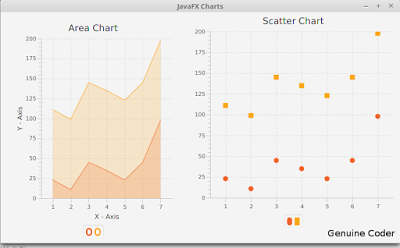
    These two are explained together because, both of these Charts takes same type of data. Yes, the XYChart.Series object. We can use the same example used above.

    XYChart.Series series = new XYChart.Series(); //Make a new XYChart object
    //Add Data
    series.getData().add(new XYChart.Data(“1”, 23));
    series.getData().add(new XYChart.Data(“2”, 14));
    series.getData().add(new XYChart.Data(“3”, 15));

    Finally, associate the data with both charts.

    AreaChart.getData().addAll(series);
    ScatterChart.getData().addAll(series);

    So that’s how we add a chart /Graph to our JavaFX program and i hope you understood these things well enough.

    ———————————————————————————————–
    Thanks to our sponsor
    https://ksaexpats.com/

  • Making Calculator in JavaFX (with Source Code)

    Making Calculator in JavaFX (with Source Code)

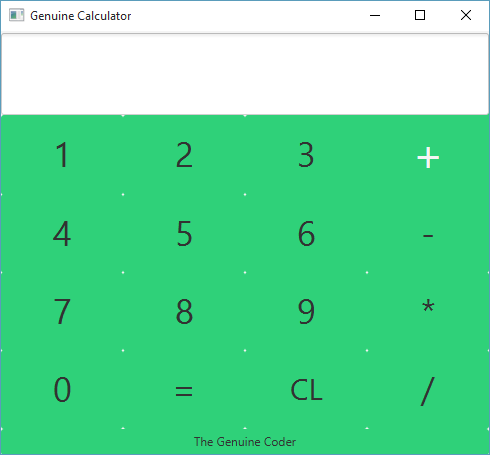
    JavaFX is a wonderful improvement to Java programming language. It includes a wide number of new user interface controls and the ability to add cascade style sheets (CSS), Animations etc. Today, Let’s see how we can build a beautiful calculator in JavaFX with CSS styling. This tutorial is done using NetBeans IDE and JavaFX Scene Builder 2.0. Watch The Complete Tutorial Video below.

    Part 1 : User Interface Design and Event Handling

    Part 2 : Adding CSS

    Get This Project

    1. Get Source Code from GitHub
    2. Download Compiled JAR
  • Temperature Monitor Prorgam using JavaFX

    Temperature Monitor Prorgam using JavaFX

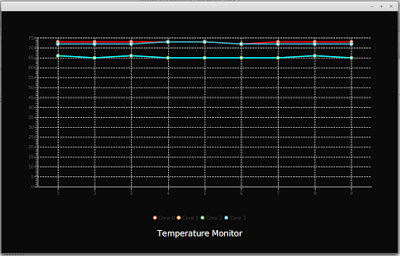
    Today i am going to show you how to create a system temperature monitor program in JavaFX. This program use Line Chart from JavaFX library. In order to get the temperature readings, i have given a connection to the system terminal so that i can execute terminal commands within the Java program itself.
    Process proc = Runtime.getRuntime().exec("sensors");
    BufferedReader reader = new BufferedReader(new InputStreamReader(proc.getInputStream()));
    
    This code will create a new process and will attach to the ‘sensors’ command. This program will work only on linux and the number of temperature readings will change from system to system. Using the process’s input stream we can read the output of the command passed through a Buffered Reader.
    After the establishment of connection with sensors, I have added an infinite loop with 1000ms sleep so that the temperature information will be updated each second. The returned data from process is taken and matched with a pattern [+]…. which will help to select the required temperature information alone. For this purpose, i have made use of Matcher and Pattern class in standard Java Library.
    If you are not familiar with JavaFX line graphs, i recommend reading this article How to Add JavaFX Charts / Graphs Tutorial.
    The processed data is then associated with 4 streams of XYData.Series() data structure to represent 4 different lines on the graph. Extensive CSS styling is used in this program to illustrate the capability of CSS to improve the look and feel of program (if it did :-)). The animations that can be seen on the video is the primitive animation associated with JavaFX LineChart.


    Watch the development in Action. Subscribe for more programs and tutorials