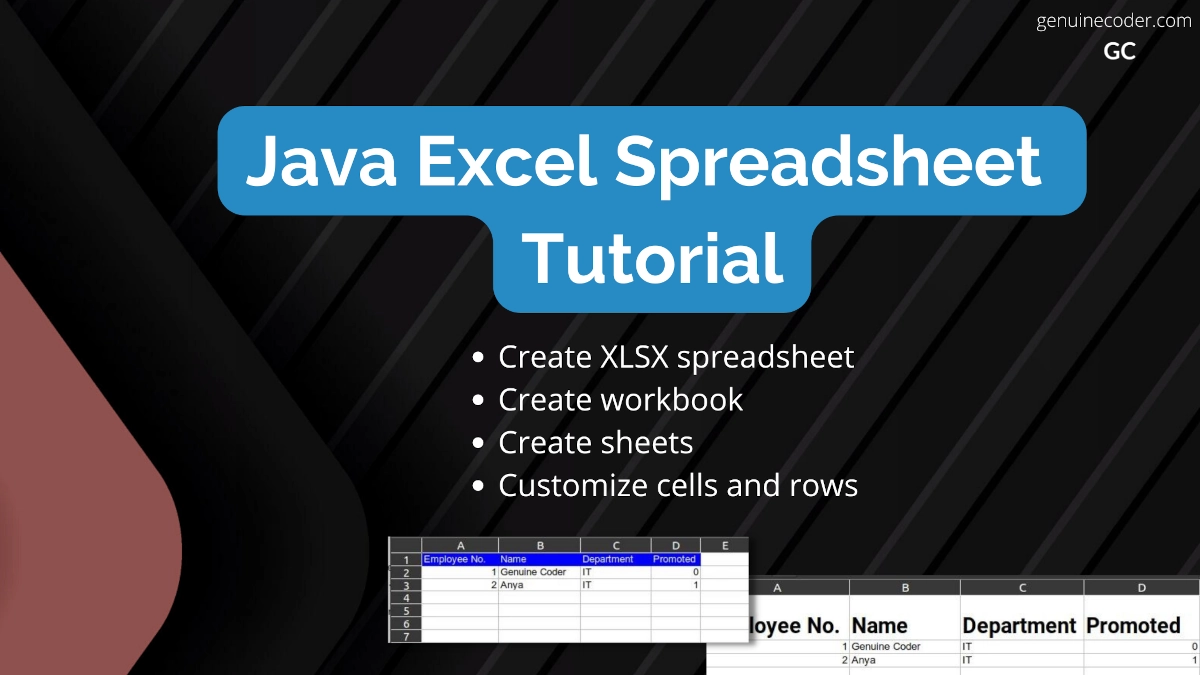
In this tutorial, we will explore the Java spreadsheet support and learn how to create Microsoft Excel .xlsx spreadsheet files using java program. For handling Excel files, we need to make use of the well known Apache POI library. This tutorial has been updated for Java 17 and work with Apache POI modules.
Add Apache POI library into your project
The first step is adding the Apache POI library into your project.
If you are using Gradle, add the following dependency into your build.gradle file.
// https://mvnrepository.com/artifact/org.apache.poi/poi
implementation group: 'org.apache.poi', name: 'poi', version: '5.2.2'
If you are using Maven, add the following dependency into your pom.xml file.
<!-- https://mvnrepository.com/artifact/org.apache.poi/poi -->
<dependency>
    <groupId>org.apache.poi</groupId>
    <artifactId>poi</artifactId>
    <version>5.2.2</version>
</dependency>
Issue with Java modules
Q. I am getting the exception “java.lang.module.FindException: Module SparseBitSet not found, required by org.apache.poi.poi”. How can I fix it?
Another similar exception you might come across is: “java.lang.module.FindException: Module commons.math3 not found, required by org.apache.poi.poi”.
Since you are using Java 9+ with modules, you need to set the module configuration correctly. First, make sure that your module-info.java contains the following lines to have your application access the org.apache.poi.poi module.
requires org.apache.poi.poi;
Then, we must allow the Apache poi module to access two if its dependencies. This needs to be added as a JVM argument. Add the following JVM argument into your project.
--add-opens=org.apache.poi.poi/com.zaxxer=ALL-UNNAMED
--add-opens=org.apache.poi.poi/org.apache.commons.math3=ALL-UNNAMED"
Create Excel Workbook
The first thing to do when creating a spreadsheet file is creating a workbook. We will create an org.apache.poi.hssf.usermodel.HSSFWorkbook and then save it as an .xlsx file.
import java.io.File;
import java.io.OutputStream;
import java.nio.file.Files;
import org.apache.poi.hssf.usermodel.HSSFWorkbook;
import org.apache.poi.ss.usermodel.Workbook;

public class ExcelTutorial {

  public static void main(String[] args) throws Exception {
    ExcelTutorial excelTutorial = new ExcelTutorial();
    excelTutorial.createWorkbook();
  }

  private void createWorkbook() throws Exception {
    //Create a workbook
    try (Workbook wb = new HSSFWorkbook()) {
      //Add two sheets into the workbook
      wb.createSheet("My Excel Sheet 1");
      wb.createSheet("My Excel Sheet 2");
      //Save the workbook to a file
      try (OutputStream fileOut = Files.newOutputStream(new File("my_first_java_spreadsheet.xlsx").toPath())) {
        wb.write(fileOut);
      }
    }
  }
This will create a new file Excel file. We can open it on the MS Excel or any compatible spreadsheet program you have installed, including LibreOffice Calc, Google Sheet, etc. The following screenshot shows the Excel file opened with LibreOffice.

Create Excel spreadsheet with actual data
Now that we have learned how to create Excel spreadsheet with sheets, let’s learn how to add tabular data into the sheets.
We can add rows into the sheets using the method sheet.createRow(rowIndex);. For each row, we can then set the value for each cell using the setCellValue(String); function. Let’s understand this better with the following example code.
import java.io.File;
import java.io.OutputStream;
import java.nio.file.Files;
import org.apache.poi.hssf.usermodel.HSSFWorkbook;
import org.apache.poi.ss.usermodel.CellType;
import org.apache.poi.ss.usermodel.Row;
import org.apache.poi.ss.usermodel.Sheet;
import org.apache.poi.ss.usermodel.Workbook;

public class ExcelTutorial {

  public static void main(String[] args) throws Exception {
    ExcelTutorial excelTutorial = new ExcelTutorial();
    excelTutorial.createEmployeeSheet();
  }

  private void createEmployeeSheet() throws Exception {
    try (Workbook wb = new HSSFWorkbook()) {
      Sheet sheet = wb.createSheet("Building#1");
      //Create table header
      Row headerRow = sheet.createRow(0); //First row - Heading
      headerRow.createCell(0).setCellValue("Employee No.");
      headerRow.createCell(1).setCellValue("Name");
      headerRow.createCell(2).setCellValue("Department");
      headerRow.createCell(3, CellType.BOOLEAN).setCellValue("Promoted");
      //Add first employee
      Row firstEmployee = sheet.createRow(1); //Second row
      firstEmployee.createCell(0).setCellValue(1); //Giving numeric value to cell
      firstEmployee.createCell(1).setCellValue("Genuine Coder");
      firstEmployee.createCell(2).setCellValue("IT");
      firstEmployee.createCell(3).setCellValue(false); //Giving a boolean value to the cell
      //Add second employee
      Row secondEmployee = sheet.createRow(2); //Third row
      secondEmployee.createCell(0).setCellValue(2);
      secondEmployee.createCell(1).setCellValue("Anya");
      secondEmployee.createCell(2).setCellValue("IT");
      secondEmployee.createCell(3).setCellValue(true); //Giving a boolean value to the cell

      //Write workbook into file
      try (OutputStream fileOut = Files.newOutputStream(new File("employee_data.xlsx").toPath())) {
        wb.write(fileOut);
      }
    }
  }
}
We have created a new Excel file with the name employee_data.xlsx and two employees. For each employee, we have given numeric, string and boolean cell data. You can see the generated file in the below screenshot.

Q. How to set background color of a row with Apache POI?
Now, let’s say we want to set the background color of the title. We need to set background color and text color for the entire first row.
Let’s see how we can do the styling per-cell for the entire header row. This way, in future if you would like to have customization within a row itself, it will be much easier.
private void applyStyleForRow(Row row) {
  //Create new style for the row
  CellStyle cellStyle = row.getSheet().getWorkbook().createCellStyle();
  //Configure single solid color fill
  cellStyle.setFillPattern(FillPatternType.SOLID_FOREGROUND);
  //Set font color
  cellStyle.setFillForegroundColor(IndexedColors.BLUE.getIndex());
  //Set background color
  cellStyle.setFillBackgroundColor(IndexedColors.WHITE.getIndex());
  //Apply style for each cell
  row.forEach(cell -> cell.setCellStyle(cellStyle));
}

Q. How to change font with Apache POI?
Often we would want to change the font for particular rows or cells. This is also easily achievable with Apache POI. We can set font family, font weight and of course font size with style attribute. Let’s see how we can do that with a code example.
private void applyFontForRow(Row row) {
  Workbook workbook = row.getSheet().getWorkbook();

  //Create and style font
  Font font = workbook.createFont();
  //Set bold
  font.setBold(true);
  //Set font family
  font.setFontName("Roboto");
  //Set font size
  font.setFontHeightInPoints((short) 20);

  //Apply style for each cell
  CellStyle cellStyle = workbook.createCellStyle();
  cellStyle.setFont(font); //Attach font to style
  row.forEach(cell -> cell.setCellStyle(cellStyle));
}
We have customized the header font by using Bold Roboto Font of 20pt size. The generated file looks as shown below.

Conclusion
In this tutorial, we have learned how to create Excel spreadsheets in Java. We have seen how to create workbook with multiple sheets, adding contents to sheets, customizing font and background style of cells and rows. If you have liked this article, you might want to check some of my other tutorial articles given below.