Category: Uncategorized

  • JavaFX : How to implement Drag and Drop

    JavaFX : How to implement Drag and Drop

    Drag and drop allows data transfer between various components in your javafx application. It allows transferring data in between your internal nodes or between two applications.

    A drag-and-drop gesture happens as follows: The user click a mouse button on a gesture source, drags the mouse, and releases the mouse button on a gesture target. While dragging the data, the user gets visual feedback, which denotes locations that do not accept the data and, when over a target that accepts the data, gives a hint where to drop the data.

    The data is transferred using a dragboard, which has the same interface as a system clipboard but is only used for the drag-and-drop data transfer.Various types of data can be transferred such as text, images, URLs, files, bytes, and strings.

    1. Receiving Data From other applications

    Receiving data from other applications through drag and drop is very simple in JavaFX. The method setOnDragOver  of node allows controlling what happens when something is dragged over the node. For example, as you can see in the top image, I have added a simple ImageView and implemented setOnDragOver to accept when files are dragged over it. Let’s see the code.

    imageView.setOnDragOver(new EventHandler() {
       public void handle(DragEvent event) {
          if (event.getDragboard().hasFiles()) {
             event.acceptTransferModes(TransferMode.ANY); 
          }
          event.consume();
       }
    });
    
    In this code, I have added event handler for the image view for Drag Over case. The getDragboard method gives the Dragboard object which contains the files being transferred. The method hasFiles() is invoked to make sure that, the dragged content is a file. This is done to avoid when something other than files are dragged, like string or rich text content.
    event.acceptTransferModes(TransferMode.ANY);
    
    This line makes the component ready to accept the incoming data. As a result, we will get a hand with a plus symbol when dragged over image view.
    The last thing we have to do is to accept the files when dropped. The method setOnDragDropped  allows to achieve this. In our case we have to do as follows.
    imageView.setOnDragDropped(new EventHandler<DragEvent>() {
        public void handle(DragEvent event) {
            List<File> files = event.getDragboard().getFiles();
            System.out.println("Got " + files.size() + " files");
            imageView.setImage(new Image(new FileInputStream(files.get(0))));
            
            event.consume();
         }
    });
    

    In this code, the list of incoming files is taken using event.getDragboard().getFiles() method. So we can send a list of file instead of a single one. From the received files, we have to create an image and set it as the image for the imageview.

    So, this is as simple as a drag and drop operation can get. Now let’s see how we can implement drag and drop for two internal nodes.
     
    2. Drag and Drop between two internal components
    For making a node ready to be dragged, we can use setOnDragDetected method. This function will be called whenver a drag operation is done on the component. Here, source is a Text variable that contains some text.
    When the source is dragged, The Dragboard class from javafx.scene.input.Dragboard is constructed by calling source.startDragAndDrop() method. Transfer modes define the type of transfer that happens between the gesture source and gesture target. Available transfer modes include COPY, MOVE, and LINK.
    Inorder to send data from the source an instance of ClipboardContent is used. Since we are sending String data, putString method is used. After setting the content, it is then associated with Dragboard db.
    Now source will allow dragging string data. ie, It act as a source.
    source.setOnDragDetected(new EventHandler<MouseEvent>() {
        public void handle(MouseEvent event) {
            Dragboard db = source.startDragAndDrop(TransferMode.ANY);
            
            ClipboardContent content = new ClipboardContent();
            content.putString(source.getText());
            db.setContent(content);
            
            event.consume();
        }
    });
    
    Now just like we did in the image view, we need to setup the Text at the destination ready to accept the incoming string. This can be done by using setOnDragOver and setOnDragDropped.
     
    Watch the complete tutorial about implementing Drag and Drop for your JavaFX Application.


  • How to make Navigation Drawer (Side Panel) in JavaFX – JavaFX Drawer

    How to make Navigation Drawer (Side Panel) in JavaFX – JavaFX Drawer

    Navigation drawer provides an intuitive way to keep main navigation controls of the UI clean. The drawer will only be made visible to the user on certain actions like button click so that we can make use of that space for much more important things yet keeping controls reachable with single click.

    Android introduced the material design Navigation bar or side pane or whatever you call, with its Material design goodness. JFoenix library provides JFXDrawer component.

    Today, I will be showing how to implement the Navigation drawer on your JavaFX application using JFoenix material design library. If you want some help on setting up the JFoenix material design library, see my post JavaFX Material Design : Setting Up and Making Login Application.

    I have made a video to make things more clear. You can watch it right here.


    If you are the kind of person who do not like to watch tutorial videos, read from here. I will explain it step by step.

    Step 1 : Design Content For Navigation Drawer 

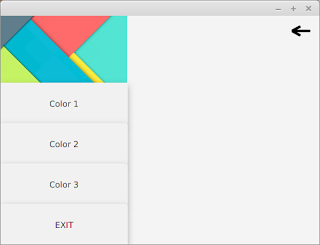
    At first, you have to create an FXML layout for the Navigation bar itself. This layout can then be inflated to the navigation bar holder later. The above image shows a pretty simple VBox layout that consists of 4 Buttons and one image view. This content can the be loaded to a VBox variable in our code (from the main controller) using the following code

    VBox box = FXMLLoader.load(getClass().getResource("SidePanelContent.fxml");
    
    Step 2 : Design The Container (Main) Window
    Main window with Hamburger
    Main window with Hamburger

    Now we  have the navigation bar content. In this step, you have to design the main application window. The JFXDrawer can be added using scene builder by drag and drop. Once you position the drawer on the space you want, you can set the drawer direction to LEFT, RIGHT, TOP or BOTTOM from the Properties section of Scene Builder.

    I have added a JFXHamburger for material design look and feel. I have thouroughly explained how to use JFXHamburger in this video https://www.youtube.com/watch?v=rCnPY9Kj4J0 . If you don’t like to have a Hamburger, you can use a simple button. Add an action listener to your button and add this code.
    @FXML
    //Accessing FXML Element
    JFXDrawer drawer;
    //Add this in ActionListener
    if(drawer.isShown())
    drawer.close();
    else
    drawer.open();
    

    The navigation drawer can be made visible by using the open() method. It can be made invisible through the function call close().

    Step 3 : Setting the content of Drawer

    Now we have two separate components. The Drawer and Main window. We can attach the box loaded in step 1 to our drawer in main window using the following code.

    drawer.setSidePane(box);
    
    Step 4 : There is no 4th step. You are done !
    I used to get happier when things get completed sooner that expected. That’s why there is a step 4 🙂
    Run the code now. When you click on your button or Hamburger,you should see the navigation drawer like this. If you have some alignment issues for the drawer, increase the value of “Default Drawer Size” from the Scene Builder.

    Recently, as part of library management software tutorial, I have created more elaborate tutorial about creating Navigation Drawer. It contains more complex buttons with icons and CSS styling. Watch those tutorial videos from the following link.

    1. Designing The Drawer
    2. Attaching drawer to Dashboard
    3. Handling Button Click Events

    Get Project From GitHub


    You might also be interested in:-

    1. JavaFX Library Management System Development: https://genuinecoder.com/javafx-complete-project-tutorial-library-management-system-html/
    2. JavaFX Animation Tutorial: https://genuinecoder.com/javafx-animation-tutorial/
    3. JavaFX 3D Tutorial: https://genuinecoder.com/javafx-3d-tutorial-introduction/
  • How to add JavaFX Charts / Graphs : Tutorial

    How to add JavaFX Charts / Graphs : Tutorial

    JavaFX provides a powerful set of Charts/Graphs that can be added very easily to your programs. Frankly, It is even easier than adding a Table in JavaFX. Graphical charts are available in the javafx.scene.chart package.

    Bar Chart

    This video describes how to add Bar Chart to your JavaFX program.

    Bar Chart data can be represented using an XYChart.Series object. All that you have to do is to make a new object and add data to it.

    XYChart.Series set1 = new XYChart.Series<>();

    Data can be added to this set using the code. Here XYChart.Data() takes two parameters. First one is for the X-Axis(Horizontal) and the second one is for Y-Axis(Vertical).

    set1.getData().add(new XYChart.Data("James", 5000));
    set1.getData().add(new XYChart.Data("Alice", 10000));
    set1.getData().add(new XYChart.Data("Alex", 2000));

    Finally, Connect the created series with your JavaFX Bar Chart object using getData().addAll() method.  

    SalaryChart.getData().addAll(set1);

    AddAll() method allows to add more than one series of data to your chart. For example if i have set1,set2 and set3 then i can add all of them by using a comma seperated list.

    SalaryChart.getData().addAll(set1,set2,set3);

    Pie Chart

    JavaFX Pie Chart uses an ObservableList which is very similar to XYSeries.Series we used for Bar Chart. This video explains how to use pie chart.

    ObservableList<PieChart.Data> pieChartData
    = FXCollections.observableArrayList(
    new PieChart.Data("Cars", 13),
    new PieChart.Data("Bikes", 25),
    new PieChart.Data("Buses", 10),
    new PieChart.Data("Cycles", 22));
    pieChart.setData(pieChartData);

    Here i have created an ObservableList and added 4 values. The pie chart takes all of these values and allocate a percentage for each one.

    For eg, Percentage of cars = 13/(13+25+10+22) = 18.5%

    The data then can be associated with the chart using the same code used for Bar chart or using a simple alternative

    pieChart.setData(pieChartData);

    provided, pieChart is the Pie Chart object and pieChartData is the ObservableList.

    Line Chart

    Construction of Line Chart in Java is very much similar to Bar Chart. It takes the same XYChart.Series object.

    XYChart.Series series = new XYChart.Series(); //Make a new XYChart object
    //Add Data
    series.getData().add(new XYChart.Data(“1”, 23));
    series.getData().add(new XYChart.Data(“2”, 14));
    series.getData().add(new XYChart.Data(“3”, 15));

    Finally, associate the data with Line Chart.

    LineChart.getData().addAll(series);

    Area Chart and Scatter Chart

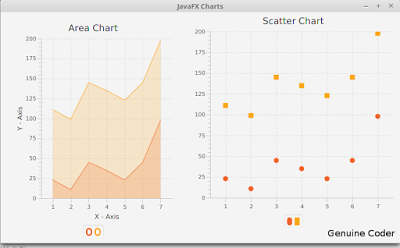
    These two are explained together because, both of these Charts takes same type of data. Yes, the XYChart.Series object. We can use the same example used above.

    XYChart.Series series = new XYChart.Series(); //Make a new XYChart object
    //Add Data
    series.getData().add(new XYChart.Data(“1”, 23));
    series.getData().add(new XYChart.Data(“2”, 14));
    series.getData().add(new XYChart.Data(“3”, 15));

    Finally, associate the data with both charts.

    AreaChart.getData().addAll(series);
    ScatterChart.getData().addAll(series);

    So that’s how we add a chart /Graph to our JavaFX program and i hope you understood these things well enough.

    ———————————————————————————————–
    Thanks to our sponsor
    https://ksaexpats.com/

  • Text Editor in Java with Source Code

    Text Editor in Java with Source Code

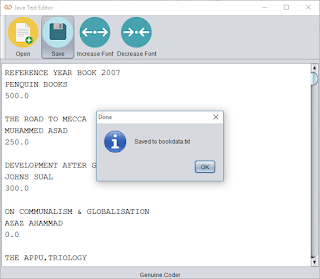
    Today, I am going to make a Text Editor program using our Java. Yeah, Like notepad. I want to add some basic functionalities like Opening a file, Saving a file and option to change the font size. It will only take less than 100 lines of code to do this (Excluding User Interface).
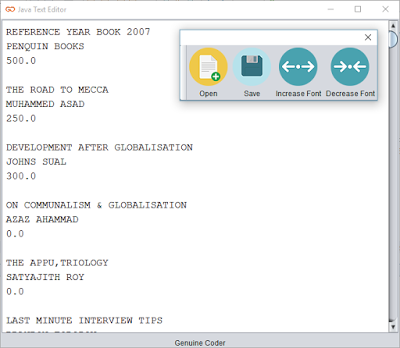
    I started with the toolbar javax.swing.JToolBar and added 4 buttons. Button with simple label logo and text for open,save and font size changing. The display area is simply a JTextArea with monotype font.

    Opening a Text File

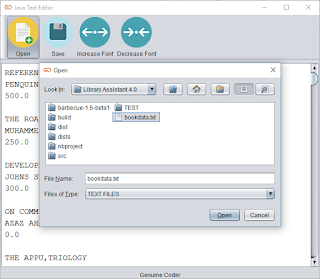
    It is pretty straightforward to use JFileChooser to select a file. When I started thinking about opening a file, I wanted a File Chooser that filter and display only text files.Thanks to FileNameExtensionFilter from javax.swing.filechooser.FileNameExtensionFilter. I am able to display only text files on the JFileChooser using the code
    FileNameExtensionFilter filter = new FileNameExtensionFilter("TEXT FILES", "txt", "text");
    fileOpener.setFileFilter(filter);
    
    When the user selects a file and click open, The Scanner from java.util.Scanner is used to read the file.
    Scanner scn = new Scanner(file);  
    String buffer = "";  
    while (scn.hasNext()) {  
       buffer += scn.nextLine() + "\n";  
    }  
    display.setText(buffer);  
    
    The “file” is nothing but the file taken from the JFileChooser and the while loop will continue until the end of file. “display” is the name of JTextArea, our display.

    Saving a Text File

    A global file variable called “currentEditingFile” is maintained to know whether we are working on a new, unsaved data or on an opened file. If “currentEditingFile” is null we have a new uncreated file. So the saving method will look to “currentEditingFile” and if it is null a JFileChooser will be opened to select the location for the new file. After selecting the directory, file name is taken from JOptionPane input dialog.
    The file is then written onto the file Using PrintWriter from java.io.PrintWriter.

    Changing Font Size

    A global variable with default font size as 14 is maintained and increased or decreased depending upon the button pressed.
    display.setFont(new java.awt.Font("Monospaced", 0, ++fontSize));  //Increase font size
    display.setFont(new java.awt.Font("Monospaced", 0, --fontSize)); //Decrease font size
    

    Extra Works

    It is not acceptable to exit the program without any notice when the user clicks on the Close button. In order to add a save confirmation, i made an override on the Window Closing operating and added a confirmation message. It is done from the constructor itself
    this.addWindowListener(new WindowAdapter() {  
       @Override  
       public void windowClosing(WindowEvent e) {  
    	 super.windowClosing(e); //To change body of generated methods, choose Tools | Templates.  
    	 int ans = JOptionPane.showConfirmDialog(rootPane, "Save Changes ?", "Confirm", JOptionPane.YES_NO_OPTION, JOptionPane.QUESTION_MESSAGE);  
    	 if (ans == JOptionPane.YES_OPTION) {  
    	   //Write Changes 
    	   saveChanges();  
    	 }  
       }  
    });
    

    So that’s it. Download the program / source code from below buttons. If this was helpful please like me on facebook and keep visiting for more cool programs and sources.

    Recommended Read

    Download Source Code Download Application 

    Screenshots:-

    Detachable Tool Panel

    Font size control

    File selector window

    Save complete dialog

  • Find Perfect Domain Name with Domain Suggestion Tools

    Find Perfect Domain Name with Domain Suggestion Tools

    We all like to have a short yet meaningful domain names for our website or blog. But searching for available domains on GoDaddy or Big Rock is very time consuming and frustrating. In my case, I wanted a simple domain name related to programming. I searched and searched. Finally bought www.genuinecoder.comfrom GoDaddy. The truth is, I named this blog as Genuine Coder after purchasing the domain name.

    So that’s not your case, right? Well, there are a number of ways to find out available domain names. Let’s see how we can find a perfect domain name for you.

    Lean Domain Search

    Lean domain search asks to enter a word that you want your domain name to include. I have used “programming” and got 3,875 available domains. Lean domain search provides options to sort result according to popularity, length or alphabetical order. Moreover, it searches on twitter to find out whether “@yourdomain” is available on twitter.
    Lean domain search for Domain Suggestion
    • When sorted based on popularity, I got “ProgrammingMarket.com” as the first result
    • When sorted according to length of the domain, I got “ExProgramming.com”.
    • Sorting based on alphabetical order gave me “AbacusProgramming.com”
    Lean domain search also provides Search Term Filter that helps to filter the result based on domain names starting with search term or ending with search term.

    Domains Bot

    Domains bot work like Lean domain search. Once you enter a keyword, you will get list of available domains. You can choose whether you want particular TLD (Top Level Domain) like .com, .org etc. It is also possible to choose the words from English, Deutsch, Español, Italiano, Français and Dutch.
    Domains Bot for Domain Suggestion

    NameMesh

    Name Mesh is also a good choice. Simply enter in your keywords and results will be sorted into eight categories of results, including Common, New, Short, Extra, Similar, SEO, Fun and Mix. You can refine your result by limiting the maximum characters or showing only ones that available with particular registrar like GoDaddy or BlueHost.
    Name mesh for Domain Suggestion

    Domainr

    Domainr is a simple tool to find available domains. It has less options compared to above ones. When you search for a specific keyword in domainr, you will get a list of .com, .org, .co.in etc variations. Unlike above tools, it does not provide any added keywords as prefix and suffix. 
    I searched for eye and got eye.com, eye.net etc. as taken and eye.org for sale.
    Domainr for Domain Suggestion

    Conclusion

    It is better to do a thorough research before buying a domain. Because After setting one domain for your website/blog, it is hard to change since all the search engine entries and back-links will be lost. Moreover, you will loose your precious Alexa ranking too.
    All of these tools are very helpful. Yet, I prefer LeanDomainSearch and NameMesh since they have a lot of search refining options. 
  • Making Calculator in JavaFX (with Source Code)

    Making Calculator in JavaFX (with Source Code)

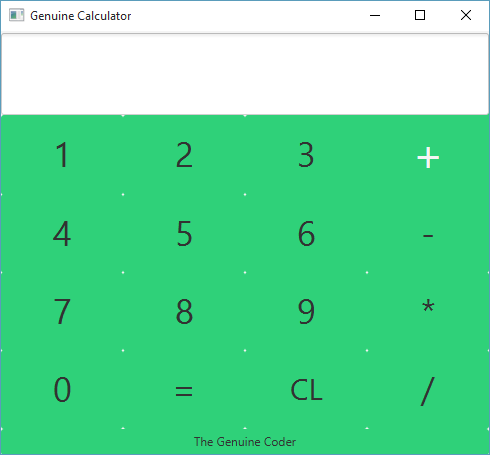
    JavaFX is a wonderful improvement to Java programming language. It includes a wide number of new user interface controls and the ability to add cascade style sheets (CSS), Animations etc. Today, Let’s see how we can build a beautiful calculator in JavaFX with CSS styling. This tutorial is done using NetBeans IDE and JavaFX Scene Builder 2.0. Watch The Complete Tutorial Video below.

    Part 1 : User Interface Design and Event Handling

    Part 2 : Adding CSS

    Get This Project

    1. Get Source Code from GitHub
    2. Download Compiled JAR
  • Directory / Folder Indexing Program Using Java

    Directory / Folder Indexing Program Using Java

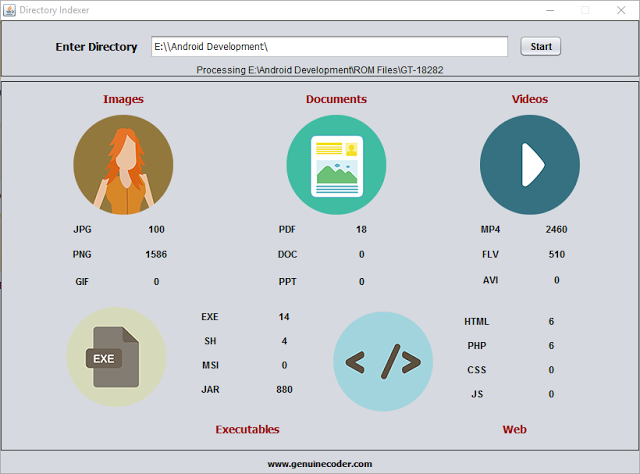
    I thought it will be cool if I can make a program that scans some pen drive or hard disk connected to my PC in order find out how many images,videos or documents are there. In simple terms, a directory or folder/file indexing program. Thanks to java again.
    Java Directory / Folder Indexer
    Directory Indexer Main Window
    Directory indexer uses the FILE class from java.io package. An object of FILE can store both files and directories. The parent or Root directory, from where we start indexing is read from the user using normal JTextField. Then a function called processDirectory() is called with argument as the given input text.
    The function, processDirectory() then create a new File with argument as given path. Then the list of files and directories present inside the directory are taken as a file array using listFiles() method from File class. If you are interested in finding more about file listing, read How tocreate a file explorer in java.
     File[] listFiles = fl.listFiles();  
    After getting the list of contents in the given directory, a for loop is applied which will go through all the available contents (objects of File class). As we said earlier, it can be either a file or a directory. If it is a file, then we check its extension by splitting the name string using “.” Symbol. The fun thing about extension is, a file can contain more than 1 dotes. For example, I want to name my file as “genuine.coder.image.jpg”. It is perfectly alright to use this filename and if we go for splitting and taking the string after first dot, we will get “.coder” which is definitely not what we are expecting. So the solution is to find the string after last dot and it is achieved using the code
    String[] extension = listFile.getName().split("[.]");  
     String ex = extension[extension.length - 1]; 
    So now we have the extension. All that we have to do is to check the string against the required extension (jpg,png,pdf etc) and increment the counter.
     if (ex.equalsIgnoreCase("jpg")) {  
        jpg.setText(Integer.parseInt(jpg.getText()) + 1 + "");  
     }  
    I found this way of incrementing the counter as a simple one (not efficient at all) since I don’t have to maintain some arrays for each separate extensions.
    If the file object which is being processed is not a file, then it may be a directory. If it is, then we have to get inside of that and index them also. A simple recursive call to the function will do the trick.
     

    Java Directory / Folder Indexing Completed
    Indexing Completed Message
     if (listFile.isDirectory()) {  
          processDirectory(listFile.getAbsolutePath()); //Recursive call to processDirectoy  
     }  
    I have used a thread to call the processDirectory() function. If I don’t, the updating on the UI (incrementing the counter) will be lagging. Using just one new thread, it is possible to achieve better refreshing and processing rates. For this purpose, a new class named directoryProcessor is created and implemented as Runnable which is then passed as a runnable object for new Thread object. The processDirectory is called from inside the run() method of directoryProcessor.
    Class directoryProcessor
    class directoryProcessor implements Runnable {  
         @Override  
         public void run() {  
           processDirectory(input.getText());  
           sts.setText("Completed");  
           JOptionPane.showMessageDialog(rootPane, "Indexing Completed", "Done", JOptionPane.INFORMATION_MESSAGE);  
         }  
       }  
    Function processDirectory()
     
    public void processDirectory(String dir) {  
         File fl = new File(dir);  
         sts.setText("Processing " + dir);  
         File[] listFiles = fl.listFiles();  
         for (File listFile : listFiles) {  
           if (listFile.isFile()) {  
             String[] extension = listFile.getName().split("[.]");  
             String ex = (extension[extension.length - 1]);  
             if (ex.equalsIgnoreCase("jpg")) {  
               jpg.setText(Integer.parseInt(jpg.getText()) + 1 + "");  
             } else if (ex.equalsIgnoreCase("png")) {  
               png.setText(Integer.parseInt(png.getText()) + 1 + "");  
             } else if (ex.equalsIgnoreCase("gif")) {  
               gif.setText(Integer.parseInt(gif.getText()) + 1 + "");  
             } else if (ex.equalsIgnoreCase("ppt")) {  
               ppt.setText(Integer.parseInt(ppt.getText()) + 1 + "");  
             } else if (ex.equalsIgnoreCase("doc")) {  
               doc.setText(Integer.parseInt(doc.getText()) + 1 + "");  
             } else if (ex.equalsIgnoreCase("pdf")) {  
               pdf.setText(Integer.parseInt(pdf.getText()) + 1 + "");  
             } else if (ex.equalsIgnoreCase("mp4")) {  
               mp4.setText(Integer.parseInt(mp4.getText()) + 1 + "");  
             } else if (ex.equalsIgnoreCase("flv")) {  
               flv.setText(Integer.parseInt(flv.getText()) + 1 + "");  
             } else if (ex.equalsIgnoreCase("avi")) {  
               avi.setText(Integer.parseInt(avi.getText()) + 1 + "");  
             } else if (ex.equalsIgnoreCase("exe")) {  
               exe.setText(Integer.parseInt(exe.getText()) + 1 + "");  
             } else if (ex.equalsIgnoreCase("sh")) {  
               sh.setText(Integer.parseInt(sh.getText()) + 1 + "");  
             } else if (ex.equalsIgnoreCase("jar")) {  
               jar.setText(Integer.parseInt(jar.getText()) + 1 + "");  
             } else if (ex.equalsIgnoreCase("html")) {  
               html.setText(Integer.parseInt(html.getText()) + 1 + "");  
             } else if (ex.equalsIgnoreCase("php")) {  
               php.setText(Integer.parseInt(php.getText()) + 1 + "");  
             } else if (ex.equalsIgnoreCase("css")) {  
               css.setText(Integer.parseInt(css.getText()) + 1 + "");  
             } else if (ex.equalsIgnoreCase("js")) {  
               js.setText(Integer.parseInt(js.getText()) + 1 + "");  
             }  
           } else if (listFile.isDirectory()) {  
             try {  
               processDirectory(listFile.getAbsolutePath());  
             } catch (Exception e) {  
               System.err.println("Exception - " + e.getMessage());  
             }  
           }  
         }  
       } 
  • Java File Explorer program with Source Code

    Java File Explorer program with Source Code

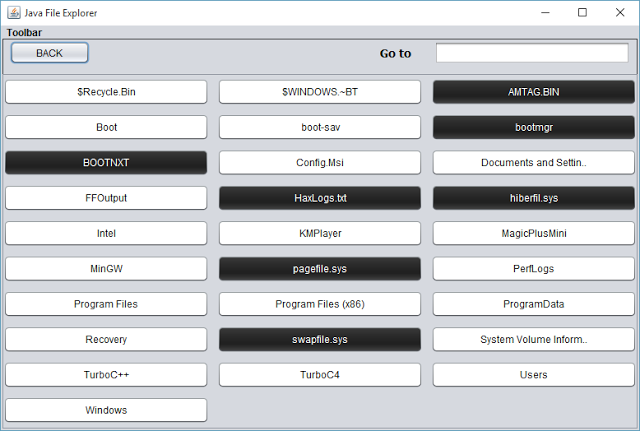
    Let’s develop a basic file explorer using java. Java’s FILE class from java.io package provides simple way to represent both files and directories. That means, the same class can represent both files and directories.
    This program starts by creating a new file in the root. For example we can start at C drive in windows or root(/) in Linux.


    File f = new File(“C:\”);  


    The list of available files and folders present in the given directory can be accessed using the function listFiles(). It returns a list of files pointing to the contents inside the directory. Using a for loop buttons are created dynamically for each of these files and added to the container panel.
    Handling Files
     
    The button can be either file or folder. Using isFile() function in the FILE class, it is possible to determine whether a file is a file or directory. If it is a file, we then have to open it, if possible.
    Java provides a powerful handle to the operating system using ‘Desktop’ class from java.awt package. Using Desktop we can open a file using the default program associated for it.
    Desktop.getDesktop().open(FileName); 
    Open() throws an IOException and should be caught properly.
    Handling Directories
    When we encounter a directory, which is the false case for isFile(), we have to display the contents in that directory. What we have to do here is a simple recursive call to the display function using this path after removing the all currently present components in the container.
    Container.removeAll() should do the trick.
    After adding the new buttons, it is necessary to refresh the panel. Remember that the newly added components will not be visible until you refresh the panel using revalidate() and repaint() functions present in the Panel class.
    container.revalidate();  
     container.repaint(); 
    Adding a back button
    It is a basic requirement for File explorers to add back buttons. In order to do so, we have to remember the history of directories. A stack is used for this purpose. Whenever a directory is accessed, its parent is added to the stack. When the back button is pressed, the top of the stack is popped and that directory is displayed.
    Go to directory
    Again, the same display function LoadBase() is utilized here. LoadBase taked the full pathname of directory and when the user gives the directory path directly, all that we have to do is to pass the given text to LoadBase(). The path may be invalid and it is displayed using message dialog. isExist() function in the file class helps to check whether a file/directory exists.

     
    Download Project  

    Main Window screenshot for Java File Explorer
    Loaded C Drive
    D drive listed using Java File Explorer
    Using Go to to load D drive
  • Install The Best Android Emulator For Ubuntu / Linux

    Install The Best Android Emulator For Ubuntu / Linux

    When we consider android emulators, the first option is Google’s default Android Emulator available in the android-sdk. But on a normal computer (in my 4GB Ram, Core i3 3rd Gen Processor Laptop) it takes around 5 minute to boot and performance is very laggy.  It becomes worse after starting android studio in case you are a developer. So I started looking for a faster yet stable android emulator for Linux. Genymotion

    Genymotion is the best android emulr Linux versator I have used so far. It is fast, simple and can be integrated into android studio without any additional configuration. If you are looking for an android emulator for android development or just want to run WhatsApp or something on your computer, Genymotion is the right choice. Genymotion is free for personal use and can be downloaded from their site after signup. If you want to use Genymotion for business use, try Desktop Edition For Business. Requirements

    Your system must have Virtualbox virtual machine present in order to use Genymotion. If you don’t have Virtualbox download the setup for your Linux version from Virtualbox linux installation page. Install it and restart system to continue.

    How To Install Genymotion In Ubuntu / Linux

    • Go to this Genymotion website and make a free account.
    • Login using your account and go to this download Page
      Download the right version of the setup for your computer (Select correct architecture 32bit or 64bit. If you are not sure, then download 32 bit )
    • The downloaded file will be of .bin extension. Linux wont allow to run a file that is downloaded from internet. You have to give the file executable privilege to run it. To do so, open terminalEither copy and paste your file to home or change terminal working directory by using ‘cd’ command.Type chmod +x file-name.bin where file-name is the name the downloaded file
    • Now, The installation will be in progress. Complete the installation
    • After the installation, You can start Genymotion from your launcher/Menu. If it is not present, then start the program manually from /home/you-user name/genymotion/genymotion (You may have to make this program executable using chmod)
    • Now you should see the following loading screen
    • Once loaded, You should see a login prompt. For login, use your previous username and password.
    • Now it is time to add a new phone to this emulator. You can do this by Clicking on the Add (+) button.
    • You should see a list of available emulators here. There you can find devices with almost all android versions you have heard of. Choose any one you want and click on Next. In the new window, you can set a name for your device. Click Next.
    • Wait for the downloading and installing complete. After you complete your virtual device installation, you will see the device in your Virtual Device List. Then you can add any number of emulators you want. In my case, I have added 3 of them.
    • Congratulations. You have successfully added an emulator. Now it is time to run it. Select the available emulator and click on start button. Then a message box will appear saying “Initializing virtual device”
    • It will take a little while to complete the firdt boot. Be patient :-). Here is a screenshot of my emulator  

    Keywords : Run android apps in linux, Run android apps in pc, Install Genymotion in linux ubuntu mint, Android emulator for linux, Fastest android emulator, Install apk in linux

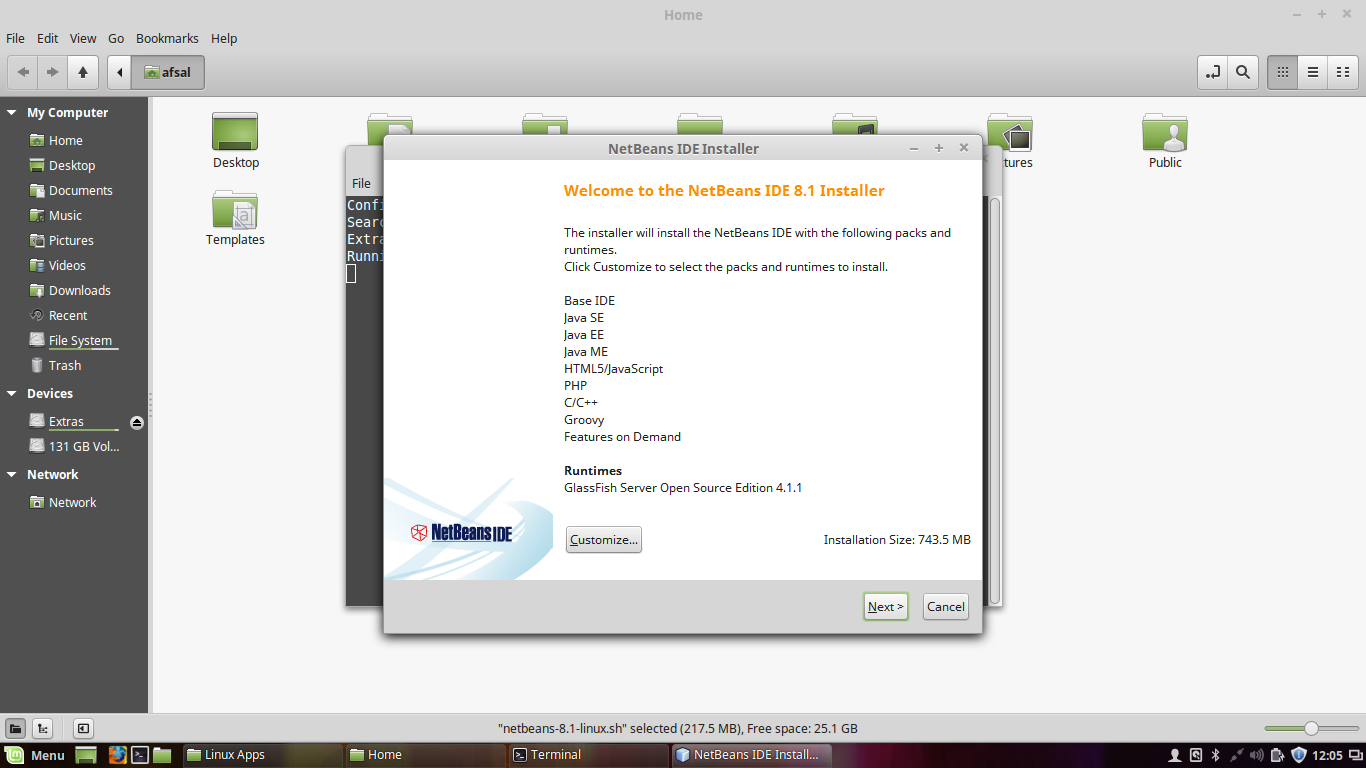
  • Install NetBeans with Oracle JDK in Ubuntu / Mint (Easy Way)

    Install NetBeans with Oracle JDK in Ubuntu / Mint (Easy Way)

    Programmers love to code in Linux. For me whether it is Android Studio or NetBeans, I used to get 2-3 times better speed in my Mint than in Windows. However, installing JDK offline in Linux is a tedious task. But NetBeans provides an easier way to do this. Let’s see how we can install Netbeans with Oracle JDK in linux.

    Instead of installing the JDK, NetBeans only require an extracted JDK in the home directory. So let’s do it

      • Download NetBeans executable for Linux (.sh File) and Oracle JDK(Download file like jdk-8uxx-linux-x64.tar.gz for x64 platform)
      • Copy These downloaded files to Home Directory
      • Extract The JDK in the Home folder itself
      • Give the netbeans executable privilage using this command on terminal. Replace xx with your version.chmod +x netbeans-xxx.sh
      • Now you can run the NetBeans setup using
        ./netbeans-xxx.sh
    • The NetBeans setup will automatically detect the JDK from the HOME directory. You can proceed with the installer and finish it.
    • Yeah ! You done it. Open NetBeans from your Launcher.

    Keywords : How to install netbeans with jdk, Simple way to install netbeans in ubuntu or mint, oracle jdk install

  • How to set WhatsApp Profile Pic as Contact Picture

    How to set WhatsApp Profile Pic as Contact Picture

    It is always nice to see the picture of our loved ones when they call us. But downloading their photos and then setting them as contact photo is a tedious job. What if we can simply set their WhatsApp photo as contact picture. Yeah! That seems to be a pretty good idea.

    But… How?

    Well, there is an App for that in google play store. Let me explain the process as steps.

    • ·    Open it. You can see all your contacts in the app. The left side photo represents your current contact photo and right side one represents the photo available in WhatsApp. Remember, the right side photo will not be available until you save the person’s picture in WhatsApp manually.
       
      Main Screen, Left side photo represents current contact photo and right side is the available whatsapp photo.
    • ·    Select the contact which you want to update photo.
    • ·    The application will ask for a confirmation to launch WhatsApp. Click OK.
       
      Confirmation to launch whatsapp
    • ·    This will launch WhatsApp profile of the person. Click on his/her profile pic and Save it (Share -> Save to gallery).
    • ·    When you come back to the Contact Photo Sync App, you will be given another prompt to confirm the photo update.
     
    Confirmation to set whatsapp image as profile pic
    • ·    Click YES, or YES, Not Show Again.
    • ·    And yes! You are done.
       
      All Done
      Search : Set WhatsApp profile pic as contact picture
  • Malayalam Keyboard For PC ; Windows, Linux and Mac

    Malayalam Keyboard For PC ; Windows, Linux and Mac

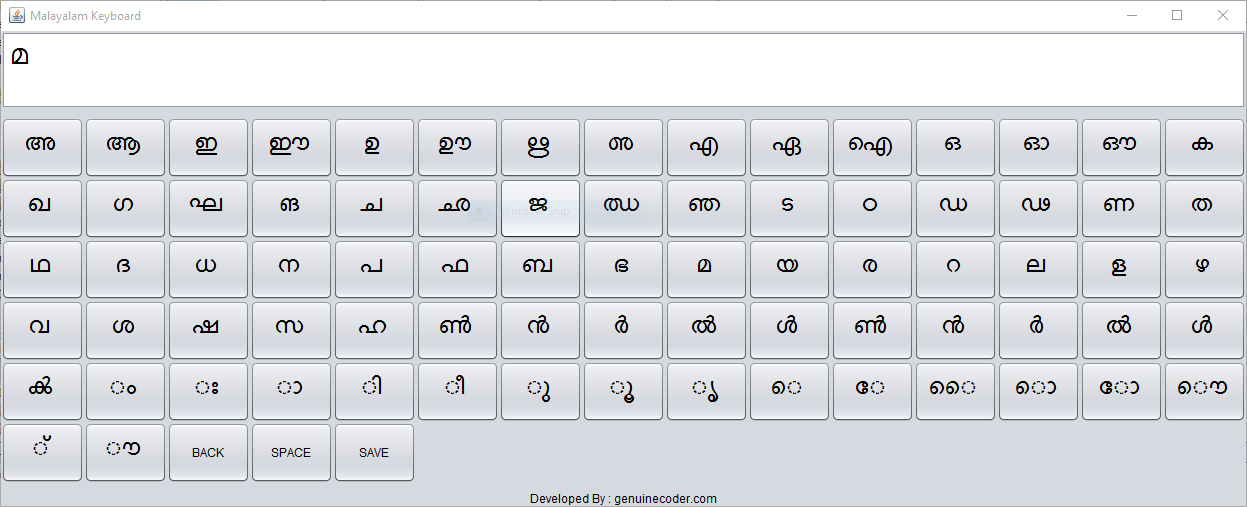
          Malayalam keyboard for PC / Desktop is an On-screen Malayalam keyboard that built using java programming language and will work on Windows, Linux and Mac operating systems.
    Malayalam keyboard for pc screenshot of main window
    Malayalam Keyboard for PC
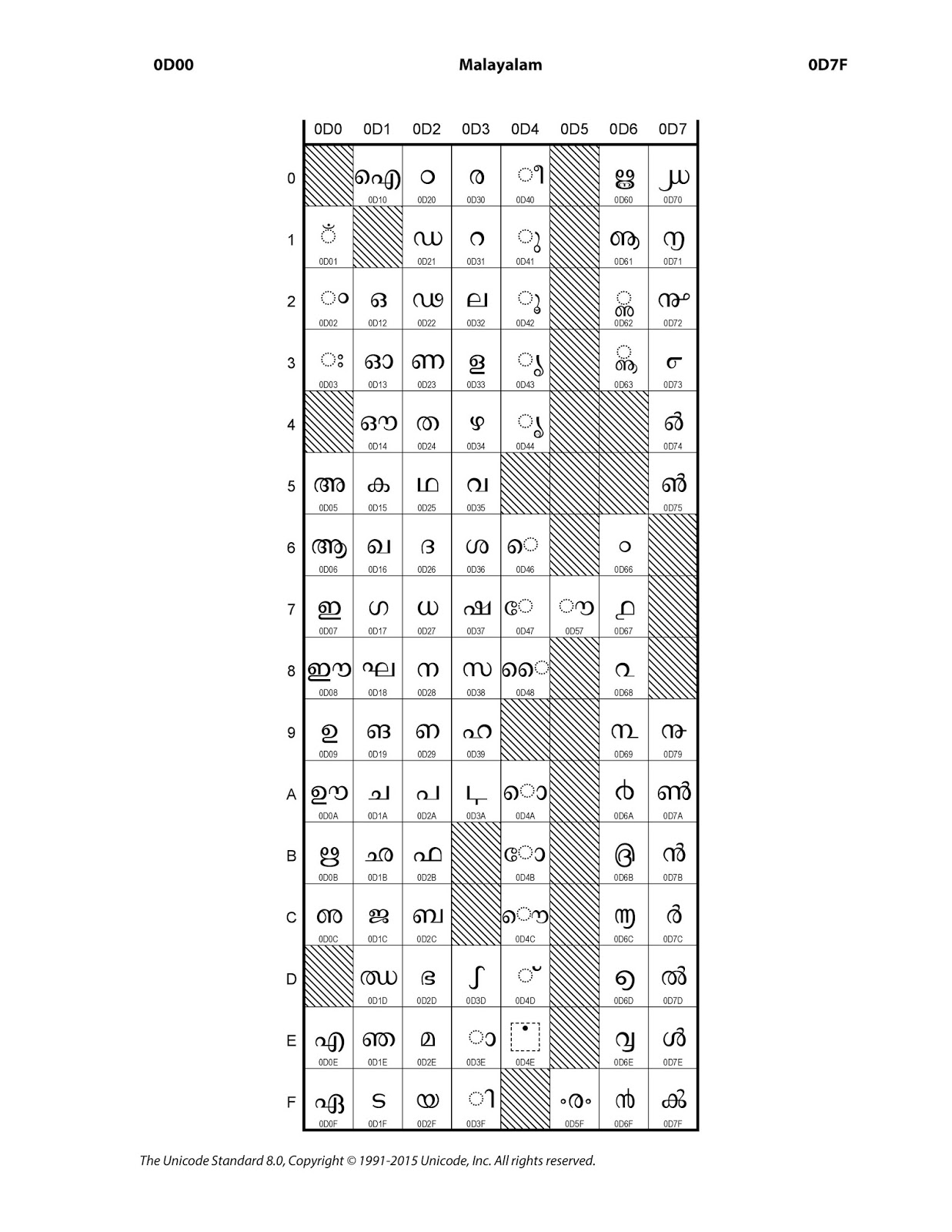
         In the Unicode character representation Malayalam characters are available in between 0D00–0D7F hexadecimal values. In this software you can find all the Malayalam characters as buttons in the application. Clicking on the button will display corresponding character on the screen.
      Normally the Malayalam characters like ‘മ്മ’ is written using + + and ‘ക്ക‘’using + + . Ii this application, I have added a shortcut to this via Mouse Right Click. For example, the normal left click on the will give itself and right click on the will give മ്മ. This is applicable for all characters.
    Typing 'Ma' in Malayalam Keyboard
    Left Click On  ‘
    Typing 'MMa' in Malayalam Keyboard
    Right Click On ‘മ്മ
       The ‘BACK’ button will give the normal backspace effect and ‘SPACE’ will do the normal space. ‘SAVE’ can be used to copy the contents in textbox to memory/clipboard which then can be pasted to other applications.
    Malayalam Unicode table
     

    Malayalam Unicode Character Allocation
    Download Malayalam keyboard for PC
     
    Source Code:-
     package malayalamkeyboard; 
     import java.awt.AWTException; 
     import java.awt.Button; 
     import java.awt.Font; 
     import java.awt.FontFormatException; 
     import java.awt.GraphicsEnvironment; 
     import java.awt.Robot; 
     import java.awt.Toolkit; 
     import java.awt.datatransfer.Clipboard; 
     import java.awt.datatransfer.StringSelection; 
     import java.awt.event.ActionEvent; 
     import java.awt.event.ActionListener; 
     import java.awt.event.KeyEvent; 
     import java.awt.event.MouseAdapter; 
     import java.io.File; 
     import java.io.IOException; 
     import java.util.ArrayList; 
     import java.util.logging.Level; 
     import java.util.logging.Logger; 
     import javax.swing.JButton; 
     import javax.swing.JOptionPane; 
     public class keyboard extends javax.swing.JFrame { 
       ArrayList extrachars; 
       ArrayList charStrings; 
       ArrayList removable; 
       String charSeq = “”; 
       int ctrx = 0; 
       Font customFont = null, customFontDisplay = null; 
       public keyboard() { 
         initComponents(); 
         loadExtraChars(); 
         try { 
           //create the font to use. Specify the size! 
           customFont = Font.createFont(Font.TRUETYPE_FONT, new File(“lib/font.ttf”)).deriveFont(25f); 
           customFontDisplay = Font.createFont(Font.TRUETYPE_FONT, new File(“lib/font.ttf”)).deriveFont(30f); 
           GraphicsEnvironment ge = GraphicsEnvironment.getLocalGraphicsEnvironment(); 
           //register the font 
           ge.registerFont(Font.createFont(Font.TRUETYPE_FONT, new File(“lib/font.ttf”))); 
         } catch (IOException e) { 
           e.printStackTrace(); 
         } catch (FontFormatException e) { 
           e.printStackTrace(); 
         } 
         display.setFont(customFontDisplay); 
         for (Object extrachar : extrachars) { 
           char a = (char) extrachar; 
           JButton btn = new JButton(a + “”); 
           btn.setFont(display.getFont().deriveFont(display.getFont().getSize() + 5f)); 
     //      btn.setFont(new java.awt.Font(“font”, 0, 34)); 
           btn.setFont(customFont); 
           btn.setActionCommand(ctrx + “”); 
           btn.addActionListener(new ActionListener() { 
             @Override 
             public void actionPerformed(ActionEvent e) { 
               display.setText(display.getText() + a); 
               char[] chars = display.getText().toCharArray(); 
             } 
           }); 
           btn.addMouseListener(new MouseAdapter() { 
             public void mouseClicked(java.awt.event.MouseEvent evt) { 
               if (evt.getButton() == 3) { 
                 char base = ‘u0d4d’; 
                 display.setText(display.getText() + a + base + a); 
               } 
             } 
           }); 
           cntr.add(btn); 
           ctrx++; 
         } 
         addExtraButttons(); 
         this.revalidate(); 
         this.repaint(); 
         this.setLocationRelativeTo(null); 
         this.pack(); 
       } 
       void loadExtraChars() { 
         removable = new ArrayList<String>(); 
         removable.add(“d11”); 
         removable.add(“d0d”); 
         removable.add(“d04”); 
         removable.add(“d3b”); 
         removable.add(“d3c”); 
         removable.add(“d45”); 
         removable.add(“d49”); 
         removable.add(“d4f”); 
         removable.add(“d50”); 
         removable.add(“d51”); 
         removable.add(“d52”); 
         removable.add(“d53”); 
         removable.add(“d54”); 
         removable.add(“d55”); 
         removable.add(“d56”); 
         removable.add(“d58”); 
         removable.add(“d59”); 
         removable.add(“d5a”); 
         removable.add(“d5b”); 
         removable.add(“d5c”); 
         removable.add(“d5d”); 
         removable.add(“d5e”); 
         removable.add(“d5f”); 
         removable.add(“d64”); 
         removable.add(“d65”); 
         removable.add(“d76”); 
         removable.add(“d77”); 
         removable.add(“d78”); 
         removable.add(“d29”); 
         removable.add(“d4e”); 
         removable.add(“d3a”); 
         removable.add(“d70”); 
         removable.add(“d71”); 
         removable.add(“d72”); 
         removable.add(“d73”); 
         removable.add(“d74”); 
         removable.add(“d75”); 
         removable.add(“d79”); 
         removable.add(“d3d”); 
         removable.add(“d44”); 
         removable.add(“d62”); 
         removable.add(“d63”); 
         //Removing MALAYALAM NUMBERS 
         removable.add(“d66”); 
         removable.add(“d67”); 
         removable.add(“d68”); 
         removable.add(“d69”); 
         removable.add(“d6a”); 
         removable.add(“d6b”); 
         removable.add(“d6c”); 
         removable.add(“d6d”); 
         removable.add(“d6e”); 
         removable.add(“d6f”); 
         //Removed 
         //Extras Spacing 
         removable.add(“d3e”); 
         removable.add(“d3f”); 
         removable.add(“d40”); 
         removable.add(“d41”); 
         removable.add(“d42”); 
         removable.add(“d43”); 
         removable.add(“d46”); 
         removable.add(“d47”); 
         removable.add(“d48”); 
         removable.add(“d4a”); 
         removable.add(“d4b”); 
         removable.add(“d4c”); 
         removable.add(“d4d”); 
         removable.add(“d57”); 
         //Extra Removables 
         removable.add(“d60”); 
         removable.add(“d61”); 
         removable.add(“d7f”); 
         removable.add(“d7f”); 
         // 
         extrachars = new ArrayList<Character>(); 
         charStrings = new ArrayList<String>(); 
         Character a = ‘u0D04’; 
         for (int i = 0; i < 123; i++) { 
           if (removable.contains(Integer.toHexString(a))) { 
             a++; 
             continue; 
           } 
           extrachars.add(a); 
           a++; 
         } 
         extrachars.add((‘u0D7A’)); 
         extrachars.add((‘u0D7B’)); 
         extrachars.add((‘u0D7C’)); 
         extrachars.add((‘u0D7D’)); 
         extrachars.add((‘u0D7E’)); 
         extrachars.add((‘u0D7F’)); 
         extrachars.add((‘u0D02’)); 
         extrachars.add((‘u0D03’)); 
         extrachars.add((‘u0D3E’)); 
         extrachars.add((‘u0D3F’)); 
         extrachars.add((‘u0D40’)); 
         extrachars.add((‘u0D41’)); 
         extrachars.add((‘u0D42’)); 
         extrachars.add((‘u0D43’)); 
         extrachars.add((‘u0D46’)); 
         extrachars.add((‘u0D47’)); 
         extrachars.add((‘u0D48’)); 
         extrachars.add((‘u0D4A’)); 
         extrachars.add((‘u0D4B’)); 
         extrachars.add((‘u0D4C’)); 
         extrachars.add((‘u0D4D’)); 
         extrachars.add((‘u0D57’)); 
       } 
       private void addExtraButttons() { 
         JButton btn = new JButton(“BACK”); 
         btn.addActionListener(new ActionListener() { 
           @Override 
           public void actionPerformed(ActionEvent e) { 
             try { 
               display.requestFocus(); 
               Robot r = new Robot(); 
               r.keyPress(KeyEvent.VK_BACK_SPACE); 
               r.keyRelease(KeyEvent.VK_BACK_SPACE); 
             } catch (AWTException ex) { 
               Logger.getLogger(keyboard.class.getName()).log(Level.SEVERE, null, ex); 
             } 
           } 
         }); 
         cntr.add(btn); 
         btn = new JButton(“SPACE”); 
         btn.addActionListener(new ActionListener() { 
           @Override 
           public void actionPerformed(ActionEvent e) { 
             try { 
               display.requestFocus(); 
               Robot r = new Robot(); 
               r.keyPress(KeyEvent.VK_SPACE); 
               r.keyRelease(KeyEvent.VK_SPACE); 
             } catch (AWTException ex) { 
               Logger.getLogger(keyboard.class.getName()).log(Level.SEVERE, null, ex); 
             } 
           } 
         }); 
         cntr.add(btn); 
         btn = new JButton(“SAVE”); 
         btn.addActionListener(new ActionListener() { 
           @Override 
           public void actionPerformed(ActionEvent e) { 
             Clipboard clpbrd = Toolkit.getDefaultToolkit().getSystemClipboard(); 
             clpbrd.setContents(new StringSelection(display.getText()), null); 
             JOptionPane.showMessageDialog(rootPane, “Copied To Clipboard”); 
           } 
         }); 
         cntr.add(btn); 
       } 
       @SuppressWarnings(“unchecked”) 
       // <editor-fold defaultstate=”collapsed” desc=”Generated Code”>//GEN-BEGIN:initComponents 
       private void initComponents() { 
         cntr = new javax.swing.JPanel(); 
         jScrollPane1 = new javax.swing.JScrollPane(); 
         display = new javax.swing.JTextArea(); 
         jLabel1 = new javax.swing.JLabel(); 
         setDefaultCloseOperation(javax.swing.WindowConstants.EXIT_ON_CLOSE); 
         setTitle(“Malayalam Keyboard”); 
         cntr.setLayout(new java.awt.GridLayout(0, 15)); 
         display.setColumns(20); 
         display.setLineWrap(true); 
         display.setRows(1); 
         jScrollPane1.setViewportView(display); 
         jLabel1.setHorizontalAlignment(javax.swing.SwingConstants.CENTER); 
         jLabel1.setText(“Developed By : genuinecoder.com”); 
         javax.swing.GroupLayout layout = new javax.swing.GroupLayout(getContentPane()); 
         getContentPane().setLayout(layout); 
         layout.setHorizontalGroup( 
           layout.createParallelGroup(javax.swing.GroupLayout.Alignment.LEADING) 
           .addComponent(jScrollPane1, javax.swing.GroupLayout.DEFAULT_SIZE, 1213, Short.MAX_VALUE) 
           .addComponent(cntr, javax.swing.GroupLayout.DEFAULT_SIZE, javax.swing.GroupLayout.DEFAULT_SIZE, Short.MAX_VALUE) 
           .addComponent(jLabel1, javax.swing.GroupLayout.Alignment.TRAILING, javax.swing.GroupLayout.DEFAULT_SIZE, javax.swing.GroupLayout.DEFAULT_SIZE, Short.MAX_VALUE) 
         ); 
         layout.setVerticalGroup( 
           layout.createParallelGroup(javax.swing.GroupLayout.Alignment.LEADING) 
           .addGroup(javax.swing.GroupLayout.Alignment.TRAILING, layout.createSequentialGroup() 
             .addComponent(jScrollPane1, javax.swing.GroupLayout.DEFAULT_SIZE, 78, Short.MAX_VALUE) 
             .addPreferredGap(javax.swing.LayoutStyle.ComponentPlacement.RELATED) 
             .addComponent(cntr, javax.swing.GroupLayout.DEFAULT_SIZE, 370, Short.MAX_VALUE) 
             .addGap(5, 5, 5) 
             .addComponent(jLabel1)) 
         ); 
         pack(); 
       }// </editor-fold>//GEN-END:initComponents 
       public static void main(String args[]) { 
         //<editor-fold defaultstate=”collapsed” desc=” Look and feel setting code (optional) “> 
         /* If Nimbus (introduced in Java SE 6) is not available, stay with the default look and feel. 
          * For details see http://download.oracle.com/javase/tutorial/uiswing/lookandfeel/plaf.html  
          */ 
         try { 
           for (javax.swing.UIManager.LookAndFeelInfo info : javax.swing.UIManager.getInstalledLookAndFeels()) { 
             if (“Nimbus”.equals(info.getName())) { 
               javax.swing.UIManager.setLookAndFeel(info.getClassName()); 
               break; 
             } 
           } 
         } catch (ClassNotFoundException ex) { 
           java.util.logging.Logger.getLogger(keyboard.class.getName()).log(java.util.logging.Level.SEVERE, null, ex); 
         } catch (InstantiationException ex) { 
           java.util.logging.Logger.getLogger(keyboard.class.getName()).log(java.util.logging.Level.SEVERE, null, ex); 
         } catch (IllegalAccessException ex) { 
           java.util.logging.Logger.getLogger(keyboard.class.getName()).log(java.util.logging.Level.SEVERE, null, ex); 
         } catch (javax.swing.UnsupportedLookAndFeelException ex) { 
           java.util.logging.Logger.getLogger(keyboard.class.getName()).log(java.util.logging.Level.SEVERE, null, ex); 
         } 
         //</editor-fold> 
         java.awt.EventQueue.invokeLater(new Runnable() { 
           public void run() { 
             new keyboard().setVisible(true); 
           } 
         }); 
       } 
       // Variables declaration – do not modify//GEN-BEGIN:variables 
       private javax.swing.JPanel cntr; 
       private javax.swing.JTextArea display; 
       private javax.swing.JLabel jLabel1; 
       private javax.swing.JScrollPane jScrollPane1; 
       // End of variables declaration//GEN-END:variables 
     } 
    Keywords : Free malayalam keyboard for windows, Linux and Mac. Java Malayalam Keyboard, Malayalam keyboard program
  • Easiest way to change Computer’s MAC Address in Windows

    Easiest way to change Computer’s MAC Address in Windows

    What is Actually the MAC Address?

    According to Wikipedia,

    A media access control address (MAC address), also called physical address, is a unique identifier assigned to network interfaces for communications on the physical network segment. MAC addresses are used as a network addressfor most IEEE 802 network technologies, including Ethernet and Wi-Fi.
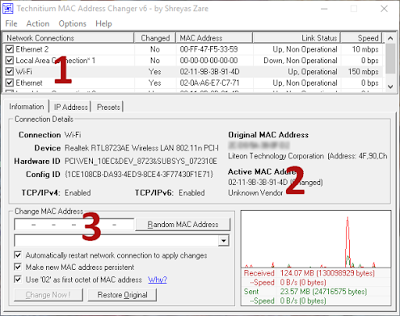
    Now, we want to change or mask our unique identity to something else. Technitium MAC Address Changer is an incredibly powerful yet easier tool to change MAC. Let us see how to change MAC address with just 3 clicks.
    Step 2:- Install and open it
    Technitium MAC Address Changer
    Step 3: Select your currently connected network form the list ( Located as 1 in the image). You can easily identify the connection by looking into Link status. choose one with status as “Up, Operational”.
    Step 4: Identify your mac. You can check whether  any other software has masked your MAC. If your original MAC and Active MAC are same, then it is not masked.
    Step 5: Click on the Random MAC Address ( Located as 3 in the figure ). Generate a random mac address
    Step 6: Click on Change Now!
    After Click on the ‘Change Now’
     You can see a prompt on successful MAC change.
    Step 7 : Well, There’s no step 7. Yet you can make sure your MAC is changed by looking into the Current MAC Address
    MAC Address Changed
     If it is not your original MAC Address, Then you’re done.
    Keywords :Change MAC address easily in Windows, Change MAC Address in windows, How to change MAC Address
  • QR Code – The Quick Response Codes

    QR Code – The Quick Response Codes

    QR codes as the name suggests, are much quicker and efficient than our traditional 1 dimension Barcodes. It stores data by the arrangements of dots. For technical reference, visit the Wikipedia page which explains it beautifully.

    Let’s see, how to create such a QR code for our own data. There are several software available on internet. But most of them are trail versions. We need simple, free and an efficient one. FREE QR CREATOR from smp-soft is a great choice for Windows users. It is absolutely free and can be used to  create Micro QR codes as well as standard ones. Micro QR codes are smaller version of normal QR codes where the area of code available is limited. It has more data density than standard ones.
    A version 40 QR code can store up to 1832 characters! Which is hundreds of times more data density than Barcodes.

    FREE QR Creator for Windows

    Free QRCode creator screenshot

    Enter anything you want in the DATA box and the software automatically converts it into corresponding QR code. The generated code can be saved as jpg, bmp, png, gif, tiff or emf. It also provides the option to change the background, foreground and to add border for the code. The border can be added either at ‘top and bottom’ or at all four sides. Moreover you can copy the generated image to clipboard and then can be pasted to Paint or Photoshop like image editors.

    Online QR Code Generators

    QR Code Readers

    QR Code Reader Device

    The QR code can be decoded using smartphone applications or dedicated QR code readers. There are several apps available for our smartphones. Currently, almost all major OS platforms will provide QR code readers. QR Code readers (hardware) cost more than barcode readers since it requires a 2 Dimensional scanner.

    Android QR Code Scanner Result

    Download the perfect Barcode/QR Code Reader for Android:-  BarcodeScanner for Android. This app works very well and is free. For other operating systems, search on your app market using ‘QR code reader’ or just with ‘QR code’ to download QR Code reader application.
  • ASCII Code for Characters in C++ program Source Code

    ASCII Code for Characters in C++ program Source Code

    In this tutorial, I would like to post a visual c++ console application source for a program that displays ASCII values as a table. It will be helpful in basic programming to detect the input character. You can compile this program using visual c++ or other compilers. ASCII is a set of special type of codes that will distinguish characters in computer memory. But because of its less capability for maintaining more characters and symbols, now it is replaced by UNICODE.

    C program to print ASCII code and corresponding character

    #include<iostream>
    
    using namespace std;
    
    void main() {
    
      char ch = '60';
      int counter = 60;
      while (counter < 137) {
        cout << "ASCII Code for " << ch << " is " << 'ch' << "n";
        ch++;
        ++counter;
      }
      system("pause");
      return;
    
    }
    

    ASCII Table and Description

    ASCII stands for American Standard Code for Information Interchange. Computers can only understand numbers, so an ASCII code is the numerical representation of a character such as ‘a’ or ‘@’ or an action of some sort. ASCII was developed a long time ago and now the non-printing characters are rarely used for their original purpose. Below is the ASCII character table, and this includes descriptions of the first 32 non-printing characters. ASCII was actually designed for use with teletypes and so the descriptions are somewhat obscure. If someone says they want your CV however in ASCII format, all this means is they want ‘plain’ text with no formatting such as tabs, bold or underscoring – the raw format that any computer can understand. This is usually so they can easily import the file into their own applications without issues. Notepad.exe creates ASCII text, or in MS Word you can save a file as ‘text only’

    ASCII Full Character Set

    Ascii Full Character Set

    Extended ASCII Codes

    Extended ASCII codes

  • GUI Simple Calculator Visual C++ Source : Windows Form Application

    GUI Simple Calculator Visual C++ Source : Windows Form Application

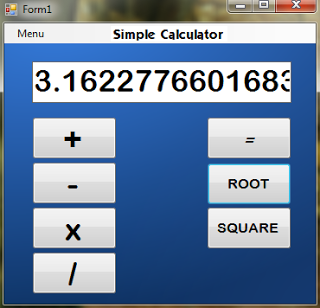
    Today let’s work around a new interesting visual C++ (cpp) calculator with Graphical User Interface (Windows Form Application). I made this source as easier as possible. You can compile the source by downloading the project source from below.

    Why is it simple calculator? It has only the basic functions of a calculator such as addition, subtraction, multiplication,division and 2 others. First Entered number is taken to the first variable a. Then select and operator, enter the second number. Do the necessary operations and When you press “=” equals button, you can see the answer right where you expect it.

    More than these basic operations, you can also find the square and square root of a number. I have added buttons for this. This program make use of “math.h” which contains “sqrt()” and “power()” functions for accomplishing these tasks.

    Visual Cpp Calculator

    Let me know your feedback in the comments.
    Use visual c++ 2010 compiler for execution.

                                                   Download Calculator Visual C++ Project

    Source……………………………Form1.h[design]

     #pragma once  
     #include<conio.h> //For_getch()_function  
     #include<math.h>  
     double ans, a, b;  
     int flag=0;  
     using namespace std;  
     namespace Calculator {  
         using namespace System;  
         using namespace System::ComponentModel;  
         using namespace System::Collections;  
         using namespace System::Windows::Forms;  
         using namespace System::Data;  
         using namespace System::Drawing;  
         /// <summary>  
         /// Summary for Form1  
         /// </summary>  
         public ref class Form1 : public System::Windows::Forms::Form  
         {  
         public:  
            Form1(void)  
            {  
                InitializeComponent();  
                //  
                //TODO: Add the constructor code here  
                //  
            }  
         protected:  
            /// <summary>  
            /// Clean up any resources being used.  
            /// </summary>  
            ~Form1()  
            {  
                if (components)  
                {  
                   delete components;  
                }  
            }  
         private: System::Windows::Forms::TextBox^ txtb;  
         private: System::Windows::Forms::Button^ button1;  
         private: System::Windows::Forms::Button^ button2;  
         private: System::Windows::Forms::Button^ button3;  
         private: System::Windows::Forms::Button^ button4;  
         private: System::Windows::Forms::Button^ button5;  
         private: System::Windows::Forms::Button^ button6;  
         private: System::Windows::Forms::Button^ button7;  
         private: System::Windows::Forms::Label^ label1;  
         private: System::Windows::Forms::MenuStrip^ menuStrip1;  
         private: System::Windows::Forms::ToolStripMenuItem^ menuToolStripMenuItem;  
         private: System::Windows::Forms::ToolStripMenuItem^ exitToolStripMenuItem;  
         protected:  
         protected:  
         protected:  
         private:  
            /// <summary>  
            /// Required designer variable.  
            /// </summary>  
            System::ComponentModel::Container ^components;  
     #pragma region Windows Form Designer generated code  
            /// <summary>  
            /// Required method for Designer support - do not modify  
            /// the contents of this method with the code editor.  
            /// </summary>  
            void InitializeComponent(void)  
            {  
                System::ComponentModel::ComponentResourceManager^ resources = (gcnew System::ComponentModel::ComponentResourceManager(Form1::typeid));  
                this->txtb = (gcnew System::Windows::Forms::TextBox());  
                this->button1 = (gcnew System::Windows::Forms::Button());  
                this->button2 = (gcnew System::Windows::Forms::Button());  
                this->button3 = (gcnew System::Windows::Forms::Button());  
                this->button4 = (gcnew System::Windows::Forms::Button());  
                this->button5 = (gcnew System::Windows::Forms::Button());  
                this->button6 = (gcnew System::Windows::Forms::Button());  
                this->button7 = (gcnew System::Windows::Forms::Button());  
                this->label1 = (gcnew System::Windows::Forms::Label());  
                this->menuStrip1 = (gcnew System::Windows::Forms::MenuStrip());  
                this->menuToolStripMenuItem = (gcnew System::Windows::Forms::ToolStripMenuItem());  
                this->exitToolStripMenuItem = (gcnew System::Windows::Forms::ToolStripMenuItem());  
                this->menuStrip1->SuspendLayout();  
                this->SuspendLayout();  
                //  
                // txtb  
                //  
                this->txtb->BackColor = System::Drawing::Color::White;  
                this->txtb->BorderStyle = System::Windows::Forms::BorderStyle::FixedSingle;  
                this->txtb->Font = (gcnew System::Drawing::Font(L"Arial Rounded MT Bold", 26.25F, System::Drawing::FontStyle::Regular, System::Drawing::GraphicsUnit::Point,  
                   static_cast<System::Byte>(0)));  
                this->txtb->ForeColor = System::Drawing::Color::Black;  
                this->txtb->Location = System::Drawing::Point(32, 44);  
                this->txtb->Margin = System::Windows::Forms::Padding(2, 3, 2, 3);  
                this->txtb->Name = L"txtb";  
                this->txtb->Size = System::Drawing::Size(300, 48);  
                this->txtb->TabIndex = 0;  
                this->txtb->TextAlign = System::Windows::Forms::HorizontalAlignment::Right;  
                this->txtb->WordWrap = false;  
                this->txtb->TextChanged += gcnew System::EventHandler(this, &Form1::txtb_TextChanged);  
                //  
                // button1  
                //  
                this->button1->Font = (gcnew System::Drawing::Font(L"Arial Rounded MT Bold", 27.75F, System::Drawing::FontStyle::Regular, System::Drawing::GraphicsUnit::Point,  
                   static_cast<System::Byte>(0)));  
                this->button1->Location = System::Drawing::Point(32, 108);  
                this->button1->Margin = System::Windows::Forms::Padding(2, 3, 2, 3);  
                this->button1->Name = L"button1";  
                this->button1->Size = System::Drawing::Size(98, 49);  
                this->button1->TabIndex = 1;  
                this->button1->Text = L"+";  
                this->button1->UseVisualStyleBackColor = true;  
                this->button1->Click += gcnew System::EventHandler(this, &Form1::button1_Click);  
                //  
                // button2  
                //  
                this->button2->Font = (gcnew System::Drawing::Font(L"Letterman-Solid", 15.75F, System::Drawing::FontStyle::Italic, System::Drawing::GraphicsUnit::Point,  
                   static_cast<System::Byte>(0)));  
                this->button2->Location = System::Drawing::Point(234, 108);  
                this->button2->Margin = System::Windows::Forms::Padding(2, 3, 2, 3);  
                this->button2->Name = L"button2";  
                this->button2->Size = System::Drawing::Size(98, 49);  
                this->button2->TabIndex = 2;  
                this->button2->Text = L"=";  
                this->button2->UseVisualStyleBackColor = true;  
                this->button2->Click += gcnew System::EventHandler(this, &Form1::button2_Click);  
                //  
                // button3  
                //  
                this->button3->Font = (gcnew System::Drawing::Font(L"Arial Rounded MT Bold", 27.75F, System::Drawing::FontStyle::Regular, System::Drawing::GraphicsUnit::Point,  
                   static_cast<System::Byte>(0)));  
                this->button3->Location = System::Drawing::Point(32, 160);  
                this->button3->Margin = System::Windows::Forms::Padding(2, 3, 2, 3);  
                this->button3->Name = L"button3";  
                this->button3->Size = System::Drawing::Size(98, 49);  
                this->button3->TabIndex = 3;  
                this->button3->Text = L"-";  
                this->button3->UseVisualStyleBackColor = true;  
                this->button3->Click += gcnew System::EventHandler(this, &Form1::button3_Click);  
                //  
                // button4  
                //  
                this->button4->Font = (gcnew System::Drawing::Font(L"Arial Rounded MT Bold", 27.75F, System::Drawing::FontStyle::Regular, System::Drawing::GraphicsUnit::Point,  
                   static_cast<System::Byte>(0)));  
                this->button4->Location = System::Drawing::Point(32, 212);  
                this->button4->Margin = System::Windows::Forms::Padding(2, 3, 2, 3);  
                this->button4->Name = L"button4";  
                this->button4->Size = System::Drawing::Size(98, 49);  
                this->button4->TabIndex = 4;  
                this->button4->Text = L"x";  
                this->button4->UseVisualStyleBackColor = true;  
                this->button4->Click += gcnew System::EventHandler(this, &Form1::button4_Click);  
                //  
                // button5  
                //  
                this->button5->Font = (gcnew System::Drawing::Font(L"Arial Rounded MT Bold", 27.75F, System::Drawing::FontStyle::Regular, System::Drawing::GraphicsUnit::Point,  
                   static_cast<System::Byte>(0)));  
                this->button5->Location = System::Drawing::Point(32, 264);  
                this->button5->Margin = System::Windows::Forms::Padding(2, 3, 2, 3);  
                this->button5->Name = L"button5";  
                this->button5->Size = System::Drawing::Size(98, 49);  
                this->button5->TabIndex = 5;  
                this->button5->Text = L"/";  
                this->button5->UseVisualStyleBackColor = true;  
                this->button5->Click += gcnew System::EventHandler(this, &Form1::button5_Click);  
                //  
                // button6  
                //  
                this->button6->Font = (gcnew System::Drawing::Font(L"Arial Rounded MT Bold", 12, System::Drawing::FontStyle::Regular, System::Drawing::GraphicsUnit::Point,  
                   static_cast<System::Byte>(0)));  
                this->button6->Location = System::Drawing::Point(234, 161);  
                this->button6->Margin = System::Windows::Forms::Padding(2, 3, 2, 3);  
                this->button6->Name = L"button6";  
                this->button6->Size = System::Drawing::Size(98, 49);  
                this->button6->TabIndex = 6;  
                this->button6->Text = L"ROOT";  
                this->button6->UseVisualStyleBackColor = true;  
                this->button6->Click += gcnew System::EventHandler(this, &Form1::button6_Click);  
                //  
                // button7  
                //  
                this->button7->Font = (gcnew System::Drawing::Font(L"Arial Rounded MT Bold", 12, System::Drawing::FontStyle::Regular, System::Drawing::GraphicsUnit::Point,  
                   static_cast<System::Byte>(0)));  
                this->button7->Location = System::Drawing::Point(234, 212);  
                this->button7->Margin = System::Windows::Forms::Padding(2, 3, 2, 3);  
                this->button7->Name = L"button7";  
                this->button7->Size = System::Drawing::Size(98, 49);  
                this->button7->TabIndex = 7;  
                this->button7->Text = L"SQUARE";  
                this->button7->UseVisualStyleBackColor = true;  
                this->button7->Click += gcnew System::EventHandler(this, &Form1::button7_Click);  
                //  
                // label1  
                //  
                this->label1->AutoSize = true;  
                this->label1->BackColor = System::Drawing::SystemColors::HighlightText;  
                this->label1->Font = (gcnew System::Drawing::Font(L"KabobExtrabold", 12, System::Drawing::FontStyle::Regular, System::Drawing::GraphicsUnit::Point,  
                   static_cast<System::Byte>(0)));  
                this->label1->Location = System::Drawing::Point(123, 3);  
                this->label1->Name = L"label1";  
                this->label1->Size = System::Drawing::Size(135, 18);  
                this->label1->TabIndex = 8;  
                this->label1->Text = L"Simple Calculator";  
                this->label1->Click += gcnew System::EventHandler(this, &Form1::label1_Click);  
                //  
                // menuStrip1  
                //  
                this->menuStrip1->Items->AddRange(gcnew cli::array< System::Windows::Forms::ToolStripItem^ >(1) {this->menuToolStripMenuItem});  
                this->menuStrip1->LayoutStyle = System::Windows::Forms::ToolStripLayoutStyle::Flow;  
                this->menuStrip1->Location = System::Drawing::Point(0, 0);  
                this->menuStrip1->Name = L"menuStrip1";  
                this->menuStrip1->Size = System::Drawing::Size(360, 23);  
                this->menuStrip1->TabIndex = 10;  
                this->menuStrip1->Text = L"menuStrip1";  
                this->menuStrip1->ItemClicked += gcnew System::Windows::Forms::ToolStripItemClickedEventHandler(this, &Form1::menuStrip1_ItemClicked);  
                //  
                // menuToolStripMenuItem  
                //  
                this->menuToolStripMenuItem->DropDownItems->AddRange(gcnew cli::array< System::Windows::Forms::ToolStripItem^ >(1) {this->exitToolStripMenuItem});  
                this->menuToolStripMenuItem->Name = L"menuToolStripMenuItem";  
                this->menuToolStripMenuItem->Size = System::Drawing::Size(50, 19);  
                this->menuToolStripMenuItem->Text = L"Menu";  
                this->menuToolStripMenuItem->Click += gcnew System::EventHandler(this, &Form1::menuToolStripMenuItem_Click);  
                //  
                // exitToolStripMenuItem  
                //  
                this->exitToolStripMenuItem->Name = L"exitToolStripMenuItem";  
                this->exitToolStripMenuItem->Size = System::Drawing::Size(92, 22);  
                this->exitToolStripMenuItem->Text = L"Exit";  
                this->exitToolStripMenuItem->Click += gcnew System::EventHandler(this, &Form1::exitToolStripMenuItem_Click);  
                //  
                // Form1  
                //  
                this->AutoScaleDimensions = System::Drawing::SizeF(6, 13);  
                this->AutoScaleMode = System::Windows::Forms::AutoScaleMode::Font;  
                this->BackgroundImage = (cli::safe_cast<System::Drawing::Image^ >(resources->GetObject(L"$this.BackgroundImage")));  
                this->BackgroundImageLayout = System::Windows::Forms::ImageLayout::Stretch;  
                this->ClientSize = System::Drawing::Size(360, 324);  
                this->Controls->Add(this->label1);  
                this->Controls->Add(this->button7);  
                this->Controls->Add(this->button6);  
                this->Controls->Add(this->button5);  
                this->Controls->Add(this->button4);  
                this->Controls->Add(this->button3);  
                this->Controls->Add(this->button2);  
                this->Controls->Add(this->button1);  
                this->Controls->Add(this->txtb);  
                this->Controls->Add(this->menuStrip1);  
                this->DoubleBuffered = true;  
                this->Font = (gcnew System::Drawing::Font(L"Microsoft Sans Serif", 8.25F, System::Drawing::FontStyle::Regular, System::Drawing::GraphicsUnit::Point,  
                   static_cast<System::Byte>(0)));  
                this->ForeColor = System::Drawing::Color::Black;  
                this->FormBorderStyle = System::Windows::Forms::FormBorderStyle::Fixed3D;  
                this->MainMenuStrip = this->menuStrip1;  
                this->Margin = System::Windows::Forms::Padding(2, 3, 2, 3);  
                this->Name = L"Form1";  
                this->Text = L"Form1";  
                this->Load += gcnew System::EventHandler(this, &Form1::Form1_Load);  
                this->menuStrip1->ResumeLayout(false);  
                this->menuStrip1->PerformLayout();  
                this->ResumeLayout(false);  
                this->PerformLayout();  
            }  
     #pragma endregion  
         private: System::Void txtb_TextChanged(System::Object^ sender, System::EventArgs^ e) {  
                   int temp;  
                          if(Int32::TryParse(txtb->Text, temp))  
                     a = float::Parse(txtb->Text);  
                }  
         private: System::Void button1_Click(System::Object^ sender, System::EventArgs^ e) {  
                   flag=1;  
                   b = double::Parse(txtb->Text);  
                   ans=a+b;  
                }  
     private: System::Void button3_Click(System::Object^ sender, System::EventArgs^ e) {  
                flag=2;  
                 b = float::Parse(txtb->Text);  
             }  
         private: System::Void button2_Click(System::Object^ sender, System::EventArgs^ e) {  
                   if(a==0 && b==0)  
                   {  
                       txtb->Text = "Enter Numbers";  
                   }  
                   if(flag==1)  
                   {  
                   ans=a+b;  
                       txtb->Text = Convert::ToString(ans);  
                   }  
                   else if(flag==2)  
                   {  
                      ans=b-a;  
                      txtb->Text = Convert::ToString(ans);  
                   }  
                   else if(flag==3)  
                   {  
                      ans=b*a;  
                      txtb->Text = Convert::ToString(ans);  
                   }  
                   else if(flag==4)  
                   {  
                      if(a==0)  
                      {  
                          MessageBox::Show("Divided By Zero Error");  
                      }  
                      ans=b/a;  
                      txtb->Text = Convert::ToString(ans);  
                   }  
                }  
     private: System::Void button4_Click(System::Object^ sender, System::EventArgs^ e) {  
                flag=3;  
                 b = double::Parse(txtb->Text);  
             }  
     private: System::Void button5_Click(System::Object^ sender, System::EventArgs^ e) {  
                flag=4;  
                b = double::Parse(txtb->Text);  
             }  
     private: System::Void button6_Click(System::Object^ sender, System::EventArgs^ e) {  
                ans=sqrt(a);  
                txtb->Text = Convert::ToString(ans);  
             }  
     private: System::Void button7_Click(System::Object^ sender, System::EventArgs^ e) {  
             ans=a*a;  
                txtb->Text = Convert::ToString(ans);  
             }  
     private: System::Void label1_Click(System::Object^ sender, System::EventArgs^ e) {  
                MessageBox::Show("Created By :nn Muhammed Afsal.vn e-mail : [email protected]");  
             }  
     private: System::Void button8_Click(System::Object^ sender, System::EventArgs^ e) {  
                a=b=0;  
             }  
     private: System::Void exitToolStripMenuItem_Click(System::Object^ sender, System::EventArgs^ e) {  
                Application::Exit();  
             }  
     private: System::Void menuStrip1_ItemClicked(System::Object^ sender, System::Windows::Forms::ToolStripItemClickedEventArgs^ e) {  
             }  
     private: System::Void menuToolStripMenuItem_Click(System::Object^ sender, System::EventArgs^ e) {  
             }  
     private: System::Void Form1_Load(System::Object^ sender, System::EventArgs^ e) {  
             }  
     };  
     }  
    ———————————-Calculator.cpp
    // Calculator.cpp : main project file.  
     #include "stdafx.h"  
     #include "Form1.h"  
     using namespace Calculator;  
     [STAThreadAttribute]  
     int main(array<System::String ^> ^args)  
     {  
         // Enabling Windows XP visual effects before any controls are created  
         Application::EnableVisualStyles();  
         Application::SetCompatibleTextRenderingDefault(false);  
         // Create the main window and run it  
         Application::Run(gcnew Form1());  
         return 0;  
     }  
     ———————————————————————————————————-
                                                                   Download Project

    Screen Shots :-

    Screen_Shot_2
  • Energy – mass Converter program c++ (cpp) source

    Energy – mass Converter program c++ (cpp) source

    This is a Simple C++ code for a converter program that converts energy into mass according to the famous equation from greatest scientist Albert Einstein. E= MC2
    Input energy in MeV( Mega electron volt), GeV( Giga electron volt) or in  Tev( Tera electron volt).
    You can use visual c++ compiler for compiling and running program. You can find the Source code below. if you are using Borland turbo C++ don’t use “using namespace std;” and insert .h extension for iostream, iomanip header files. Moreover, it will not support  “system(“CLS”);” and replace it by “clrscr();”
     
    E= MC2: –
    E = Energy
    M = Mass
    C = speed of light in vacuum (299792458 m/s)
    Let’s imagine the practical use of this equation. Consider just a stone, which weigh 250g. If you convert it completely into energy, then the total energy from the mass;
    E = 0.250(kg) x 89875517873681764 (c x c)
       = 22468879468420441 J
    #include<iostream>
    #include<Windows.h>//for_sleep()
    #include<iomanip>
    #include<process.h>  //for_exit()_function;
    #include<conio.h>
        using namespacestd; 
    void main()
    {   system(“color f1”);   //making_colour_combinations
           double consteV=1.60219e-19;
           double constc2=9*10e16;   //c^2;
           int ch;   //for_input
           double e, mass;
           start:    //For_returning_into_main_menu
        system(“CLS”);
           cout<<“tt***********************************************n”;
           cout<<“tt   ENERGY – MASS CONVERTER : UNIT CHOICE MENUn”;
           cout<<“tt***********************************************n”;
           cout<<“nn 1. MeV (Mega Electrone Volts)n 2. GeV (Giga electrone volts)n 3. TeV (Tera Electrone Volts) n 4. Exit”;
           cout<<“nn Please Enter Your Choice :”;
           cin>>ch;
           system(“CLS”);    //Clear_screen_command
           switch(ch)
            {
                  case 1:
                             cout<<“ntt     ENERGY-MASS CONVERTER ( E = mc^2 )”;
                             cout<<“nnnnPlease enter energy in MeV :”;
                             cin>>e;
                             e=e*10e6*eV;          // Energy Converted into Joules
                             mass=e/c2;
                             cout<<“nnntttMass = “<<setprecision(10)<<mass<<” Kilograms”;
                                 break;
                  case 2:
                            cout<<“tttENERGY-MASS CONVERTER ( E = mc^2 )”;
                            cout<<“nnnnPlease enter energy in GeV :”;
                            cin>>e;
                            e=e*10e9*eV;          // Energy Converted into Joules
                            mass=e/c2;
                            cout<<“nnntttMass = “<<setprecision(10)<<mass<<” Kilograms”;
                                 break;
                  case 3:
                             cout<<“tttENERGY-MASS CONVERTER ( E = mc^2 )”;
                             cout<<“nnnnPlease enter energy in TeV :”;
                             cin>>e;
                             e=e*10e12*eV;          // Energy Converted into Joules
                             mass=e/c2;
                             cout<<“nnntttMass = “<<setprecision(10)<<mass<<” Kilograms”;
                                 break;
                  case 4 : system(“CLS”);
                              cout<<“nnttttThank you………..”;
                                Sleep(1000);
                                exit(0);
                  default: cout<<“naInvalid Choice !….nnPlease Try again.”;
                                      break;
            }                                              // End of switch
           if(_getch())       //wait_for_any_input_through_keyboard
             goto start;
    return;
    }
    ____________________________________________________________
  • Sub shell Electron Configuration Calculator Cpp (C++) Source

    Sub shell Electron Configuration Calculator Cpp (C++) Source

    There are 118 elements in our periodic table, which is the base of science. Each element has its own characteristic properties depending upon its electronic configuration. So finding electronic configuration of elements is very important.
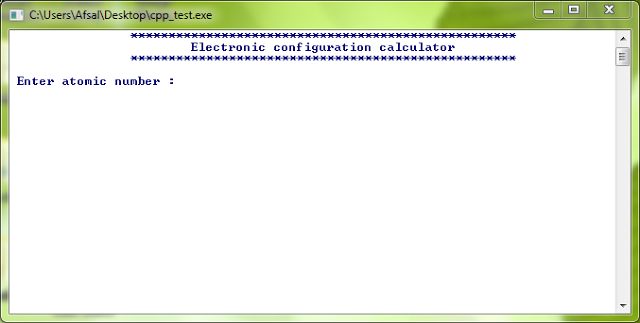
    Here is a C++ program for a sub shell electronic configuration calculator. By just typing the atomic number you can get the sub shell electronic configuration of the element. The sub shells are arranged in the increasing order of its energy. This is a windows console application. You can use visual C++ compiler to compile this program. You can download the C++ file and console .exe application from the link below.
    Subscribe for more cool programs and source codes.

                                                             Download Source

    ————————————————————————————————————

    #include<iostream> 
      using namespace std;
    void main()         //Starting_main_function
    {    system(“color f1”);
         cout<<“tt***************************************************n”;
            cout<<“tttElectronic configuration calculatorn”;
            cout<<“tt***************************************************n”;
            int n, s1, s2, p2, s3, p3, s4, d3, p4, s5, d4, p5, s6, f4, d5, p6, s7, f5, d6, p7;
            cout<<“n Enter atomic number :”;
            cin>>n;
            if (n<=2)
             s1=n;
            else if (n>2)
                  s1=2;
            if (n<=4 && n>=2)
             s2=n-2;
            else if (n<2)
             s2=0;
            else
             if (n>4)
                  s2=2;
            if (n<=10 && n>=4)
                  p2=(n-4);
            else if (n<4)
                  p2=0;
            else
                  if (n>10)
                  p2=6 ;
            if (n<=12 && n>=10)
                  s3=n-10;
            else if (n<10)
                  s3=0;
            else
                  if (n>12)
                  s3=2;
            if (n<=18 && n>=12)
                  p3=n-12;
            else if (n<12)
                  p3=0;
            else
                  if (n>18)
                  p3=6;
            if (n<=20 && n>=18)
                  s4=n-18;
            else if (n<18)
                   s4=0;
            else
                  if(n>20)
                  s4=2;
            if (n<=30 && n>=20)
                  d3=n-20;
            else if (n<20)
                  d3=0;
            else
                  if (n>30)
                  d3=10;
            if (n<=36 && n>=30)
                  p4=n-30;
            else if (n<30)
                  p4=0;
            else
                  if(n>36)
                  p4=6;
            if (n<=38 && n>=36)
                  s5=n-36;
            else if (n<36)
                  s5=0;
            else
                  if(n>38)
                  s5=2;
            if (n<=48 && n>=38)
                  d4=n-38;
            else if (n<38)
                  d4=0;
            else
                  d4=10;
            if (n<=54 && n>=48)
                  p5=n-48;
            else if (n<48)
                  p5=0;
            else
                  if (n>54)
                  p5=6;
            if (n<=56 && n>=54)
                  s6=n-54;
            else if (n<54)
                  s6=0;
            else
                  if (n>56)
                  s6=2;
            if (n<=70 &&  n>=56)
                  f4=n-56;
            else if (n<56)
                  f4=0;
            else
                  if(n>70)
                  f4=14;
            if (n<=80 && n>=70)
                  d5=n-70;
            else if (n<70)
                  d5=0;
            else
                  if (n>80)
                  d5=10;
            if (n<=86 && n>=80)
                  p6=n-80;
            else if (n<80)
                  p6=0;
            else
                  p6=6;
            if (n<=88 && n>=86)
                  s7=n-86;
            else if (n<86)
                  s7=0;
            else
                  if(n>88)
                  s7=2;
            if(n<=102 && n>=88)
                  f5=n-88;
            else if (n<88)
                  f5=0;
            else
                  if (n>102)
                  f5=14;
            if (n<=112 && n>=102)
                  d6=n-102;
            else if (n<102)
                  d6=0;
            else
                   if(n>112)
                   d6=10;
            if (n<=118 && n>=112)
                  p7=n-112;
            else if (n<112)
                  p7=0;
            else
                  if (n>118)
                  p7=6;
          
                  cout<<“nn 1s: “<<s1<<“n 2s: “<<s2<<“n 2p: “<<p2<<“n 3s :”<<s3<<“n 3p :”<<p3<<“n 4s :”<<s4;
                  cout<<“n 3d :”<<d3<<“n 4p :”<<p4<<“n 5s :”<<s5<<“n 4d :”<<d4<<“n 5p :”<<p5<<“n 6s :”<<s6<<“n 4f :”<<f4;
                  cout<<“n 5d :”<<d5<<“n 6p :”<<p6<<“n 7s :”<<s7<<“n 5f :”<<f5<<“n 6d :”<<d6<<“n 7p :”<<p7;
                  cout<<“nnnnn”;
                  system(“pause”);       //For_waiting_program_exit_until_a_character_entered
    return;
    }    //Main_function_Completed
    ————————————————————————————————————
                                                                Download Source

    Screen Shots

    Screen Shot 1
    Screen Shot 2

    Periodic Table

    roup → 1 2 3 4 5 6 7 8 9 10 11 12 13 14 15 16 17 18
    ↓ Period
    1 1
    H
    2
    He
    2 3
    Li
    4
    Be
    5
    B
    6
    C
    7
    N
    8
    O
    9
    F
    10
    Ne
    3 11
    Na
    12
    Mg
    13
    Al
    14
    Si
    15
    P
    16
    S
    17
    Cl
    18
    Ar
    4 19
    K
    20
    Ca
    21
    Sc
    22
    Ti
    23
    V
    24
    Cr
    25
    Mn
    26
    Fe
    27
    Co
    28
    Ni
    29
    Cu
    30
    Zn
    31
    Ga
    32
    Ge
    33
    As
    34
    Se
    35
    Br
    36
    Kr
    5 37
    Rb
    38
    Sr
    39
    Y
    40
    Zr
    41
    Nb
    42
    Mo
    43
    Tc
    44
    Ru
    45
    Rh
    46
    Pd
    47
    Ag
    48
    Cd
    49
    In
    50
    Sn
    51
    Sb
    52
    Te
    53
    I
    54
    Xe
    6 55
    Cs
    56
    Ba
    * 72
    Hf
    73
    Ta
    74
    W
    75
    Re
    76
    Os
    77
    Ir
    78
    Pt
    79
    Au
    80
    Hg
    81
    Tl
    82
    Pb
    83
    Bi
    84
    Po
    85
    At
    86
    Rn
    7 87
    Fr
    88
    Ra
    ** 104
    Rf
    105
    Db
    106
    Sg
    107
    Bh
    108
    Hs
    109
    Mt
    110
    Ds
    111
    Rg
    112
    Cn
    113
    Uut
    114
    Fl
    115
    Uup
    116
    Lv
    117
    Uus
    118
    Uuo
    Lanthanides 57
    La
    58
    Ce
    59
    Pr
    60
    Nd
    61
    Pm
    62
    Sm
    63
    Eu
    64
    Gd
    65
    Tb
    66
    Dy
    67
    Ho
    68
    Er
    69
    Tm
    70
    Yb
    71
    Lu
    ** Actinides 89
    Ac
    90
    Th
    91
    Pa
    92
    U
    93
    Np
    94
    Pu
    95
    Am
    96
    Cm
    97
    Bk
    98
    Cf
    99
    Es
    100
    Fm
    101
    Md
    102
    No
    103
    Lr
  • Student Record C++(cpp) Source Code Windows Console Application

    Student Record C++(cpp) Source Code Windows Console Application

    Let’s have a look at C++ source code for a student record program developed for windows console mode. You can test this code using Microsoft visual C++ compiler without any issues. I believe this sample code will help you to understand some of the basic C++ functions.
    This is a menu driven program. You can add a student, get a student’s mark by entering his roll number, get a student’s details or print a table of all student’s details. This program creates a “student.dat” file at the current directory (The path at which the executable located) to save details that you have entered. During the next execution of the program the data present in the file is taken in to the memory. For deleting all existing data, you can use ’99’ command in main menu. It just delete existing file and create a new one having no records, simply a blank file.

    ……………………………………………………………………………………………………………………………………….

    #include<iostream>
    #include<windows.h> //for_sleep()_function
    #include<iomanip> // for_setwidth_function
    #include<fstream>
    #include<process.h> //For_exit(0)
    #include<conio.h>  //for_getch()
    #include<string.h>
    #include<stdio.h> //for_gets()
      int k=0, sys, str,high=60;   //For_student_object_handling
      using namespace std;
    class person
    {
    protected:
    
           char sex;
    
           int age;
    
           int count;
    
           char name[50];
    
    public:
    
           int length;
    
           void readperson()
    
           {
    
                  system("CLS");
    
               cout<<"tt************************************************";
    
               cout<<"nttttADD A NEW STUDENT ";
    
               cout<<"ntt************************************************";
    
                  cout<<"nn Good name please (Don't Use space; use '_') :";
    
                  cin>>name;
    
                  cout<<"n Please Enter your age :";
    
                  cin>>age;
    
                  cout<<"n Sex ? (M/F) :";
    
                  cin>>sex;
    
           }
    
    };
    
    class student:public person     //This_class_student_is_inherited_from_class_person.
    
    {
    
    protected:
    
           int roll;
    
           int avmark;
    
    public:
    
      void readstudent()
    
      {
    
             cout<<"nn Enter your Roll Number :";cin>>roll;
    
             cout<<"n Enter Your Average Mark( Out of hundred ) :";cin>>avmark;
    
      }
    
      int getroll()           
    
      {
    
             return(roll);
    
      }
    
      void getdetails()
    
      {
    
             cout<<"nn Name  :"<<name;
    
             cout<<"n Sex   :"<<sex;
    
             cout<<"n Age   :"<<age;
    
             cout<<"n Roll  :"<<roll;
    
             cout<<"n Mark  :"<<avmark;
    
      }
    
      void GetDetailsTable() //For_making_table_arrangement_of_students;
    
      {    high--;
    
              if(str<=7)          //For_maintaining_the_exact_form; One_extra_t_is_used_after_name;
    
                  cout<<"ntt"<<name<<"tt"<<sex<<"t"<<age<<"t"<<roll<<"t"<<avmark<<"n";
    
              else
    
               cout<<"ntt"<<name<<"t"<<sex<<"t"<<age<<"t"<<roll<<"t"<<avmark<<"n";
    
     }
    
      int getmark()
    
      {
    
             return(avmark);
    
      }
    
      void prtname()
    
      {
    
             cout<<name;
    
      }
    
      char GetSex()
    
      {
    
             return sex;
    
      }
    
    
    }stu[61];// Class_Defnition_completed
    
    
    void main()        //Beggining_main_function_HERE
    
    
    {  
    
           void SortBySex();
    
           void SortItOnMark();
    
           void SortItOnRoll() ;
    
           ofstream fout;
    
           ifstream fin;
    
           start:                    //For_returning_into_main_menu
    
           fin.close();
    
           fout.close();
    
           fin.open("student.dat", ios::app|ios::binary|ios::in);
    
           int num=0; //Making_input_buffer_zero_after_function_returning_through_start:
    
           while(fin) // Taking Student details into memory
    
           {     
    
               fin.read((char *)&stu[num], sizeof(stu[num]));
    
                  ++num;
    
           }
    
                        //File_input_completed !
    
           sys=num-1;
    
           int p1=100, p2=50;
    
           system("color f1");
    
           int k, Ru, rank(0), rankm(0);
    
           system("CLS");
    
           cout<<"tt************************************************";
    
           cout<<setw(62)<<"MAIN MENU";
    
           cout<<"ntt************************************************";
    
           cout<<"nnn 1.Student Details"<<"n 2.Best Student"<<"n 3.Get Mark"<<"n 4.Add a new student"<<"n 5.View all students"<<"n 6.Exittttttttt99.Reset all!!!"<<"nnn Enter your selection :";
    
           cin>>k;
    
           switch(k)
    
           {  //switch_starts
    
           case 1:system("cls");
    
                  int flag;
    
                  flag=0;
    
               cout<<"tt************************************************";
    
               cout<<"nttttSTUDENT DETAILS";
    
               cout<<"ntt************************************************";
    
                  cout<<"nnEnter Roll Number :";
    
                     cin>>Ru;
    
                     for (int i=0; i<60;++i)
    
                     {
    
                     if (stu[i].getroll()==Ru)
    
                               {
    
                                      flag=1;
    
                                      stu[i].getdetails();
    
                             }
    
                     }
    
                         if (!flag)
    
                         cout<<"nnnnSorry...I cannot find a student with this roll number !";
    
                      cout<<"nnnnnPress Any key.............";
    
                         if(_getch())
    
                          goto start;


           case 2:system("cls");
    
                  cout<<"tt************************************************";
    
               cout<<"nttttTHE BEST STUDENT ";
    
               cout<<"ntt************************************************";
    
                  cout<<"nn Best Student is :";
    
                     for (int i=0; i<60; ++i)
    
                     {


                            if (stu[i].getmark()>rankm)
    
                            {
    
                                  rankm=stu[i].getmark();
    
                                  rank=i;
    
                            }
    
                     }
    
                     stu[rank].getdetails();
    
                     cout<<"nnnnnPress Any key.............";
    
                         if(_getch())
    
                          goto start;
    
           case 3:system("cls");
    
                  flag=1;
    
               cout<<"tt************************************************";
    
               cout<<"nttttGET THE MARK ";
    
               cout<<"ntt************************************************";
    
                  cout<<"nnnPlease Enter Roll Number :";
    
                  cin>>Ru;
    
                     for (int i=0; i<60;++i)
    
                     {
    
                            if (stu[i].getroll()==Ru)
    
                               {
    
                                      flag=0;
    
                                      cout<<"nnn Mark of ";stu[i].prtname();cout<<" is "<<stu[i].getmark();
    
                             }
    
                     }
    
                     if(flag)
    
                             cout<<"nnttSorry....No Such students; Try again !";               
    
               if(_getch())   //wait_for_any_input_via_keyboard
    
                      goto start;
    
                  break;
    
           case 4:               //Add_student_menu
    
                     stu[k].readperson();
    
                     stu[k].readstudent();
    
                         fout.open("student.dat", ios::out|ios::binary|ios::app);
    
                         fout.write((char*)&stu[k], sizeof(student));
    
                         cout<<"nnntttFile saving accomplsihed !Please Restart this program ";
    
                      fout.close();
    
                         fin.close();
    
                         cout<<"nnnnnn";
    
                         Sleep(2500);
    
                         goto start;


                         break;
    
           case 5:   // View_all_students_table
    
                  system("CLS");
    
                  int count, selection;
    
                  char answer;
    
                  answer='n';
    
                  count=0;
    
                  cout<<sys;
    
                  cout<<"tt************************************************";
    
               cout<<"nttNamettSextAgetRolltMarkn";
    
               cout<<"tt************************************************";
    
                  while (count<sys)
    
                  {
    
                         stu[count].GetDetailsTable();
    
                   count++;
    
                  }
    
                  cout<<"nnttDo you want to sort it now ? (y/n) :";
    
                  cin>>answer;
    
                  if(answer=='y'||answer=='Y')
    
          {     
    
                         cout<<"n Sort By :nt1. Marknttt2.Rollnttttt3.By Sexnn";
    
                      cout<<"Enter :";
    
                         cin>>selection;
    
                    switch(selection)
    
                      {
    
                     case 1: SortItOnMark();break;
    
                        case 2: SortItOnRoll();break;
    
                        case 3: SortBySex();break;
    
                      default :cout<<"nBad Input !";
    
                      }
    
                  }
    
                  else
    
                         goto start;
    
               cout<<"nnnn";system("pause");
    
                  goto start;
    
           case 6 : //Exit_Function
    
                  system("CLS");
    
                  fin.close();
    
                  fout.close();
    
                  cout<<"nnnttt BYE !!!!!!!!!!!!!!!!!!!!!";
    
                  Sleep(1000);   //wait_1_second_before_exiting
    
                  exit(0);
    
                  break;
    
    
    case 99 :
    
                   // File-reset_option_begins
    
                  char ans;
    
                  system("CLS");
    
                  cout<<" You have choosen to delete all the user data from this program !.nnCaution :You cannot back up your data !nnFor further reference make a copy of file (student.dat) from source folder !";
    
                  cout<<"nn Are you sure want to erase all (y/n)? :";
    
                  cin>>ans;
    
                  if (ans=='y'||ans=='Y')
    
                  {
    
            ofstream fout;
    
                  fout.open("student.dat", ios::out,ios::binary);
    
                  cout<<"nnna"<<"taa Task accomplished Successfully !";
    
                  }
    
                  else
    
                         cout<<"nn"<<"atTask aborted, Now returning to main menu";
    
                      Sleep(2500);
    
                         goto start;
    
                  //File_reset_accomplished 
    
    
           default : system("CLS");
    
                        cout<<"annntttBad input Recieved ! Try Again";
    
                        Sleep(1000);
    
                           goto start;
    
                           break;
    
    
    } //switch ended


    return;
    
    
    } // Main()_over
    
    
    void SortItOnRoll()   //Student_Details_table_sorted_on_mark
    
    {  
    
           high=60;
    
        int car=sys;
    
           cout<<"tt************************************************";
    
           cout<<"nttNamettSextAgetRolltMarkn";
    
           cout<<"tt************************************************n";
    
           int first=0, place;
    
           while(car)
    
           {first=0;
    
           for(int t=0; t<(high); ++t)
    
           {
    
                  if(first<=stu[t].getroll())
    
                  {
    
                         first=stu[t].getroll();
    
                      place=t;
    
                  }
    
           }
    
           stu[place].GetDetailsTable();
    
           stu[place]=stu[high];
    
           car--;
    
       }
    
    }          //Function_completed
    
    void SortItOnMark()   //Student_Details_table_sorted_on_mark
    
    {  
    
           high=60;
    
        int car=sys;
    
           cout<<"tt************************************************";
    
           cout<<"nttNamettSextAgetRolltMarkn";
    
           cout<<"tt************************************************n";
    
           int first=0, place;
    
           while(car)
    
           {first=0;
    
           for(int t=0; t<(high); ++t)
    
           {
    
                  if(first<=stu[t].getmark())
    
                  {
    
                         first=stu[t].getmark();
    
                      place=t;
    
                  }
    
           }
    
           stu[place].GetDetailsTable();
    
           stu[place]=stu[high];
    
           car--;
    
       }
    
    }          //Function_completed
    
    
    void SortBySex()   //Student_Details_table_sorted_on_Sex
    
    {  
    
           high=60;
    
        int car=sys;
    
           cout<<"tt************************************************";
    
           cout<<"nttNamettSextAgetRolltMarkn";
    
           cout<<"tt************************************************n";
    
           for(int t=0; t<sys; ++t)
    
           {
    
                  if(stu[t].GetSex()=='f'||stu[t].GetSex()=='F')
    
                  {
    
                         stu[t].GetDetailsTable();
    
                  }
    
                  else continue;
    
           }
    
           cout<<endl;
    
           for(int t=0; t<sys; ++t)
    
           {
    
                  if(stu[t].GetSex()=='m'||stu[t].GetSex()=='M')
    
                  {
    
                         stu[t].GetDetailsTable();
    
                  }
    
                  else continue;
    
           }
    
    
    }          //Function_completed
    ………………………………………………………………………………………………………………………………………………

    Download Source Now

    Screenshots

    MENU
    Student Table

    Suggested Read : C++ Library Management Program with Source Code

  • Note – A Sticky Note application

    Note – A Sticky Note application

    Note is a simple text editor built .Net. This is the first application I built in my life. I built this for just getting familiarized with .Net. This is a lightweight application that can be used as a sticky note. Just run it type something on it. This software doesn’t have any saving capability.

    Sticky note application screenshot

    Download this application: https://docs.google.com/open?id=0B1WF0QtbznAhNWMxNjIxODEtMjZjOS00MWVmLWFiMTItNWJiMzNlNTIxODkw