Tag: Java

  • Java JFrame Tutorial

    Java JFrame Tutorial

    JFrame is a java swing container that can be used to create application windows. JFrames are the top most container in the swing applications. All the GUI components like labels, comboboxes are added into the JFrame. In this tutorial, we will learn how to make use of the Java JFrames to create swing applications and see how to manage the JFrame windows.

    Simple application with JFrame

    First, let’s create a simple application. We will add a button to the JFrame container.

    import javax.swing.JButton;
    import javax.swing.JFrame;
    import javax.swing.JPanel;
    
    public class JFrameTutorial {
    
      public static void main(String[] args) {
        //Create a JFrame
        JFrame jFrame = new JFrame("My JFrame Window!");
        //Set JFrame size
        jFrame.setSize(300, 200);
    
        //Create a JPanel to contain our button
        JPanel panel = new JPanel();
        //Add button to the panel
        panel.add(new JButton("Click Me"));
    
        //Attach panel to JFrame
        jFrame.add(panel);
    
        //Show the JFrame
        jFrame.setVisible(true);
      }
    }
    

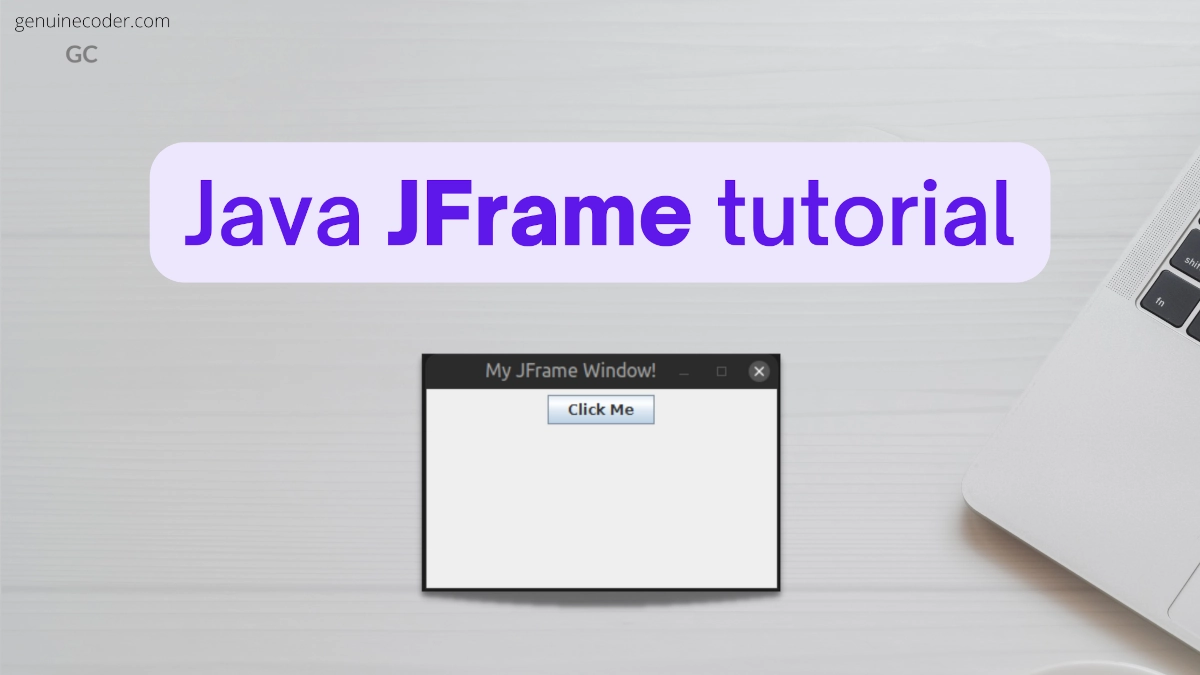
    This will create the following output
    Simple JFrame Window

    Even though the above code works, it is not perfect. If you run the above code, you will have some questions. Let me make things clear for you.

    Question: Even after the JFrame is closed, the application is still running in the background. Why does my application still run after closing the main window?

    This is because you haven’t specified what to do when the JFrame is closed. Remember that in a real-world application, there will be many windows, so many JFrames. By default, if the JFrame was exiting/killing the application when it is closed, then this would cause countless issues. Because each window closing will cause the application to terminate by default.

    To prevent this, when the close button is pressed, the JFrame just gets hidden and will not exit the application fully. To exit the application on window close, add the following line into the code to set setDefaultCloseOperation.

    public static void main(String[] args) {
      JFrame frame = new JFrame("My JFrame Window!");
      frame.setSize(300, 200);
      JPanel panel = new JPanel();
      panel.add(new JButton("Click Me"));
      frame.add(panel);
    
      //Close the application when the window is closed
      frame.setDefaultCloseOperation(JFrame.EXIT_ON_CLOSE);
    
      frame.setVisible(true);
    }
    

    Question: The JFrame window is opening at the edge of the screen. How to make JFrame center on screen?

    By default, the Window will appear at the edge of the screen (most of the time, in most of the common operating systems). To make the JFrame window appear at the dead center of the screen, you need to set the window’s location-relative-to null. It can be done as follows.

    //Set location of the JFrame relative to null to get it open at the center of the screen
    frame.setLocationRelativeTo(null);
    

    Set Icon for JFrame Window

    Very often, we will have to set our custom icon to the application window. With JFrame, this is possible with the method JFrame#setIconImage(Image). This will make the icon appear on the OS taskbar as well.

    //Read the image you want to set as icon
    Image image = ImageIO.read(JFrameTutorial.class.getResourceAsStream("/logo.png"));
    //Set the image icon to window
    frame.setIconImage(image);
    
    JFrame with icon
    JFrame window with icon shown on taskbar

    If you would like to learn how to set up a system tray icon, have a look into this tutorial on setting up of tray-icon with menu in Java.

    import java.awt.Image;
    import java.io.IOException;
    import javax.imageio.ImageIO;
    import javax.swing.JButton;
    import javax.swing.JFrame;
    import javax.swing.JPanel;
    
    public class JFrameTutorial {
      public static void main(String[] args) throws IOException {
        JFrame frame = new JFrame("My JFrame Window!");
        frame.setSize(300, 200);
        JPanel panel = new JPanel();
        panel.add(new JButton("Click Me"));
        frame.add(panel);
        frame.setDefaultCloseOperation(JFrame.EXIT_ON_CLOSE);
        frame.setLocationRelativeTo(null);
        frame.setIconImage(ImageIO.read(JFrameTutorial.class.getResourceAsStream("/logo.png")));
        frame.setVisible(true);
      }
    }
    

    Close/Hide JFrame Programmatically

    Let’s say we want to close a JFrame programmatically. This can be done with JFrame#setVisible(false) method followed by a JFrame#dispose() method to clear the object. There is a deprecated function JFrame#hide(), but you should never use it as it has been deprecated from Java 1.5.

    Simply set the visibility of the frame to false, and it will hide/close the window. Then call dispose() to release the system resources used by it.

    //Set visibility to false for closing the JFrame
    frame.setVisible(false);
    //Dispose the frame to release resources
    frame.dispose();
    

    Another method for closing

    Another easy method for closing the JFrame is by simulating the close button click event. As we have already seen, pressing the X button will close the window. We can simply simulate the close button click to close the JFrame itself. We can do that as follows

    jFrame.dispatchEvent(new WindowEvent(frame, WindowEvent.WINDOW_CLOSING));
    

    Maximize and minimize JFrame Programmatically

    Now, let’s say we came across a requirement where we need to maximize a JFrame window programmatically. There is a function called JFrame#setExtendedState(int state) for programmatically maximizing and minimizing. Let’s see how we can do that with some code snippet.

    private void minimizeJFrameWindow(JFrame jFrame) {
      //Minimize to task bar
      jFrame.setExtendedState(JFrame.ICONIFIED);
    }
    
    private void maximizeJFrameWindow(JFrame jFrame) {
      //Maximize the window
      jFrame.setExtendedState(JFrame.MAXIMIZED_BOTH);
    }
    
    private void maximizeJFrameWindowWidth(JFrame jFrame) {
      //Maximize the window only in the width (x-axis). Height will remain unchanged
      jFrame.setExtendedState(JFrame.MAXIMIZED_HORIZ);
    }
    
    private void maximizeJFrameWindowHeight(JFrame jFrame) {
      //Maximize the window only in the height (y-axis). Width will remain unchanged
      jFrame.setExtendedState(JFrame.MAXIMIZED_VERT);
    }
    

    Conclusion

    In this tutorial, we have learned how to make use of JFrame to create windows in Java. We have seen how to create it, attach icon, center on screen, maximize and minimize etc. If you have liked this article, you might also like the following articles I have written.

  • How to get all the image files from a folder in Java?

    How to get all the image files from a folder in Java?

    Filter image files from a folder in Java

    Let’s see how to filter-out only image files from a directory in Java. We will write code to iterate through all the files present in a directory, and then filter out only the image files by their extension. In the following example snippet, .jpg, .png, .gif and .webp images will be selected from the given folder.

    • Pass the directory from which images should be found as the parameter
    • Specify the image extension for the required images in the list supportedImageExtensions
    private List<File> getAllImageFilesFromFolder(File directory) {
      //Get all the files from the folder
      File[] allFiles = directory.listFiles();
      if (allFiles == null || allFiles.length == 0) {
        throw new RuntimeException("No files present in the directory: " + directory.getAbsolutePath());
      }
    
      //Set the required image extensions here.
      List<String> supportedImageExtensions = Arrays.asList("jpg", "png", "gif", "webp");
    
      //Filter out only image files
      List<File> acceptedImages = new ArrayList<>();
      for (File file : allFiles) {
        //Parse the file extension
        String fileExtension = file.getName().substring(file.getName().lastIndexOf(".") + 1);
        //Check if the extension is listed in the supportedImageExtensions
        if (supportedImageExtensions.stream().anyMatch(fileExtension::equalsIgnoreCase)) {
          //Add the image to the filtered list
          acceptedImages.add(file);
        }
      }
    
      //Return the filtered images
      return acceptedImages;
    }
    
  • Create animated GIF from multiple images in Java

    Create animated GIF from multiple images in Java

    In this tutorial, we will learn how to programmatically create animated GIF by combining multiple images in java easily. We will make use of the library gifencoder for this purpose.

    Add the ‘gifencoder’ library to your project

    If you are using Gradle, add the following dependency into your build.gradle file.

    // https://mvnrepository.com/artifact/com.squareup/gifencoder
    implementation group: 'com.squareup', name: 'gifencoder', version: '0.10.1'
    

    If you are using the maven, add the following entry into your pom.xml file.

    <!-- https://mvnrepository.com/artifact/com.squareup/gifencoder -->
    <dependency>
        <groupId>com.squareup</groupId>
        <artifactId>gifencoder</artifactId>
        <version>0.10.1</version>
    </dependency>
    

    If you are using Java 9+ with modules, add the following line into your module-info.java file.

    requires com.squareup.gifencoder;
    

    Build GIF from multiple image files

    First, let’s build our GIF from 4 image files. The steps for preparing the GIF from images as follows.

    1. Convert the BufferedImages to int[][] pixel array
    2. Provide the image pixel array into the encoder
    3. Encode all the pixel array-based images into GIF image
    import com.squareup.gifencoder.FloydSteinbergDitherer;
    import com.squareup.gifencoder.GifEncoder;
    import com.squareup.gifencoder.ImageOptions;
    import java.awt.image.BufferedImage;
    import java.io.File;
    import java.io.FileOutputStream;
    import java.io.IOException;
    import java.util.concurrent.TimeUnit;
    import javax.imageio.ImageIO;
    
    public class JavaGifTutorial {
    
      public static void main(String[] args) throws Exception {
        JavaGifTutorial gifTutorial = new JavaGifTutorial();
        gifTutorial.createAnimatedGif();
      }
    
      private void createAnimatedGif() throws Exception {
        File image1 = new File("gifencoder/image1.jpg");
        File image2 = new File("gifencoder/image2.jpg");
        File image3 = new File("gifencoder/image3.jpg");
        File image4 = new File("gifencoder/image4.jpg");
    
        //The GIF image will be created with file name "my_animated_image.gif"
        try (FileOutputStream outputStream = new FileOutputStream("my_animated_image.gif")) {
          ImageOptions options = new ImageOptions();
    
          //Set 500ms between each frame
          options.setDelay(500, TimeUnit.MILLISECONDS);
          //Use Floyd Steinberg dithering as it yields the best quality
          options.setDitherer(FloydSteinbergDitherer.INSTANCE);
    
          //Create GIF encoder with same dimension as of the source images
          new GifEncoder(outputStream, 500, 313, 0)
              .addImage(convertImageToArray(image1), options)
              .addImage(convertImageToArray(image2), options)
              .addImage(convertImageToArray(image3), options)
              .addImage(convertImageToArray(image4), options)
              .finishEncoding(); //Start the encoding
        }
      }
    
      /**
       * Convert BufferedImage into RGB pixel array
       */
      public int[][] convertImageToArray(File file) throws IOException {
        BufferedImage bufferedImage = ImageIO.read(file);
        int[][] rgbArray = new int[bufferedImage.getHeight()][bufferedImage.getWidth()];
        for (int i = 0; i < bufferedImage.getHeight(); i++) {
          for (int j = 0; j < bufferedImage.getWidth(); j++) {
            rgbArray[i][j] = bufferedImage.getRGB(j, i);
          }
        }
        return rgbArray;
      }
    }
    

    GIF created using Java

    Create GIF from all the images from a folder

    Now, let’s see how we can improve the above code to take all the image files from a folder and use it to make an animated GIF. This way, you can simply put all the images you want to include the GIF image and run the code, no need to mention the individual images separately.

    To achieve this, we need to add code for filtering only image files from a directory.

    How to take only image files from a directory in Java?

    Let’s see how to filter-out only JPEG and PNG files from a directory in Java. We will write code to iterate through all the files present in a directory, and then filter out only the image files by their extension.

    private List<File> getAllImageFilesFromFolder(File directory) {
      //Get all the files from the folder
      File[] allFiles = directory.listFiles();
      if (allFiles == null || allFiles.length == 0) {
        throw new RuntimeException("No files present in the directory: " + directory.getAbsolutePath());
      }
    
      //Filter out only image files
      List<File> acceptedImages = new ArrayList<>();
      for (File file : allFiles) {
        String fileExtension = file.getName().substring(file.getName().lastIndexOf(".") + 1);
        if (fileExtension.equalsIgnoreCase("jpg") || fileExtension.equalsIgnoreCase("png")) {
          acceptedImages.add(file);
        }
      }
    
      //Return the filtered images
      return acceptedImages;
    }
    

    Create GIF from all the images in the folder

    Now, let’s make use of the above function to get all the images from a folder and encode it into a GIF image.

    //Trimmed code. Functions and imports used on the first section is excluded to keep the code compact
    
    private void createAnimatedGifFromFolder(String path) throws Exception {
      //The GIF image will be created with file name "gif_from_folder.gif"
      try (FileOutputStream outputStream = new FileOutputStream("my_animated_image.gif")) {
        //Create GIF encoder with same dimension as of the source images
        GifEncoder encoder = new GifEncoder(outputStream, 1920, 1200, 0);
    
        //Get all the image files
        List<File> imageFiles = getAllImageFilesFromFolder(new File(path));
    
        //Make sure that at least one image is present
        if (imageFiles.isEmpty()) {
          throw new RuntimeException("No image files present!");
        }
    
        //Add all the images to the GifEncoder
        ImageOptions options = new ImageOptions();
        for (File imageFile : imageFiles) {
          encoder.addImage(convertImageToArray(imageFile), options);
        }
    
        //Finish encoding and create the file
        encoder.finishEncoding();
      }
    }
    
    private List<File> getAllImageFilesFromFolder(File directory) {
      File[] allFiles = directory.listFiles();
      List<File> acceptedImages = new ArrayList<>();
      for (File file : allFiles) {
        String fileExtension = file.getName().substring(file.getName().lastIndexOf(".") + 1);
        if (fileExtension.equalsIgnoreCase("jpg") || fileExtension.equalsIgnoreCase("png")) {
          acceptedImages.add(file);
        }
      }
      return acceptedImages;
    }
    

    That’s all. The function createAnimatedGifFromFolder(String folder) will go through all the JPG and PNG images available inside it and then use it to make the GIF animated image.

    Conclusion

    In this tutorial, we have learned how to create an animated GIF image a set of images in Java. Java GIF creation is done with the help of the gifencoder library. If you have liked this article, you might want to check out some of the other articles I have written.

  • How to create excel files in Java

    How to create excel files in Java

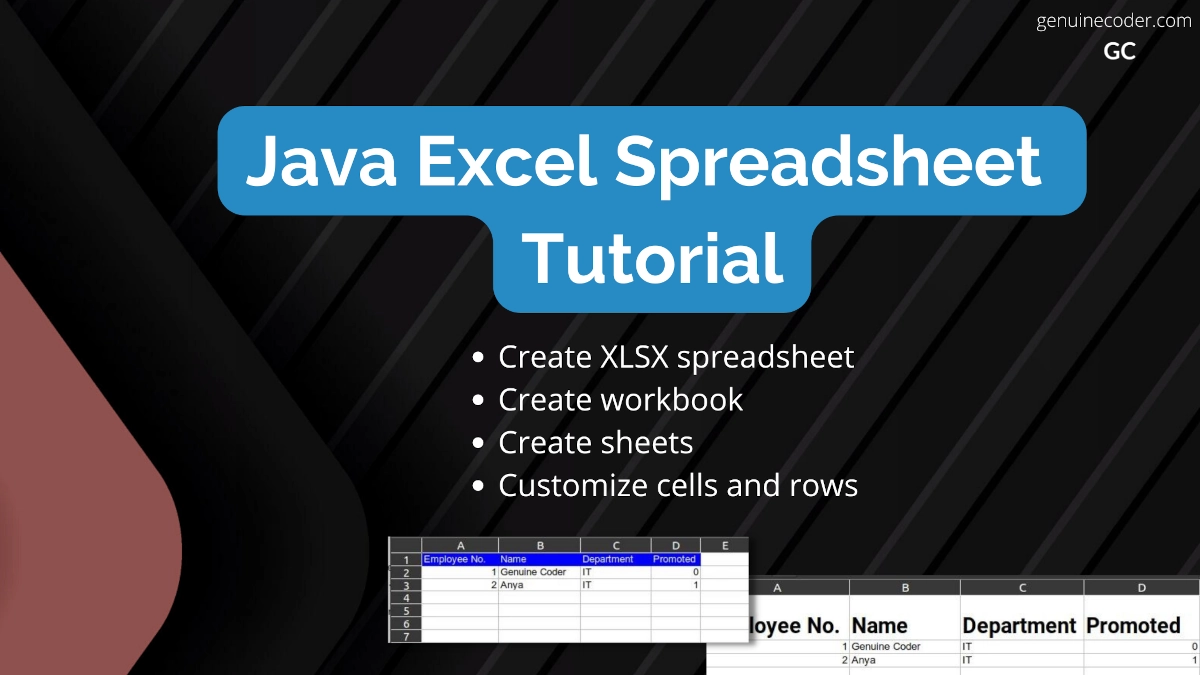
    In this tutorial, we will explore the Java spreadsheet support and learn how to create Microsoft Excel .xlsx spreadsheet files using java program. For handling Excel files, we need to make use of the well known Apache POI library. This tutorial has been updated for Java 17 and work with Apache POI modules.

    Add Apache POI library into your project

    The first step is adding the Apache POI library into your project.

    If you are using Gradle, add the following dependency into your build.gradle file.

    // https://mvnrepository.com/artifact/org.apache.poi/poi
    implementation group: 'org.apache.poi', name: 'poi', version: '5.2.2'
    

    If you are using Maven, add the following dependency into your pom.xml file.

    <!-- https://mvnrepository.com/artifact/org.apache.poi/poi -->
    <dependency>
        <groupId>org.apache.poi</groupId>
        <artifactId>poi</artifactId>
        <version>5.2.2</version>
    </dependency>
    

    Issue with Java modules

    Q. I am getting the exception “java.lang.module.FindException: Module SparseBitSet not found, required by org.apache.poi.poi”. How can I fix it?
    Another similar exception you might come across is: “java.lang.module.FindException: Module commons.math3 not found, required by org.apache.poi.poi”.

    Since you are using Java 9+ with modules, you need to set the module configuration correctly. First, make sure that your module-info.java contains the following lines to have your application access the org.apache.poi.poi module.

    requires org.apache.poi.poi;
    

    Then, we must allow the Apache poi module to access two if its dependencies. This needs to be added as a JVM argument. Add the following JVM argument into your project.

    --add-opens=org.apache.poi.poi/com.zaxxer=ALL-UNNAMED 
    --add-opens=org.apache.poi.poi/org.apache.commons.math3=ALL-UNNAMED"
    

    Create Excel Workbook

    The first thing to do when creating a spreadsheet file is creating a workbook. We will create an org.apache.poi.hssf.usermodel.HSSFWorkbook and then save it as an .xlsx file.

    import java.io.File;
    import java.io.OutputStream;
    import java.nio.file.Files;
    import org.apache.poi.hssf.usermodel.HSSFWorkbook;
    import org.apache.poi.ss.usermodel.Workbook;
    
    public class ExcelTutorial {
    
      public static void main(String[] args) throws Exception {
        ExcelTutorial excelTutorial = new ExcelTutorial();
        excelTutorial.createWorkbook();
      }
    
      private void createWorkbook() throws Exception {
        //Create a workbook
        try (Workbook wb = new HSSFWorkbook()) {
          //Add two sheets into the workbook
          wb.createSheet("My Excel Sheet 1");
          wb.createSheet("My Excel Sheet 2");
          //Save the workbook to a file
          try (OutputStream fileOut = Files.newOutputStream(new File("my_first_java_spreadsheet.xlsx").toPath())) {
            wb.write(fileOut);
          }
        }
      }
    

    This will create a new file Excel file. We can open it on the MS Excel or any compatible spreadsheet program you have installed, including LibreOffice Calc, Google Sheet, etc. The following screenshot shows the Excel file opened with LibreOffice.

    Java Excel Workbook
    Excel workbook we have created with two sheets

    Create Excel spreadsheet with actual data

    Now that we have learned how to create Excel spreadsheet with sheets, let’s learn how to add tabular data into the sheets.

    We can add rows into the sheets using the method sheet.createRow(rowIndex);. For each row, we can then set the value for each cell using the setCellValue(String); function. Let’s understand this better with the following example code.

    import java.io.File;
    import java.io.OutputStream;
    import java.nio.file.Files;
    import org.apache.poi.hssf.usermodel.HSSFWorkbook;
    import org.apache.poi.ss.usermodel.CellType;
    import org.apache.poi.ss.usermodel.Row;
    import org.apache.poi.ss.usermodel.Sheet;
    import org.apache.poi.ss.usermodel.Workbook;
    
    public class ExcelTutorial {
    
      public static void main(String[] args) throws Exception {
        ExcelTutorial excelTutorial = new ExcelTutorial();
        excelTutorial.createEmployeeSheet();
      }
    
      private void createEmployeeSheet() throws Exception {
        try (Workbook wb = new HSSFWorkbook()) {
          Sheet sheet = wb.createSheet("Building#1");
          //Create table header
          Row headerRow = sheet.createRow(0); //First row - Heading
          headerRow.createCell(0).setCellValue("Employee No.");
          headerRow.createCell(1).setCellValue("Name");
          headerRow.createCell(2).setCellValue("Department");
          headerRow.createCell(3, CellType.BOOLEAN).setCellValue("Promoted");
          //Add first employee
          Row firstEmployee = sheet.createRow(1); //Second row
          firstEmployee.createCell(0).setCellValue(1); //Giving numeric value to cell
          firstEmployee.createCell(1).setCellValue("Genuine Coder");
          firstEmployee.createCell(2).setCellValue("IT");
          firstEmployee.createCell(3).setCellValue(false); //Giving a boolean value to the cell
          //Add second employee
          Row secondEmployee = sheet.createRow(2); //Third row
          secondEmployee.createCell(0).setCellValue(2);
          secondEmployee.createCell(1).setCellValue("Anya");
          secondEmployee.createCell(2).setCellValue("IT");
          secondEmployee.createCell(3).setCellValue(true); //Giving a boolean value to the cell
    
          //Write workbook into file
          try (OutputStream fileOut = Files.newOutputStream(new File("employee_data.xlsx").toPath())) {
            wb.write(fileOut);
          }
        }
      }
    }
    

    We have created a new Excel file with the name employee_data.xlsx and two employees. For each employee, we have given numeric, string and boolean cell data. You can see the generated file in the below screenshot.

    Java Excel Workbook with data
    Java Excel Workbook With Worksheet and Data

    Q. How to set background color of a row with Apache POI?

    Now, let’s say we want to set the background color of the title. We need to set background color and text color for the entire first row.
    Let’s see how we can do the styling per-cell for the entire header row. This way, in future if you would like to have customization within a row itself, it will be much easier.

    private void applyStyleForRow(Row row) {
      //Create new style for the row
      CellStyle cellStyle = row.getSheet().getWorkbook().createCellStyle();
      //Configure single solid color fill
      cellStyle.setFillPattern(FillPatternType.SOLID_FOREGROUND);
      //Set font color
      cellStyle.setFillForegroundColor(IndexedColors.BLUE.getIndex());
      //Set background color
      cellStyle.setFillBackgroundColor(IndexedColors.WHITE.getIndex());
      //Apply style for each cell
      row.forEach(cell -> cell.setCellStyle(cellStyle));
    }
    
    Java Spreadsheet with customized header
    Spreadsheet with customized header

    Q. How to change font with Apache POI?

    Often we would want to change the font for particular rows or cells. This is also easily achievable with Apache POI. We can set font family, font weight and of course font size with style attribute. Let’s see how we can do that with a code example.

    private void applyFontForRow(Row row) {
      Workbook workbook = row.getSheet().getWorkbook();
    
      //Create and style font
      Font font = workbook.createFont();
      //Set bold
      font.setBold(true);
      //Set font family
      font.setFontName("Roboto");
      //Set font size
      font.setFontHeightInPoints((short) 20);
    
      //Apply style for each cell
      CellStyle cellStyle = workbook.createCellStyle();
      cellStyle.setFont(font); //Attach font to style
      row.forEach(cell -> cell.setCellStyle(cellStyle));
    }
    

    We have customized the header font by using Bold Roboto Font of 20pt size. The generated file looks as shown below.

    Java Spreadsheet with customized font
    Spreadsheet with customized fonts

    Conclusion

    In this tutorial, we have learned how to create Excel spreadsheets in Java. We have seen how to create workbook with multiple sheets, adding contents to sheets, customizing font and background style of cells and rows. If you have liked this article, you might want to check some of my other tutorial articles given below.

  • Java WebP Image Support – Read and Save WebP Images

    Java WebP Image Support – Read and Save WebP Images

    WebP is a new generation image format developed by Google exclusively for the Web. It has both lossy and lossless compression support. When compared to the commonly used formats like JPEG, WebP has 25%-34% lesser file size for the same quality. WebP provides much better compression and reduced file sizes, which are crucial for the web since every byte of data saved matters.

    In this tutorial, let’s see how we can process WebP images in the Java program. We will learn how to read and save/encode/write WebP images.

    Add support for WebP into your Java program

    As of writing this article in 2022, Java doesn’t natively support WebP images. However, there is a there is a library called webp-imageio that can support WebP image-io for Java. Let’s make use of this web-imageio library to process WebP images.

    Add the dependency on to your project.

    If you are using the Gradle, add the dependency as follows.

    // https://mvnrepository.com/artifact/org.sejda.imageio/webp-imageio
    implementation group: 'org.sejda.imageio', name: 'webp-imageio', version: '0.1.6'
    

    If you are using the Maven, add the dependency as follows.

    <!-- https://mvnrepository.com/artifact/org.sejda.imageio/webp-imageio -->
    <dependency>
        <groupId>org.sejda.imageio</groupId>
        <artifactId>webp-imageio</artifactId>
        <version>0.1.6</version>
    </dependency>
    

    Read WebP image from Java

    Now, let’s see how we can read WebP images to a BufferedImage object. You can read the WebP image just like reading any other JPEG or PNGs with ImageIO.read() function. Let’s understand it with a sample code snippet.

    import java.awt.image.BufferedImage;
    import java.io.File;
    import java.io.IOException;
    import javax.imageio.ImageIO;
    
    public class JavaWebpSupportTest {
    
      public static void main(String[] args) throws IOException {
        JavaWebpSupportTest webPSupportTest = new JavaWebpSupportTest();
        webPSupportTest.readWebpImage();
      }
    
      private void readWebpImage() throws IOException {
        BufferedImage image = ImageIO.read(new File("/home/gc/my_image.webp"));
        System.out.printf("\nDimension of the image:%dx%d", image.getWidth(), image.getHeight());
      }
    }
    

    This will read the WebP image as BufferedImage and will print the dimension of the image. You can see a sample output below. You can then continue processing the BufferedImage just you do with any other image format.

    Java Webp Image Read
    Java program successfully read WebP image and displayed its dimension.

    Save WebP image from Java

    Now that we have learned how to read WebP images, let’s see how we can save a BufferedImage as a WebP image. For this, we will read a JPEG image and then save it as a WebP image. WebP supports for both lossless and lossy compressions. So, let’s explore how to do both cases with Java.

    private void convertJpegToWebp() throws Exception {
      //Read JPG image
      BufferedImage image = ImageIO.read(new File("/home/afsal/sample.jpg"));
      // Encode it as webp using default settings and save it as webp file
      ImageIO.write(image, "webp", new File("/home/afsal/sample.webp"));
    }
    

    1. Save WebP with lossless encoding

    In the above code snippet, we have used the default settings for writing the WebP image file. Now, let’s see how we can customize the encoding parameters to customize the image. First, let’s save the image in lossless format. We will set the compression type as LOSSLESS_COMPRESSION using the WebPWriteParam#setCompressionType option.

    import com.luciad.imageio.webp.WebPWriteParam;
    import java.awt.image.BufferedImage;
    import java.io.File;
    import java.io.IOException;
    import javax.imageio.IIOImage;
    import javax.imageio.ImageIO;
    import javax.imageio.ImageWriteParam;
    import javax.imageio.ImageWriter;
    import javax.imageio.stream.FileImageOutputStream;
    
    public class JavaWebpSupportTest {
    
      public static void main(String[] args) throws Exception {
        JavaWebpSupportTest webPSupportTest = new JavaWebpSupportTest();
        webPSupportTest.convertJpegToWebpLossless();
      }
    
      private void convertJpegToWebpLossless() throws Exception {
        BufferedImage image = ImageIO.read(new File("/home/gc/sample.jpg"));
    
        ImageWriter writer = ImageIO.getImageWritersByMIMEType("image/webp").next();
    
        WebPWriteParam writeParam = new WebPWriteParam(writer.getLocale());
        //Notify encoder to consider WebPWriteParams
        writeParam.setCompressionMode(ImageWriteParam.MODE_EXPLICIT);
        //Set lossless compression
        writeParam.setCompressionType(writeParam.getCompressionTypes()[WebPWriteParam.LOSSLESS_COMPRESSION]);
    
        // Save the image
        writer.setOutput(new FileImageOutputStream(new File("/home/gc/sample.webp")));
        writer.write(null, new IIOImage(image, null, null), writeParam);
      }
    }
    

    2. Save WebP with lossy encoding

    Now, let’s see how we can configure the compression ratio and use lossy compression to encode an image as WebP. The following code will read a JPEG image and save it as WebP with 80% compression quality (0% has the highest compression and 100% has the highest quality).

    private void convertJpegToWebpWithLossyCompression() throws Exception {
      BufferedImage image = ImageIO.read(new File("/home/gc/sample.jpg"));
    
      ImageWriter writer = ImageIO.getImageWritersByMIMEType("image/webp").next();
    
      WebPWriteParam writeParam = new WebPWriteParam(writer.getLocale());
      //Notify encoder to consider WebPWriteParams
      writeParam.setCompressionMode(ImageWriteParam.MODE_EXPLICIT);
      //Set lossy compression
      writeParam.setCompressionType(writeParam.getCompressionTypes()[WebPWriteParam.LOSSY_COMPRESSION]);
      //Set 80% quality. Allowed values are between 0 and 1
      writeParam.setCompressionQuality(0.8f);
    
      // Save the image
      writer.setOutput(new FileImageOutputStream(new File("/home/gc/sample.webp")));
      writer.write(null, new IIOImage(image, null, null), writeParam);
    }
    

    Conclusion

    In this tutorial, we have learned how to process WebP images using Java. With the help of the webp-imageio library, we can read and write WebP images easily. Since the library works with ImageIO.read() and ImageIO.write(), the processing of images is a breeze. If you are using Linux and wants to enable WebP thumbnail support on your platform, learn how to do that from the following tutorial: How to add WebP thumbnail support on Ubuntu and Linux Mint.

  • How to open file explorer in java

    How to open file explorer in java

    Sometimes, we come across requirements where we need to open a particular folder or directory in the native file explorer. In this tutorial, we will see how to do that, easy and effective.

    Opening file explorer with java in any platform – Windows, Linux and Mac

    The easiest way to do this is by using Java Desktop. The class provides an open() function Desktop#open(File) to open explorer when the given file is a directory.

    private static void openDirectory() throws IOException {
      File directory = new File("C://Program Files//");
      Desktop.getDesktop().open(directory);
    }
    

    Open file explorer and select/highlight a file

    Now, if you want to open the file explorer and have a file preselected, then there is a way for that as well! You can make use of Desktop.fileBrowseDirectory(File) to launch the file explorer and have a file highlighted. Let’s see a code example for the same.

    However, before using this function, you have to keep the following things in mind.

    • The code will not work on ALL platforms.
    • You need to check whether the feature is supported via Desktop.getDesktop().isSupported(Action.BROWSE_FILE_DIR) function.
    • Minimum Java 9 is required
    import java.awt.Desktop;
    import java.awt.Desktop.Action;
    import java.io.File;
    
    public class JavaFileExplorer {
    
      public static void main(String[] args) {
        openDirectory();
      }
    
      private static void openDirectory() {
        //Check if the feature supported on your platform
        if (Desktop.getDesktop().isSupported(Action.BROWSE_FILE_DIR)) {
          File directory = new File("/home/afsal/Downloads/jdk-8u212-linux-x64.tar.gz");
          //Open directory with browse_file_dir option
          Desktop.getDesktop().browseFileDirectory(directory);
        }
      }
    }
    

    Open file explorer in Linux

    Now, if you would like to add specific code for Linux/Ubuntu to open the file explorer, have a look into the following code snippet. We can make use of the xdg-open command to open any directory. The good thing about using this method is that, it works across multiple Linux distributions. They just have to have the xdg-open support.

    private static void openDirectoryInLinux() throws Exception {
      Runtime.getRuntime().exec(
         new String[]{"sh", "-c", "/usr/bin/xdg-open '/home/genuinecoder/Downloads/'"}
       );
    }
    

    Open file explorer in Windows

    Now, if you would like to add specific code for Windows OS to open the file explorer, have a look into the following code snippet. We will execute a cmd command to open Windows explorer.exe.

    private static void openDirectoryInWindows() throws Exception {
      Runtime.getRuntime().exec("explorer C:\\");
    }
    

    Open file explorer in MacOS

    If you are looking for specific code for macOS, you can make use of the /usr/bin/open function to open the directory on macOS.

    private static void openDirectoryInMac() throws Exception {
       Runtime.getRuntime().exec(new String[]{"/usr/bin/open", file.getAbsolutePath()});
    }
    

    Conclusion

    In this tutorial, we have learned how to open a directory from a java program. We have numerous methods to achieve the same goal here. We can use java.awt.Desktop for platform independent support and if platform-specific implementation is required, that is also available. You might also be interested in the following topics.

    1. Java TrayIcon Tutorial
    2. Directory / Folder Indexing Program Using Java
  • Java TrayIcon Tutorial (With popupmenu and images)

    Java TrayIcon Tutorial (With popupmenu and images)

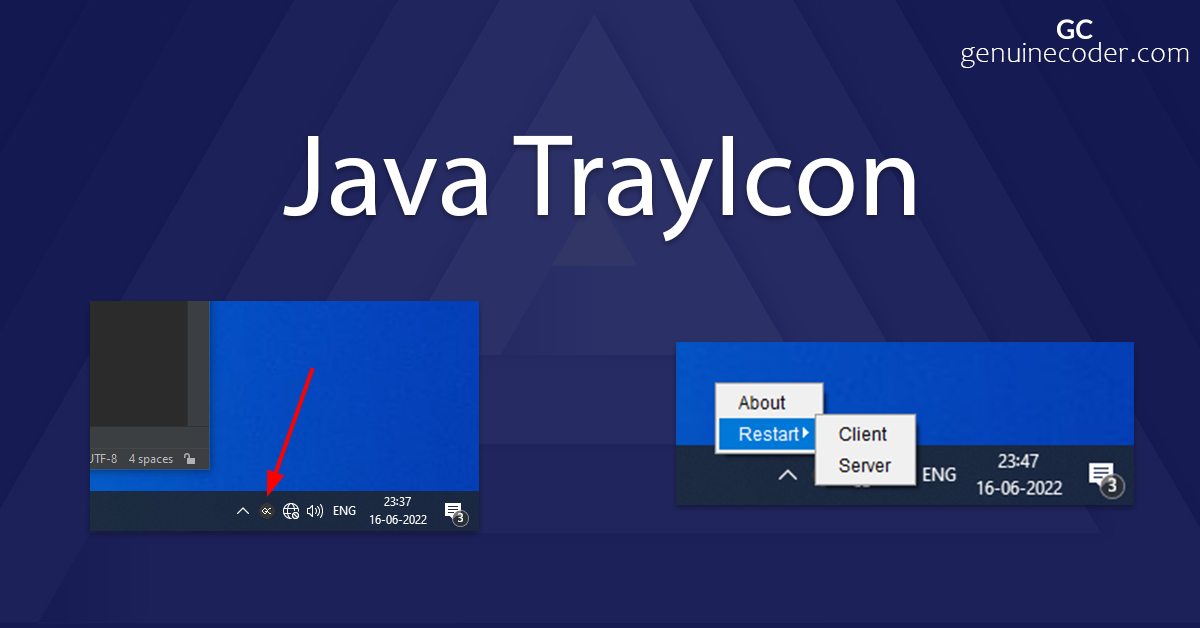
    Trayicons are really useful widgets for interacting with the application when the main dialog is minimized/hidden or the application is running in the background. In this tutorial, let’s see how to add a Java Tray Icon with example code.

    Note: JavaFX does not have a separate TrayIcon system. If your project is using JavaFX, then the tutorial is still fully applicable. Because the java.awt.SystemTray can be used for JavaFX as well!

    Creating a simple TrayIcon

    The first step on adding a TrayIcon is checking whether the platform supports it. As you know, java supports a wide variety of platforms and not all platforms will support SystemTray feature. So, the first step on configuring it is to check if it is really supported. Let’s see the basic algorithm here

    1. Make sure the platform supports SystemTray
    2. Load image for the trayicon
    3. Create trayicon object and add it to the tray

    Let’s see how it is done in code.

    public void createTrayIcon() {
      //Check for SystemTray support
      if (!SystemTray.isSupported()) {
        System.err.println("System tray feature is not supported");
        return;
      }
    
      //Get system tray object
      SystemTray tray = SystemTray.getSystemTray();
    
      //Create TrayIcon instance
      Image image = ImageIO.read(TrayIconService.class.getResourceAsStream("/path/to/your/icon.png"));
      TrayIcon trayIcon = new TrayIcon(image, "Genuine Coder", null);
      trayIcon.setImageAutoSize(true);
    
      //Attach TrayIcon to SystemTray
      tray.add(trayIcon);
    }
    

    and…That’s it. When you run the code, you will get a nice TrayIcon in your system’s taskbar. Below, you can find the output of running the code on my system.

    Java TrayIcon on windows 10 taskbar

    Creating TrayIcon with PopupMenu

    Now, let’s see how to add a PopupMenu into the TrayIcon to add some functionality. Let’s iterate the steps first.

    1. Create PopumMenu
    2. Create one Menu and multiple MenuItems and organize them in a tree structure
    3. Attach Menu to PopumMenu
    4. Attach PopupMenu to TrayIcon

    Basically, we need to prepare the MenuItems as we intend to and then attcah it to the PopupMenu. As an example, let’s create the following menu.

    Java TrayIcon With PopupMenu

    public void createTrayIcon() {
      //Check for SystemTray support
      if (!SystemTray.isSupported()) {
        System.err.println("System tray feature is not supported");
        return;
      }
      SystemTray tray = SystemTray.getSystemTray();
      Image image = ImageIO.read(TrayIconService.class.getResourceAsStream("/path/to/your/icon.png"));
      TrayIcon trayIcon = new TrayIcon(image, "Genuine Coder", null);
      trayIcon.setImageAutoSize(true);
    
      //Create root menu
      PopupMenu rootMenu = new PopupMenu();
      
      //Add about and restart items
      MenuItem about = new MenuItem("About");
      rootMenu.add(about);
      Menu restartMenu = new Menu("Restart");
      rootMenu.add(restartMenu);
    
      //Add sub-items to server
      MenuItem restartClient = new MenuItem("Client");
      MenuItem restartServer = new MenuItem("Server");
      restartMenu.add(restartClient);
      restartMenu.add(restartServer);
    
      //Attach to trayIcon
      trayIcon.setPopupMenu(rootMenu);
    
      tray.add(trayIcon);
    }
    

    Adding event handling to the TrayIcon

    Now, let’s see how to attach event-handlers to the TrayIcon menu. As an example, let’s show an alert when the “about” MenuItem is clicked.

    about.addActionListener(new ActionListener() {
        @Override
        public void actionPerformed(ActionEvent e) {
            JOptionPane.showMessageDialog(null, "Wow! Java TrayIcon is working!");
        }
    });
    

    With this event-handler, when you click on the “about” MenuItem in the TrayIcon menu, you will get the following alert.
    TrayIcon action with event handler

    Conclusion

    In this tutorial, we have familiarized with Java TrayIcon and added PopupMenu and action listeners into it. TrayIcons can be customized even further by customizing the MenuItem. You can add special MenuItems like CheckBoxMenuItem to add switch behaviour into your SystemTray. You may also want to checkout the following articles

    1. How to send email using Java
    2. Convert JAR to EXE
  • Downloading a file from spring controller with spring boot

    Downloading a file from spring controller with spring boot

    Sometimes, we will have to provide rest API endpoint for downloading certain files. In this article, we will see how to provide an option to download any file from a java spring rest API controller, with example code snippet. We will use spring-boot annotations here to make things easier and straightforward. This method provides the file download option with resume support.

    Configure a file for download with spring controller

    Let’s assume that you have a file that you want to provide for download at “data/file_to_download.mp4”. Then you can write the controller as follows to make it downloadable by any browser. Also, the REST API endpoint is given in the @GetMapping annotation.

    @GetMapping(path = "/your-api/get-video-file")
    public ResponseEntity<Resource> downloadFile() throws Exception {
        File downloadFile = new File("data/file_to_download.mp4");
        InputStreamResource resource = new InputStreamResource(new FileInputStream(downloadFile));
        HttpHeaders header = new HttpHeaders();
        header.add(HttpHeaders.CONTENT_DISPOSITION, "attachment; filename=" + downloadFile.getName());
        header.add("Cache-Control", "no-cache, no-store, must-revalidate");
        header.add("Pragma", "no-cache");
        header.add("Expires", "0");
        return ResponseEntity.ok()
            .headers(header)
            .contentLength(downloadFile.length())
            .contentType(MediaType.parseMediaType("application/octet-stream"))
            .body(resource);
    }
    

    The “application/octet-stream” media type is useful for providing the file as a raw type. The HttpHeader provides information about the file metadata, including the size of the file so that the browser can properly determine its size and create a proper download progress bar.

    Providing spring boot file download based on GET parameter

    Now, let’s say you want to provide multiple files for download and don’t want to write separate functions for each. In this case, you can simply accept the name of the file to be downloaded as a request parameter and use it to process the file downloading. Let’s see how this can be done in the following code snippet.

    Firefox download dialog from the spring boot file download link

    @GetMapping(path = "/your-api/download-file")
    public ResponseEntity<Resource> downloadBenchmarkFile10Mb(@RequestParam("file-name") String fileName) throws Exception {
      File downloadFile = new File(fileName);
      //Return 404 error if the file is not found
      if (!downloadFile.exists()) {
        return ResponseEntity.noContent()
            .build();
      }
      InputStreamResource resource = new InputStreamResource(new FileInputStream(downloadFile));
      HttpHeaders header = new HttpHeaders();
      header.add(HttpHeaders.CONTENT_DISPOSITION, "attachment; filename=" + downloadFile.getName());
      header.add("Cache-Control", "no-cache, no-store, must-revalidate");
      header.add("Pragma", "no-cache");
      header.add("Expires", "0");
      header.add("hash", FileUtil.createFileHash(downloadFile));
      return ResponseEntity.ok()
          .headers(header)
          .contentLength(downloadFile.length())
          .contentType(MediaType.parseMediaType("application/octet-stream"))
          .body(resource);
    }
    

    Here, the file-name to be downloaded will be taken as an argument from the GET request and then will be used for resolving the file. If such a file is not available, then a 404 response will be returned, as you can see in the code comment. To download from the following REST GET endpoint, you can make a request as follows.

    https://yourserver/your-api/download-file?file-name=zulu.tar.gz
    

    That’s all about spring boot file download

  • JAR to EXE : Java program to Windows executable

    JAR to EXE : Java program to Windows executable

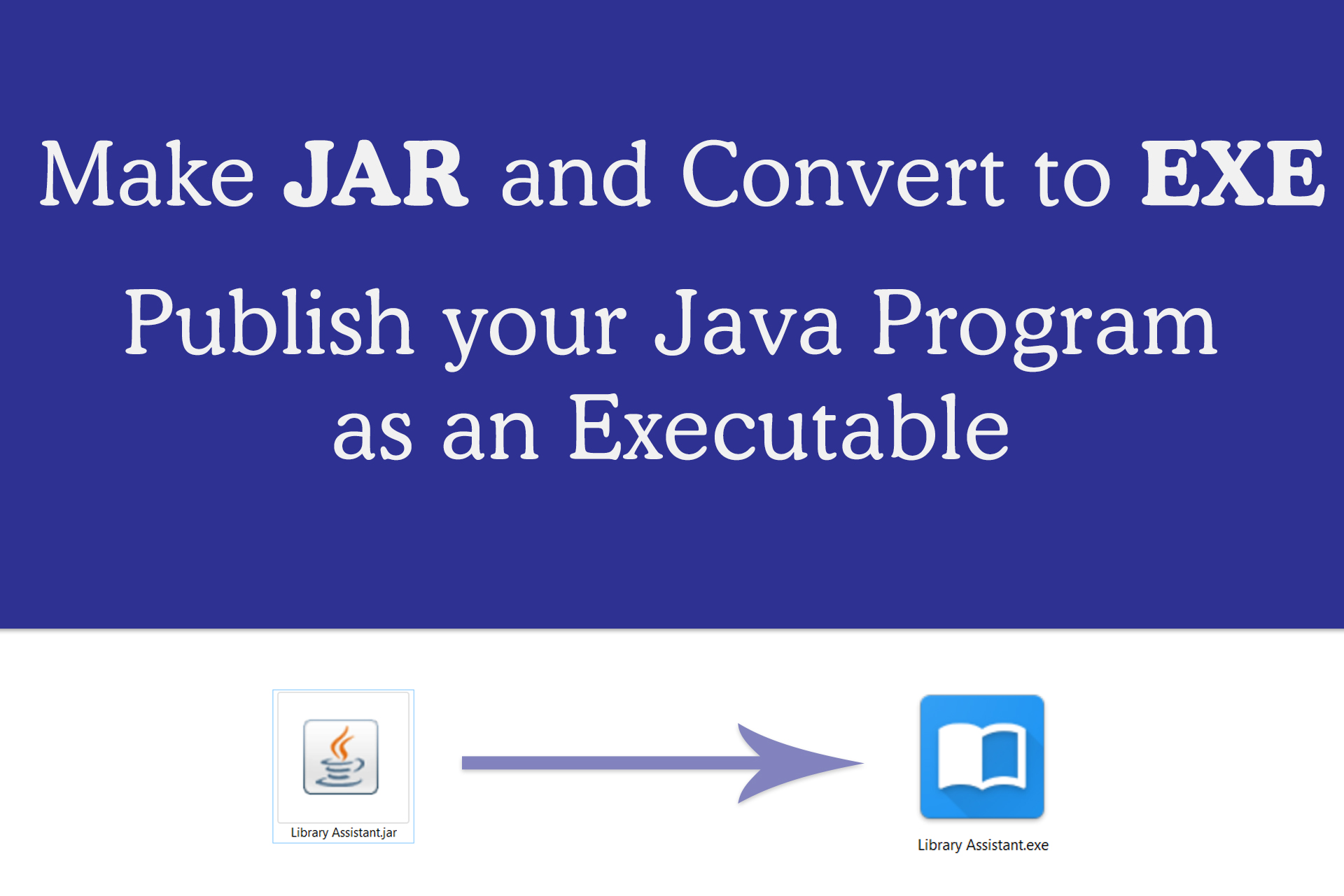
    Java is the best programming language available today that works across different platforms. I love Java and JavaFX. Once you finish writing your application, you may want to release it. The problem is, the native Java program executable, the good old .jar files always have a cup icon and sometimes a simple double click wont open them. The solution to this problem is to convert JARs to native executable, for windows .exe files.

    In this article, I will explain how to make windows executable (.exe) from your Java / JavaFX program. Having exe file for windows has many advantages. We can set icons, properties, version information etc.

    Step 1 : Make JAR file for your application

    The first step is making a JAR file from your java code. This is pretty simple if you are using an IDE like NetBeans.

    NetBeans  : NetBeans provide option for making JAR file very easily. Just right click on your project from Projects window and then select “clean and build”. This will create a folder called “dist” in your project directory. Inside dist, there will be the final JAR. All the libraries required for running the program will be inside “/dist/lib” directory.

    Maven  : Maven uses convention over configuration, this means that you only need to tell Maven the things that are different from the defaults. You can use “mvn package” command to create JAR files.

    Step 2 : Download Launch4J

    Launch4J is so far the best wrapper available for converting JAR files to windows executable. It is written in JAVA and is open source. Download latest version of Launch4J from http://launch4j.sourceforge.net/. Once You install and open it, you will get the following screen. 

    Launch4J main screen
    Launch4J main screen

    On the first look, the interface may look little confusing, but it is actually simple and every field will become too important once you get used to it.

    Step 3 : Launch4J Basic Configurations

    This tab contains the most basic configurations for the exe like jar file to be converted and the icon to be used.

    Basic
    • Output File
      This is the location where the compiled EXE (executable) file will be created once the conversion is complete
    • Jar
      Location of the Jar file to be converted in to executable
    • Wrapper manifest
      You can specify manifest file here. This will be used for processing the application against User Account Control(UAC) in windows.
    • Icon
      Here you can specify the icon. It has to be in ico format.
    • Change dir
      Change current directory to an arbitrary path relative to the executable. If you omit this property or leave it blank it will have no effect. Setting it to . will change the current dir to the same directory as the executable. .. will change it to the parent directory, and so on.
    • Command line args
      Here you can specify the java arguments

    In case if the system doesn’t have supported Java, the error message and URL to download can be specifed under the Java Download and Support Sections.

    Classpath

    Here you can specify classpath for your main class. Select the JAR file by selecting the directory icon from right and the default classpath corresponding to main class will be loaded. You can edut them from Edit Item text field.
    You can also add or remove classpath for given main class from this section.

    Single Instance

    Here you can specify whether you need only once instance of the application running at a time. Give a mutext name and window title if single instance option needed.

    JRE

    This section allows configuring JRE. If you are bundling JRE with your product (Which is not a good idea at all), you can specify the path here. You can check the ‘Fallback option’ so that the bundled JRE will only be used when the JRE isntalled on the system does not matches with min and max version requirement.

    Min JRE Version is a mandatory field and it has to be specified.You can also specify Heap parameters or any JVM options in the corresponding fields.

    Splash

    If you need a custom splash screen, you can check the “Enable Splash Screen option”. Then specify the file (Either bitmap image or JAR file). In the TimeOut field, time out can be specified.

    Version Info

    This is a good way to properly specify version information for your executable. This entries will then be shown in the properties section of executable.

    Messages

    Messages section allows to create custom messages when errors occur. You can enable this option by checking “Add custom messages”.

    Step 4 : Compile and Make Executable

    Once the entries are filled, you have to save the configuration. For saving, click on the Floppy DIsk icon from the menu. Your configuration entries will be saved as an xml file called config.xml. After saving click on the Setting like icon next to save button to start converting to executable file.

    Launch4J Example Configuration
    Launch4J Example Configuration

    If it the wrapping was a success, you should see the following messages in Log

    Compiling resources
    Linking
    Wrapping
    Successfully created D:\Library Assistant\dist\Library Software.exe
    

    You can start your program from executable by clicking on the Play button from menu.

    Watch video tutorial from Genuine Coder YouTube channel :-

  • JavaFX Complete Project Tutorial : Building Material Designed Library Management Software

    JavaFX Complete Project Tutorial : Building Material Designed Library Management Software

    Programming can only be learned properly with continuous practice. When you work on a complete software project, you’ll have to understand how to put things together and how to implement data communication between various modules etc. So, I decided to share a complete javafx project development series.

    I am publishing a series of tutorial videos on YouTube about developing a complete Library Management Software using JavaFX. This tutorial series start with basic designing and continue towards more complex programming like database integration, multi level user interface design, material design etc. I have tried my best to keep things as simple as possible.

    Apache Derby database is used for storing member, book and other informations. Derby is a lightweight, purely java based relational database. It has common sql syntax. So you can get things done without any issues. I have used Scene Builder for designing user interfaces. Additionally CSS is used to get some nice effects for buttons, text fields etc.

    JavaFX Material Design Library Management Software
    Dashboard

    For development, I am using NetBeans IDE with Scene Builder. Make sure that you have the latest java installed. Some of the libraries used in the project requires JDK 8u40 or better. So it is better to have the latest java version installed.

    I hope you find this tutorial series useful. Learning component by component is a little tedious task. This set of videos will help you to understand how to coordinate various components together.  You can find the source code of this application at GitHub. I have committed at the end of  almost all tutorial videos so that you can find the exact code that i have used for explanation.

    Moving to Material Design

    Material design is an awesome concept. It defines a new method for designing and developing user interfaces across multiple platforms. For making this software materialistic, I have used JavaFX material design library named JFoenix. It provides built-in material design based components that can be easily styled with CSS.

    Material-design-login-screen
    Library Software login screen

    The above image shows login screen from new design. There are only 3 colors and every components has it own padding and spacing.  If you just give enough spacing for your components on the screen, it will tremendously improve the overall look.

    Libraries Used

    I have recorded the complete development as tutorial. You can find them in the following PlayList. Subscribe to Genuine Coder YouTube channel for more tutorials in the future.

    Get project from GitHub
  • Java Barcode Generator Program with Source Code

    Java Barcode Generator Program with Source Code

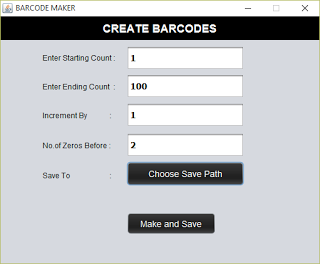
    We deal with barcodes every day. Compared to QR codes or Quick Response codes, it is simple to generate, read using a barcode reader. This is a java application that uses ‘barcode4j’ library to generate barcodes. Barcode Maker allows to create large number of barcodes between specified ranges. It basically reads the starting count, make the barcode and save to specified location. Then increments the number by the given increment interval, make and save. This is repeated until the end count given reached.

    Inputs

    Starting Count
    From which number the barcode is to be generated. Type 0 to start from 0
    Ending Count
    Up to what number the barcode is to be generated. Say 100
    Increment by
    Next barcode to be generated is found using the formula Starting Count + Increment by
    No of zeros before
    Will help to adjust the barcode width for smaller number like 0 and 1. If you are generating barcodes from 0-1000 then starting barcodes will be very small in width. This can be fixed by adding no of zeros before the number. Say 2
    Save to
    Choose where you want to save the generated barcodes

    Download

    Screenshots

    Main Window of Barcode Make with Sample Input
    Barcode Creating Completed
    Progress monitor
    Created barcodes

    You might also be interested in:-

    Keywords : Java Barcode Creator Software with Source Code , Barcode Generator

  • Library Assistant 4.0 – The Best Library Management Software For Free

    Library Assistant 4.0 – The Best Library Management Software For Free

    Library Assistant is a free Java based simple library management software developed mainly for schools and colleges. Library Assistant 4.0 comes with great features such as enhanced search, bar code support etc.

    Simple User Interface

    LA is designed for simplicity by hiding complex things from the user. You can issue a book by just 3 clicks or submit a book with just 2 clicks!

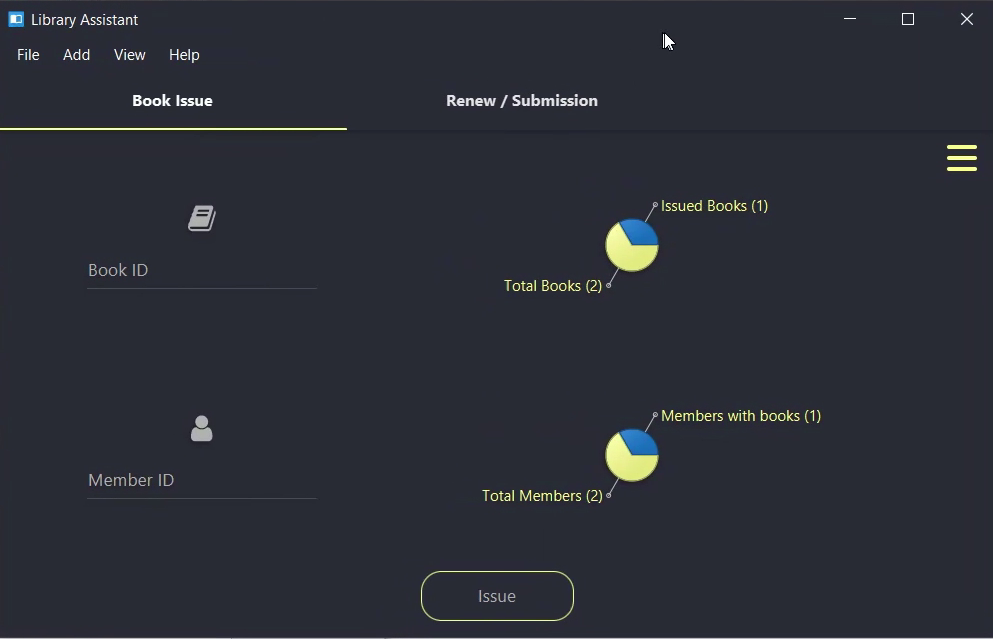
    Library Assistant Main Window

    BarCode Ready

    Library Assistant supports barcode readers. You can increase your library efficiency simply by making use of Bar code readers with LA.

    Barcode Support

    Run it Anywhere and Everywhere

    LA is platform independent. You can run it on your favorite Operating System. All that you need is the Java Runtime Environment installed.

    Full linux compatibility

    Keep Your Data Secure

    A username and password is required for logging in. You can set your username and password during initial configuration.

    Login Screen for LA

    Advanced Book Search

    You can search for a book by its Title, Author, Publisher, Book ID (Bar code Number) or even with its location on the library.
    Book search window
    Search Window

    Not Returned the Books Yet? Notify Them

    LA introducing a new email notification feature that send a notification email to the members with details regarding book issue and fine amount.
    Email Notification window
    Email Notification Window

    Track Members

    Library Assistant can keep of track of member’s each activity. So you can easily differentiate between active and inactive members. 


    Member profile window
    Member View

    Have an idea ? Let me know

    LA has been getting updated for last 3 years. If you want a particular feature to be added on to LA, let me know in the comments.

    Before downloading library assistant, your computer must have the Java Runtime Environment (JRE) installed. If it is not installed, please download the latest version from the below link.

    https://www.java.com/en/download/

    http://www.mediafire.com/download/4b783g8vk17hdsc/Library_Assistant_Linux.zip
    http://www.mediafire.com/download/6eql8ck1w7zqajt/Library_Assistant_Windows_5.zipKeywords: Library Management program for pc, Library Software, Library Assistant 4, Library Management Software, Library Program Java, Java Library Software, Library Management Software for Linux, Linux Library Software, simple library management system.