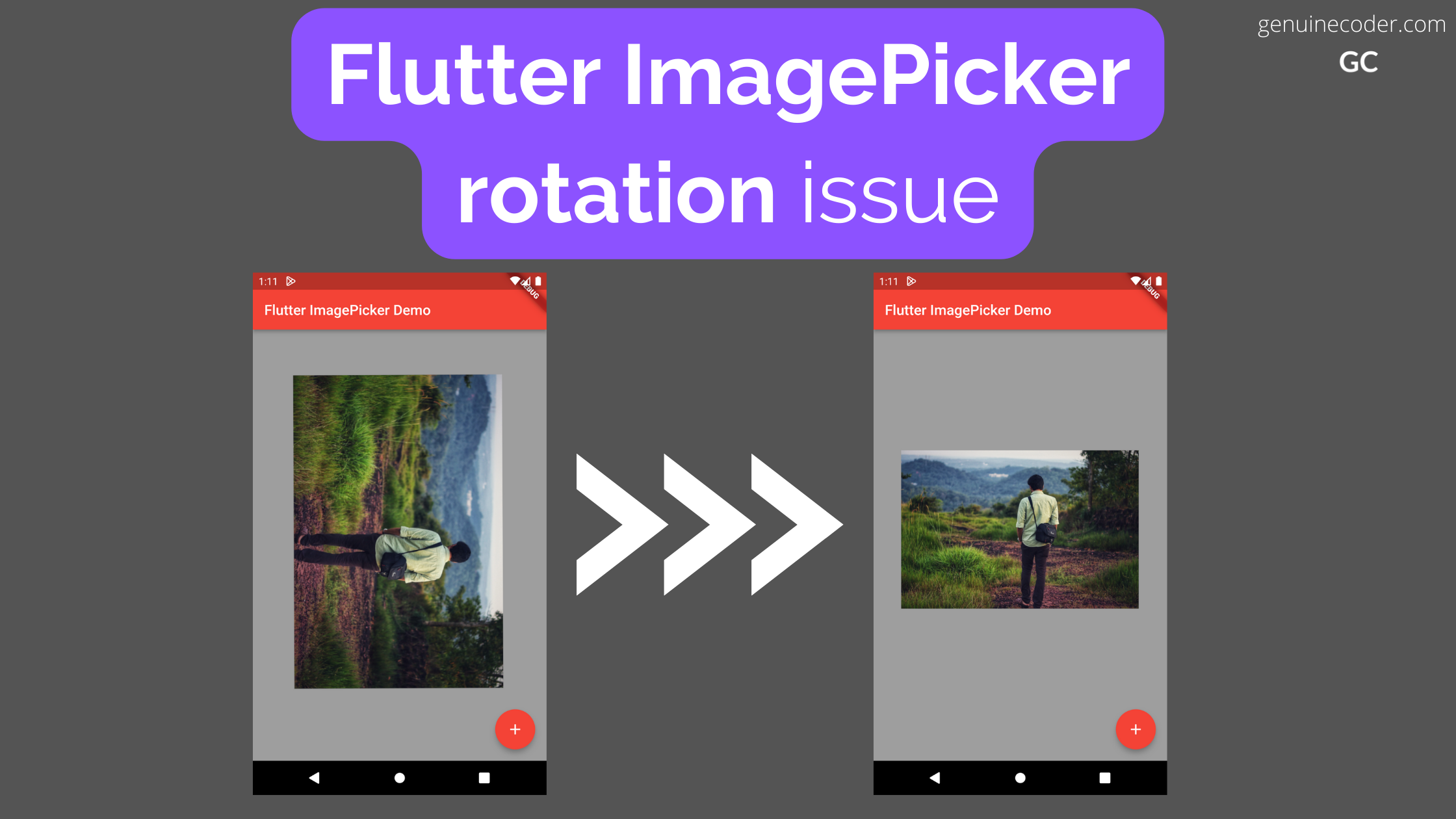
Flutter camera image picker has a known issue of returning images with wrong unexpected rotation. The issue has been raised in the GitHub and marked as closed, but still occurs in the latest stable release. The issue can, however, be resolved easily with the help of exif-rotation plugin. This issue is known to be affecting both iOS and Android platforms.
Why the image is rotated
When we take an image from the camera, we could be holding the phone in any orientation. Sometimes we take photos in landscape mode, sometimes portait and so on. The camera app takes the photo and adds special metadata entries (EXIF data) to the file so that it can be rotated properly in image viewers.
Flutter image_picker has a bug where it doesn’t process the image with the given EXIF data which makes the image appear in the wrong rotation. However, we can fix it by considering the EXIF data and rotating the image manually as the metadata suggests.
How to fix the rotation?
To fix the unwanted image rotation, we need to rotate the image based on the metadata available. Luckily, a library named flutter_exif_rotation is available. Once the image is taken from the image-picker, give it to the FlutterExifRotation library. The library will rotate it, if needed, based on the available EXIF data.
Let’s have a look into the sample code.
Firstly, add the flutter_exif_rotation library to your pubspec.yaml file.
import 'dart:async';
import 'dart:io';

import 'package:flutter_exif_rotation/flutter_exif_rotation.dart'; //EXIF rotation library
import 'package:image_picker/image_picker.dart'; //Image picker library

class CameraService {

  Future<XFile?> pickImage() async {
    //Take a photo from camera
    final XFile? image = await ImagePicker().pickImage(
      source: ImageSource.camera, maxWidth: 1200, maxHeight: 1200, requestFullMetadata: true
    );
    if (image != null) {
      // Rotate the image to fix the wrong rotation coming from ImagePicker
      File rotatedImage = await FlutterExifRotation.rotateImage(path: image.path);
      return XFile(rotatedImage.path); //Return the file
    }
    return image;
  }

}
In the above code, The function FlutterExifRotation#rotateImage will fix the rotation of the image by considering the EXIF orientation tags. This solution has been proposed in the GitHub and many people supported this as the best way available at the moment.
This tutorial explores the data encryption and decryption using the dart language for the flutter apps. We come across the requirements of encrypting and decrypting data when we start building real-world applications.
For supporting encryption, we need to add a library called encrypt. It provides all the functionalities we require for encrypting, encoding encrypted data to base16 or base64, and of course for decryption.
Add the following line into your pubspec.yaml file under dependencies: section. This will add the ‘encrypt’ library into our project.
encrypt: ^5.0.1
To use the library in the code, import it as follows.
import 'package:encrypt/encrypt.dart';
AES Encryption & Decryption
AES aka Advanced Encryption Standard is a very widely used symmetric block encryption technique. AES can use 128, 192 or 256 length keys.
How the encryption key bit length is calculated?
The AES-128 can have a 128-bit key. You can either use the Key.fromSecureRandom(16) function to generate 128-bit keys. Or else, you need to provide a 16 character string as a key.
For example,
“I am 16-char key” contains 16 characters. Each character is 8 bit wide. It can be used as a 128-bit key.
“This 32 char key have 256 bits!!” contains 32 characters. Each character is 8 bit wide. So, it will become 256-bit key.
Example program for AES-CBC encryption and decryption
Let’s understand the encryption and decryption with an example code. The following program utilizes AES-CBC-PKSC7 algorithm.
import 'package:encrypt/encrypt.dart';

void main() {
  final plainText = "Fallback! I repeat fallback to sector 12!!";
  final key = "This 32 char key have 256 bits..";

  print('Plain text for encryption: $plainText');

  //Encrypt
  Encrypted encrypted = encryptWithAES(key, plainText);
  String encryptedBase64 = encrypted.base64;
  print('Encrypted data in base64 encoding: $encryptedBase64');

  //Decrypt
  String decryptedText = decryptWithAES(key, encrypted);
  print('Decrypted data: $decryptedText');
}

///Accepts encrypted data and decrypt it. Returns plain text
String decryptWithAES(String key, Encrypted encryptedData) {
  final cipherKey = Key.fromUtf8(key);
  final encryptService = Encrypter(AES(cipherKey, mode: AESMode.cbc)); //Using AES CBC encryption
  final initVector = IV.fromUtf8(key.substring(0, 16)); //Here the IV is generated from key. This is for example only. Use some other text or random data as IV for better security.

  return encryptService.decrypt(encryptedData, iv: initVector);
}

///Encrypts the given plainText using the key. Returns encrypted data
Encrypted encryptWithAES(String key, String plainText) {
  final cipherKey = Key.fromUtf8(key);
  final encryptService = Encrypter(AES(cipherKey, mode: AESMode.cbc));
  final initVector = IV.fromUtf8(key.substring(0, 16)); //Here the IV is generated from key. This is for example only. Use some other text or random data as IV for better security.

  Encrypted encryptedData = encryptService.encrypt(plainText, iv: initVector);
  return encryptedData;
}
The output of the program is as follows
Plain text for encryption: Fallback! I repeat fallback to sector 12!!
Encrypted data in base64 encoding: WI18tczGAOQfiLKGyKyXKcuCZeK9d8K9ONUeVvPEnC8H86l0EBWa76drqdZpmcXO
Decrypted data: Fallback! I repeat fallback to sector 12!!
Flutter AES Encryption and Decryption Example Output
What is an initialization vector?
IV or initVector as denoted in the above code is known as initialization vector. It is an arbitrary data that can be used along with a secret key for more secure data encryption. This is needed because, multiple people can use the same key and create the same encrypted data which can then be compromised. Using IV along with key make sure that the probability of being someone else using IV and KEY is very less. In the above code snippet, the IV is derived from key. It is for example purpose only. Always use random generated IV.
RSA Encryption and Decryption
RSA(Rivest Shamir Adleman) is a widely used public-key asymmetric encryption algorithm. You can do encryption and decryption with RSA in flutter with the encrypt library.
import 'package:encrypt/encrypt.dart';
import 'package:pointycastle/asymmetric/api.dart';

void main() {
  final publicKey = await readKeyFromFile<RSAPublicKey>('/public.pem'); //Read public key from file
  final privateKey = await readKeyFromFile<RSAPrivateKey>('/private.pem'); //Read private key from file

  final plainText = 'Your plain text to be encrypted';
  final encryptService = Encrypter(RSA(publicKey: publicKey, privateKey: privateKey));

  //Encrypt
  final encrypted = encryptService.encrypt(plainText);
  final encryptedBase64 = encrypted.base64;
  print('Encrypted data in base64 encoding: $encryptedBase64');

  //Decrypt
  final decrypted = encryptService.decrypt(encrypted);
  print('Decrypted data: $decrypted');
}
In this tutorial, we have explored the encryption and decryption support in dart for flutter apps. We have analyzed an example program for AES algorithm and went through an RSA algorithm example as well. If you liked this article, you might want to have a look into some other flutter articles I have written.
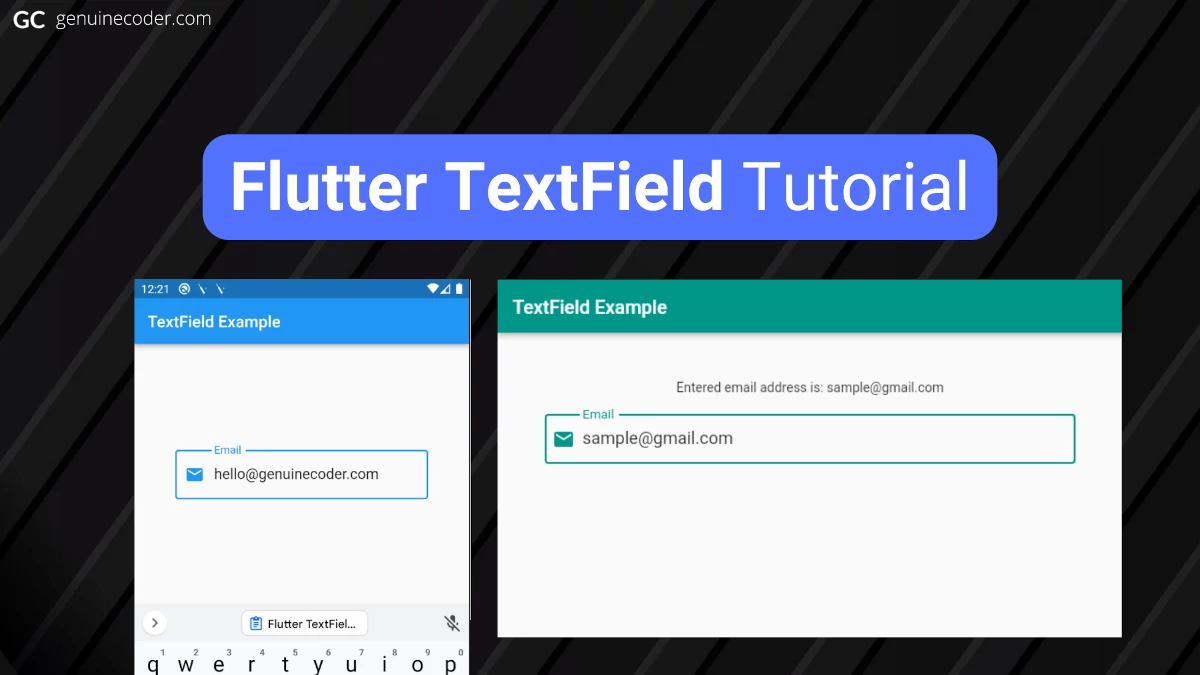
TextField widgets are used for reading text inputs, like username, password, phone number, email address, etc. from the keyboard. They are one of the most commonly used widgets in Flutter, just like Buttons. Flutter TextField follows the Google’s material design principles and is fully compliant with the material design text-field specifications.
Create a simple TextField
By default, the TextButton component has only a simple line/divider at the bottom. No other decorations are given. Let’s see how the TextField looks in its bare form.
Flutter textfield with default style
The following code generated the above output. In the example code, a no-arg constructor is used to prepare the TextField.
The TextField constructor has many parameters for customization. This widget being one of the most used widgets in all the framework widgets, it indeed has to have as many customizations as the SDK can provide. Click the following code snippet header to view the constructor and all its options;
Let’s learn how to customize the TextField widget with an email input example. We need to make the widget look like the material design TextField with nice rounded borders with label. Let’s also add an email icon.
We will do the following customizations:
Set a rounded border with border label
Set a hint text
Set an email icon at the start position of the TextField
Set font size to 18dp
Set input type to email so that the virtual keyboard will adjust accordingly (will show @ button)
Customized TextField in flutter with icon, label, hint and email keyboard-type.
class TextFieldWidget extends StatelessWidget {
  const TextFieldWidget({Key? key}) : super(key: key);

  @override
  Widget build(BuildContext context) {
    return const Center(
      child: TextField(
        //Set text style
        style: TextStyle(
          fontSize: 18
        ),
        keyboardType: TextInputType.emailAddress, //Set keyboard type for email address. This will show @ button on the primary section of the keyboard.
        //Set decoration
        decoration: InputDecoration(
            border: OutlineInputBorder(), //Create rounded outlined border
            labelText: "Email", //Set the label text that will be shown over the border
            prefixIcon: Icon(Icons.email), // Set email icon at the start of the TextField
            hintText: "Enter your email ID"), // Set the hint text that will be shown when TextField is empty
      ),
    );
  }
}
Retrieve typed text input from TextField
Flutter has multiples ways to get and process text from the TextField widget. The best approach is to use a TextController class to handle all the events coming out of the TextField properly. The simplest approach is to use an onChange() callback.
Also, it is possible to track every change happening on the text field (For example, while entering hello, get callback after each letter h, e, l, l, and o separately). On the other hand, if you are interested only when the text field input is finished and user wants to submit the data, there is a callback method for that as well.
Let’s see all these options in detail.
Tracking every text change in the TextField
First, let’s see how we can track every change happening on the TextField. There are two ways to do this.
Using onChange() callback
TextEditingController
Using onChange() callback – The easy way
onChange() callback can be added by providing it to the TextField constructor. We can provide a function to the onChanged property to register an onChange callback. This will print “Entered value: …..” as soon as we start typing contents to the TextField.
Flutter TextField onChange callback firing print output for each keystroke
Using TextEditingController – The best way
Using TextEditingController is recommended since it is easier to use as the text-value from the text field needs to be used on other widgets. For using TextEditingController, we have to do the following steps.
Create a TextEditingController
Create a function that executes whenever the text is changed
Link the function to the TextEditingController inside initState() function. This is for creating the link between controller and function
Dispose the TextEditingController inside dispose() for resource cleanup
Link the controller to the TextField via the controller attribute
import 'package:flutter/material.dart';

void main() {
  runApp(const TextFieldTutorial());
}

class TextFieldTutorial extends StatefulWidget {
  const TextFieldTutorial({Key? key}) : super(key: key);

  @override
  State<StatefulWidget> createState() {
    return TextFieldWidget();
  }
}

class TextFieldWidget extends State<TextFieldTutorial> {

  //Create new TextEditingController
  final emailTextFieldController = TextEditingController();

  @override
  void initState() {
    super.initState();
    //Link controller to the function to be executed on change
    emailTextFieldController.addListener(printTextFieldValue);
  }

  @override
  void dispose() {
    //Dispose the controller when the widget is disposed
    emailTextFieldController.dispose();
    super.dispose();
  }

  //Function that executes when the text is changed
  void printTextFieldValue() {
    print('Second text field: ${emailTextFieldController.text}');
  }

  @override
  Widget build(BuildContext context) {
    return MaterialApp(
      debugShowCheckedModeBanner: false,
      theme: ThemeData(primarySwatch: Colors.blue),
      home: Scaffold(
        appBar: AppBar(title: const Text('TextField Example')),
        body: Padding(
          padding: const EdgeInsets.all(50),
          child: TextField(
            controller: emailTextFieldController, //Link controller to TextField
            style: const TextStyle(fontSize: 18),
            keyboardType: TextInputType.emailAddress,
            decoration: const InputDecoration(border: OutlineInputBorder(), labelText: "Email", prefixIcon: Icon(Icons.email), hintText: "Enter your email ID"),
          ),
        ),
      ),
    );
  }
}
Tracking text submission event with onSubmitted callback
So far, we have seen how to track every text change inside the TextField. Most of the time, we might not be interested in the individual text changes, but on the final text the user submits. Flutter provides a callback for the submission event as well. This callback can be registered through the onSubmitted parameter.
The onSubmitted callback will be fired only when you press the Submit button on the keyboard. In Android and iOS, it is the ‘check’ or ‘tick’ button on the keyboard. On the desktop platform, it is the ENTER key. In the following gif image, you can see that the onSubmitted function is fired only after the check button was pressed.
Example program: Change label value automatically when TextField text is changed
Let’s apply what we have learned so far in this chapter into a full example application. The requirement is as follows.
Requirement – There are two widgets in the screen, one “Text” and one “TextField” widget. Automatically update label/text component value when the input on the TextField is changed.
The solution for the problem is given below.
import 'package:flutter/material.dart';

void main() {
  runApp(const TextFieldTutorial());
}

class TextFieldTutorial extends StatefulWidget {
  const TextFieldTutorial({Key? key}) : super(key: key);

  @override
  State<StatefulWidget> createState() {
    return TextFieldWidget();
  }
}

class TextFieldWidget extends State<TextFieldTutorial> {
  String state = "";

  @override
  Widget build(BuildContext context) {
    return MaterialApp(
      debugShowCheckedModeBanner: false,
      theme: ThemeData(primarySwatch: Colors.blue),
      home: Scaffold(
        appBar: AppBar(title: const Text('TextField Example')),
        body: Padding(
          padding: const EdgeInsets.all(50),
          child: Column(children: [
            Text('Entered email address is: $state'), //Set the label text using the state variable
            const SizedBox(height: 20),
            TextField(
              onChanged: (value) {
                setState(() => state = value); //Update state as soon as the TextField text is changed
              },
              style: const TextStyle(fontSize: 18),
              keyboardType: TextInputType.emailAddress,
              decoration: const InputDecoration(border: OutlineInputBorder(), labelText: "Email", prefixIcon: Icon(Icons.email), hintText: "Enter your email ID"),
            ),
          ]),
        ),
      ),
    );
  }
}
The output of the above code snippet is as follows.
Flutter TextField and Text Value Binding
Conclusion
In this tutorial, we have learned how to use flutter TextField. We have gone through the customization, callbacks like onChange, onSubmit and text field controller options. If this tutorial was useful, you might be interested in the other Flutter tutorials I have written.
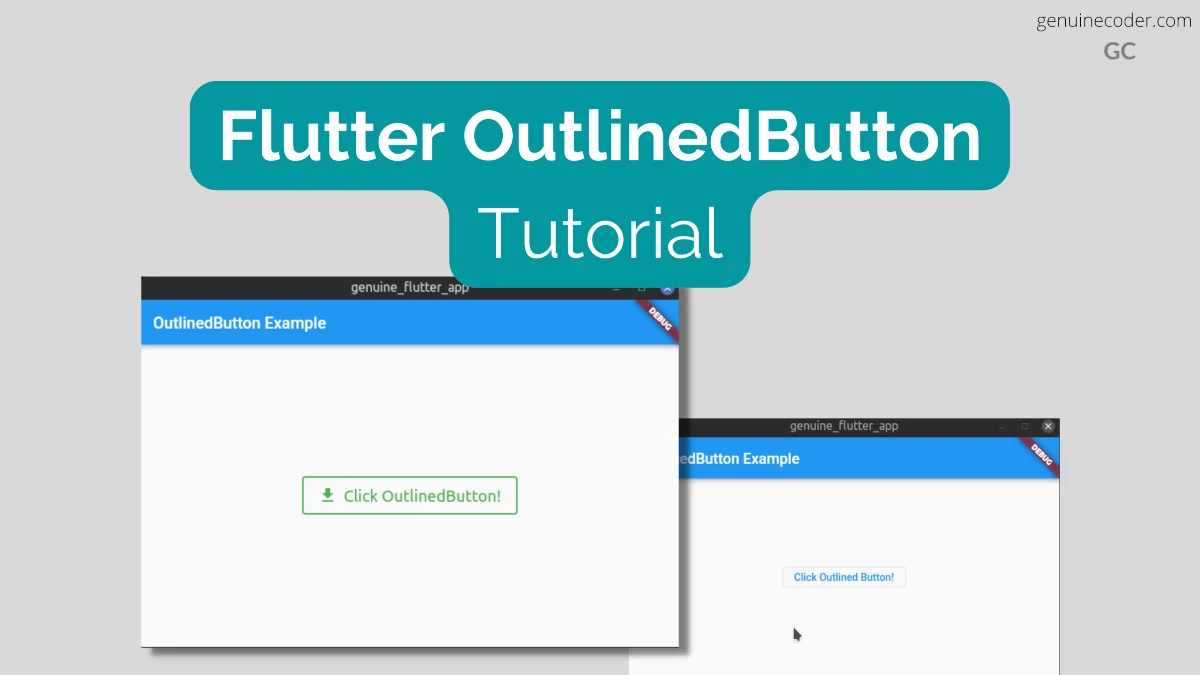
An OutlinedButton is a button with text child and a border outline. It is also a form of TextButton with an outline. They are used in the places where the button needs medium importance. Unlike the other two button types (TextButton and ElevatedButton), these buttons have the outline style set by default.
OutlinedButton Usage
There are two constructors available for the OutlinedButton, one with option to specify icon and one without icon. First, let’s try the simple outlined button that does not have any icon.
There are two mandatory fields in the constructor, onPressed and child.
Now, let’s see how we can make use of the OutlinedButton in a sample application. In the following example, when the button is pressed, a snackbar message will be shown.
Now, let’s see how we can customize the OutlinedButton with the styling options available and add an icon into the button.
There’s a factory constructor available for making the button with an Icon. As you can see from the constructor signature below, 3 fields are mandatory. onPressed, icon and the label.
Note: In the default constructor, we have used ‘child’ parameter for specifying the button label. For the factory constructor with an icon, child is not available, and we have to use label to specify the button text.
For the button style customization, we will do the following.
Set font size to 20dp
Set font size to 20dp
Add 20px padding on all sides
Set the border color GREEN
Set the border width to 2px
Set the text color GREEN
OutlinedButton With Icon and customized style
Now, let’s see we can do it with an example code.
class OutlinedButtonWidget extends StatelessWidget {
  const OutlinedButtonWidget({Key? key}) : super(key: key);

  handleButtonClick(BuildContext context) {
    ScaffoldMessenger.of(context).showSnackBar(const SnackBar(content: Text("Outlined Button Clicked!")));
  }

  @override
  Widget build(BuildContext context) {
    return Center(
      //Create Elevated Button
      child: OutlinedButton.icon(
          //Handle button press event
          onPressed: () {
            handleButtonClick(context);
          },
          //Contents of the button
          style: ElevatedButton.styleFrom(
            //Style the text
            textStyle: const TextStyle(
              fontSize: 20, //Set font size
            ),
            //Style the border
            side: const BorderSide(
              color: Colors.green, //Set border color
              width: 2, //Set border width
            ),
            onPrimary: Colors.green, //Set the foreground (text + icon) color
            padding: const EdgeInsets.all(20.0), //Set the padding on all sides to 20px
          ),
          icon: const Icon(Icons.download), //Button icon
          label: const Text("Click OutlinedButton!")), //Button label
    );
  }
}
In this tutorial, we have learned how to make use of the Flutter OutlinedButton widget in flutter. This button is useful for non-primary actions in the GUI because it doesn’t attract too much attention for the user. We have seen how to customize it with icons and custom style. If you liked this article, you might be interested in the other Flutter tutorials I have written.
Very often, we come across the need to have UUID. UUIDs are perfect for giving unique ID to objects and resources. In this tutorial, we will see how to create UUID in dart for a flutter app.
Generating the UUID
Step 1: Add the uuid library to your project
To create UUIDs, we need to add the uuid library into the project. It can be added by inserting the following entry into your project’s pubsec.yaml file.
uuid: 3.0.6
Step 2: Import “uuid/uuid.dart” and use it
Now, let’s use the added library to create UUID. First, import the library and then use it. Simply create an object of the Uuid() class and then use the provided v1(), v2(), v3(), v4(), or v5() function based on the UUID version you need. All the standard UUID versions are supported in this library.
If you are confused on which version of UUID you want, just use v4 uuid. It is unique and optimal for using as identifiers.
If you are looking for more customized UUIDs with more control over the random data, have look into the library example section.
Create Unique ID without additional libraries
Now, let’s say you don’t need UUID exactly, but want unique auto-generated IDs. Then you can proceed with the UniqueKey class.
UniqueKey() will return an alphanumeric string (usually 5 char length).
createUUID() {
  return UniqueKey();
}
Conclusion
In this tutorial, we have seen how to generate UUID with flutter. The UUID library supports all the standard variations and is straightforward to use. If you have liked this article, have a look into the other flutter tutorials I have written.
In this tutorial, we will explore the ElevatedButton widget in Flutter. ElevatedButtons are, as the name suggests, buttons with a depth or elevation. They will stand on top of the container with a shadow. So they have a different appearance compared to the flat button TextButton.
ElevatedButton without Icon
There are two constructors available for the ElevatedButton, one with icon and one without icon. Let’s first see how to use the one without icon.
There are two mandatory fields in the constructor, onPressed and child.
The above code generates the following output. Note that the color of the button is taken from the default theme. We will see how to customize the colors and fonts in the next section.
Simple Flutter ElevatedButton
Customize button style and add an icon
Now, let’s see how to customize the button and add an icon to it. The ElevatedButton class has a separate constructor for creating the button with an icon. We will make use of that.
For styling the button, ElevatedButton.styleFrom() to update the values from the default theme.
Note: In the ElevatedButton’s default constructor, we have used ‘child’ parameter for specifying the button label. For the factory constructor with icon, child is not available, and we have to use label parameter.
For the button style customization, we will do the following.
Add a download icon
Change the font size to 22dp
Add 20px padding on all sides
Set the foreground color to RED
Set the background color to YELLOW
Now, let’s see we can do it with an example code.
@override
Widget build(BuildContext context) {
    return Center(
        //Create Elevated Button
        child: ElevatedButton.icon(
            //Handle button press event
            onPressed: () {
              handleButtonClick(context);
            },
            //Contents of the button
            style: ElevatedButton.styleFrom(
              //Change font size
              textStyle: const TextStyle(
                  fontSize: 22,
              ),
              //Set the background color
              primary: Colors.yellow,
              //Set the foreground (text + icon) color
              onPrimary: Colors.red,
              //Set the padding on all sides to 30px
              padding: const EdgeInsets.all(30.0),
            ),
            icon: const Icon(Icons.send_rounded), //Button icon
            label: const Text("Click Text Button!")), //Button label
    );
}
This will generate the following output. As you can see below, the
ElevatedButton with icon and theme customization
More button style customization
Let’s go through all the style customization flutter provides for the ElevatedButton. All the following mentioned customizations can be used within ElevatedButton.styleFrom(), Just like we did in the above example for padding, color etc.
Set the disabled state color (applies for button label and icon)
onSurface: Colors.colorOfYourChoice
Set the shadow/elevation color
shadowColor: Colors.colorOfYourChoice
Set the elevation.
Higher the elevation, more the shadow spread.
elevation: 6.0
Specify minimum size of the button
//First parameter is width, second is height.
minimumSize: Size(20, 40)
Set the button border
//Setting solid 1px red color border
side: BorderSide(color: Colors.red, width: 1.0, style: BorderStyle.solid),
//Setting sold 1px red color border
Set button shape
//Setting button shape to circle with radius of 35.
shape: RoundedRectangleBorder(borderRadius: BorderRadius.circular(35.0)),
Mouse cursor when button is enabled
//Set mouse cursor to click (hand cursor)
enabledMouseCursor: SystemMouseCursors.click,
//Set mouse cursor to text (I cursor)
Button with custom cursor, rounded corners, border, etc.
Mouse cursor when button is disabled
//Hide mouse cursor when hovered over disabled ElevatedButton
disabledMouseCursor: SystemMouseCursors.none,
Set button’s default animation duration for shape change and elevation change
//Setting the animation duration to 100ms
animationDuration: Duration(milliseconds: 100)
Enable/disable button click feedback
Enable or disable vibration (haptic) and sound (acoustic) feedbacks.
enableFeedback: true
Alighnment of button’s text
alignment: Alignment.bottomCenter
Background color of the button
primary: Colors.yourPrefferedBackground
Foreground color of the button icon + text
onPrimary: Colors.yourFavouriteForegroundColor
Change font properties
//Set font size and font weight
textStyle: const TextStyle(
       fontSize: 20,
       fontWeight: FontWeight.bold,
),
Set button padding
//Set the padding on all sides to 20px
padding: const EdgeInsets.all(20.0),
Conclusion
In this chapter, we have learned how to make use of the ElevatedButton widget in Flutter. We have seen how to create one with icon, without icon and went through all the style customizations we can do for the button. If you liked this article, you might be interested in the other Flutter tutorials I have written.
In this tutorial, we will explore the Button widgets available in the Flutter. Compared to the previous version Flutter2, Flutter3 has updated the button widget. We will see how to use the TextButton widget and customize it. If you want to learn how to create your first flutter project, head over to this tutorial on making your first flutter project.
TextButtons, as the name suggests, are widgets with simple text that can be interacted with a click. It uses the theme “TextButtonTheme”. These buttons are useful for action in dialogs, snackbars and cards. The material design 3 specifications for the TextButton can be found in here.
TextButton without Icon
Constructor of the TextButton given below. The onPressed and child properties are mandatory.
TextButton uses the theme TextButtonTheme. Let’s see how we apply the following style updates for the Button.
Change the font size to 20: Use textStyle
Make the button font bold: Use textStyle
Change the text color to RED: Use primary
Add padding of 20px on all sides: Use padding
@override
Widget build(BuildContext context) {
  return Center(
    //Create Text Button
    child: TextButton(
      //Handle button press event
        onPressed: () {
          handleButtonClick(context);
        },
        style: TextButton.styleFrom(
            //Change font size and weight
            textStyle: const TextStyle(
              fontSize: 20,
              fontWeight: FontWeight.bold,
            ),
            //Set the foreground color
            primary: Colors.red,
            //Set the padding on all sides to 20px
            padding: const EdgeInsets.all(20.0),
        ),
        //Contents of the button
        child: const Text("Click Text Button!")),
  );
}
Customized Flutter TextButton
TextButton with Icon
Now, let’s see how we can create the TextButton with an icon. There is a special factory constructor available for creating TextButton with an Icon. Let’s have a look into the factory constructor.
As it can be seen from the above constructor, we need to provide an icon, label and onPressed values.
Note: In the TextButton without icon constructor, we have used ‘child’ parameter for specifying the button label. In this factory constructor, child is not available, and we have to use label parameter.
Let’s see how we can do this with an example code.
@override
Widget build(BuildContext context) {
  return Center(
    //Create Text Button
    child: TextButton.icon(
        onPressed: () {
          handleButtonClick(context);
        },
        style: TextButton.styleFrom(
          //Change font size and weight
          textStyle: const TextStyle(
            fontSize: 20,
            fontWeight: FontWeight.bold,
          ),
          //Set the foreground color
          primary: Colors.deepOrange,
          //Set the padding on all sides to 20px
          padding: const EdgeInsets.all(20.0),
        ),
        //Set the icon
        icon: const Icon(Icons.send_rounded),
        //Set the label
        label: const Text("Click Text Button!")),
  );
}
It generates the following output. As you can see, the icon is added to the button, the label is set and the customized styling is applying. Flutter TextButton with an icon
Conclusion
In this tutorial, we have learned how to use the TextButtons in flutter. We have seen how to use it, customize it, and add icons to it. If you liked this article, you might want to check out my other Flutter tutorials.
Flutter is the new developer-friendly cross-platform open-source framework developed by Google. The flutter community is growing and as of 2022, with flutter 3, it is stable for Android, iOS, Web and Desktop platforms! Flutter 3 added stable support for Linux desktop and macOS platform.
In this tutorial for beginners, we will learn how to create a simple flutter application and build it as a native desktop application for Linux.
Setting up the flutter development environment
Based on your platform, the steps for installing the flutter and configuring is a bit different. In this tutorial, we will cover the setting up of flutter SDK for Linux Ubuntu platform.
Step 5 [OPTIONAL]: Accept Android SDK licenses by running the following command
flutter doctor --android-licenses
Step 6: Run the flutter doctor command again. Now all dependencies should be ticked!
flutter doctor --android-licenses
Enable flutter desktop development support
First things first, let’s confirm that flutter SDK desktop support is enabled. To do this, run the command “flutter devices” and make sure that your desktop platform is indeed listed as shown in the below screenshot. Note that, based on your platform, it could be Linux (desktop), Windows (desktop) or macOS (desktop).
If you can’t see the desktop in the devices list, you need to enable your desktop platform manually. It can be easily done with just the following command.
#Command format
flutter config --enable-<platform>-desktop
#Enable Linux desktop support for flutter
flutter config --enable-windows-desktop
#Enable Windows desktop support for flutter
flutter config --enable-linux-desktop
#Enable macOS desktop support for flutter
flutter config --enable-macOS-desktop
Create a new flutter desktop project
Now, let’s create our flutter project. Flutter project can be created with “flutter create” command. Let’s create a new flutter project named “genuine_flutter_app” with the following command. You can use your project’s name.
flutter create genuine_flutter_app
Now, you will see the following output mentioning that the flutter app is indeed created.
Creating project genuine_flutter_app...
Running "flutter pub get" in genuine_flutter_app...              1,968ms
Wrote 127 files.

All done!
To run your application, type:

  $ cd genuine_flutter_app
  $ flutter run

Your application code is in genuine_flutter_app/lib/main.dart.
The flutter SDK has just created a new folder with default project template and added all the required files for us. We can run the project right away and see if all is good so far.
Run the flutter app on desktop
Since the “flutter create” command created the project with template code, we can run it and test it right away. So, let’s run the project with flutter run command. Since I am using Linux, I will be using “-d linux”. If you are using Windows or Mac, make sure to use your platform’s name there.
#cd into the project directory
cd genuine_flutter_app
#Run the project
flutter run -d linux
and…here we go! You will now see the application window opened. This is the default template project. Flutter Linux Desktop Application Running
Customize the default project
Let’s customize the default project and see how we can program in dart. To achieve this, let’s open the project on our IDE. I am using VSCode. You can choose your own editor.
Open the file lib/main.dart. This is the source file that is generating the sample demo project. Let’s then customize the project. Flutter main.dart file inside lib directory
Q1. How to set title of the flutter AppBar?
Currently, the AppBar title is ‘Flutter Demo Home Page’ that is passed on to the MyHomePage widget. So, let’s change it into ‘My First Flutter Desktop App!’ by changing it in the MyApp widget.
Q2. How to change the AppBar color?
The AppBar color can be changed from the theme attribute. Set the primarySwatch as your preferred color and that will update the AppBar color.
class MyApp extends StatelessWidget {
  const MyApp({Key? key}) : super(key: key);

  @override
  Widget build(BuildContext context) {
    return MaterialApp(
      title: 'Flutter Demo',

      //Set the app color there
      theme: ThemeData(
        primarySwatch: Colors.blue,
      ),

      // Set the title here
      home: const MyHomePage(title: 'My First Flutter Desktop App!'),
    );
  }
Q3. How to change the app body color?
To set the background color for the body section, you need to set the background for the scaffold.
....
@override
Widget build(BuildContext context) {
  return Scaffold(
    //This is where the AppBar title is set
    appBar: AppBar(
      title: Text(widget.title),
    ),
    //Set your preferred background color
    backgroundColor: Colors.grey,
....
Build and release executable file from flutter project
Now that we have a working flutter application, let’s see how we can build an executable file for our project. Thanks to flutter, this is also an easy step. You can execute the “flutter build” command to start the building. If you are using Windows or Mac, make sure to use your platform instead of Linux.
#Generates Linux runnable image (application/x-executable)
flutter build linux
#Generates Windows runnable .exe file
flutter build windows
#Generates macOS runnable .app file
flutter build macos
This will build an executable file for the project. The executable can then be found at the following path. [your_platform] can be Linux, windows and macOS.
build/[your_platform]/x64/release/bundle
Flutter project released as Linux desktop executable
Conclusion
In this tutorial, we have learned how to create a Flutter desktop application and build a release executable file from the project. We will be posting more flutter related tutorials in the future. If you liked this tutorial, you might also be interested in checking out the following articles.